Import Leads to IDX Broker using a HighLevel workflow
- Last Updated Dic 22, 2025
Welcome to this step-by-step guide! This article will help you integrate CRM leads into IDX Broker using a custom HighLevel (GHL) workflow. You’ll learn how to prepare your CSV file, create custom fields, and automate the creation of saved searches. Let’s get started! 🚀
📺 Video Overview:
Introduction
This guide walks you through how to import contacts into IDX Broker using a workflow built in HighLevel (GHL). The goal is to take CRM leads, send them to IDX Broker, and create a basic saved search if they have search criteria available in the spreadsheet.
⚠️ Note: This process only supports basic search criteria. Advanced fields and polygon searches are not supported.
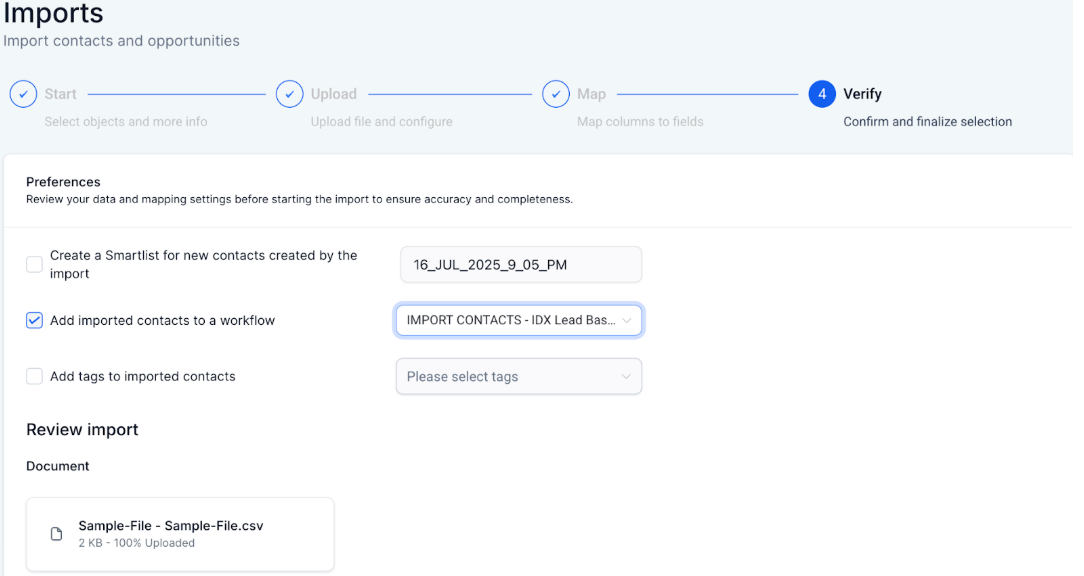
📝Step 1: Import Contacts using HighLevel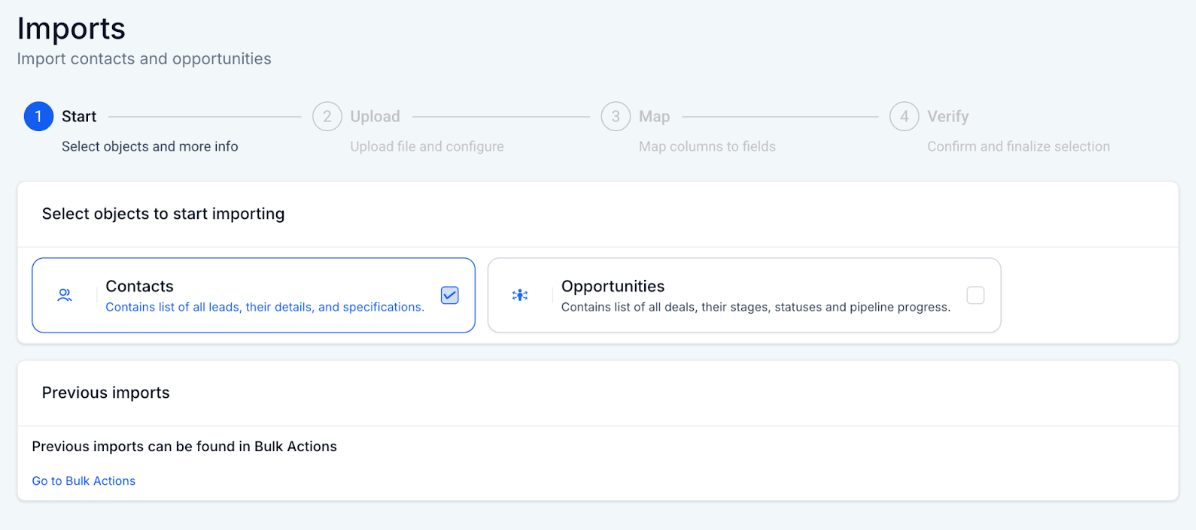 📝 Step 2: Use the Sample-File.csv provided by HighLevel to import contacts using a CSV file
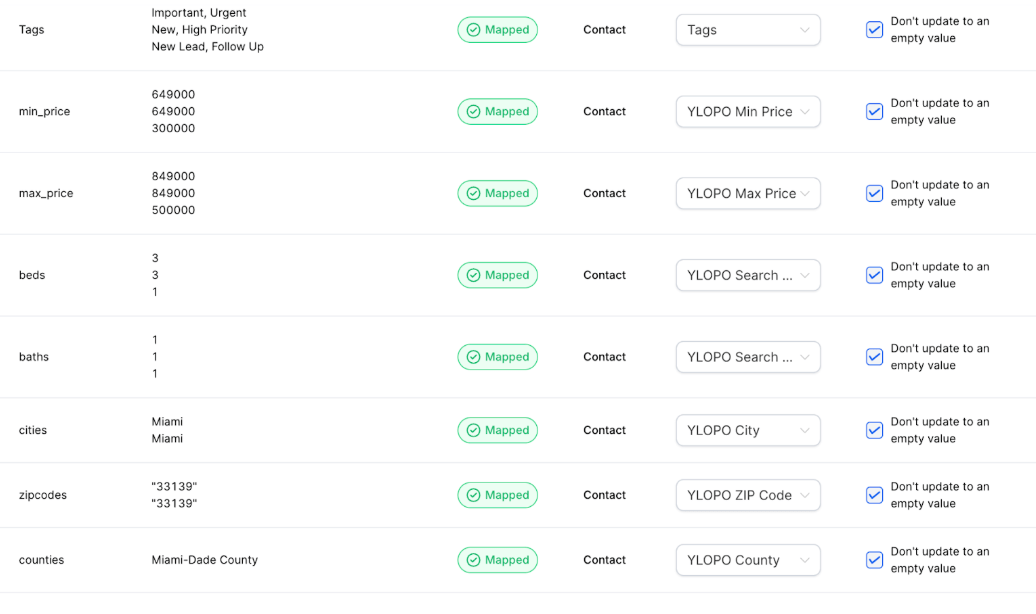
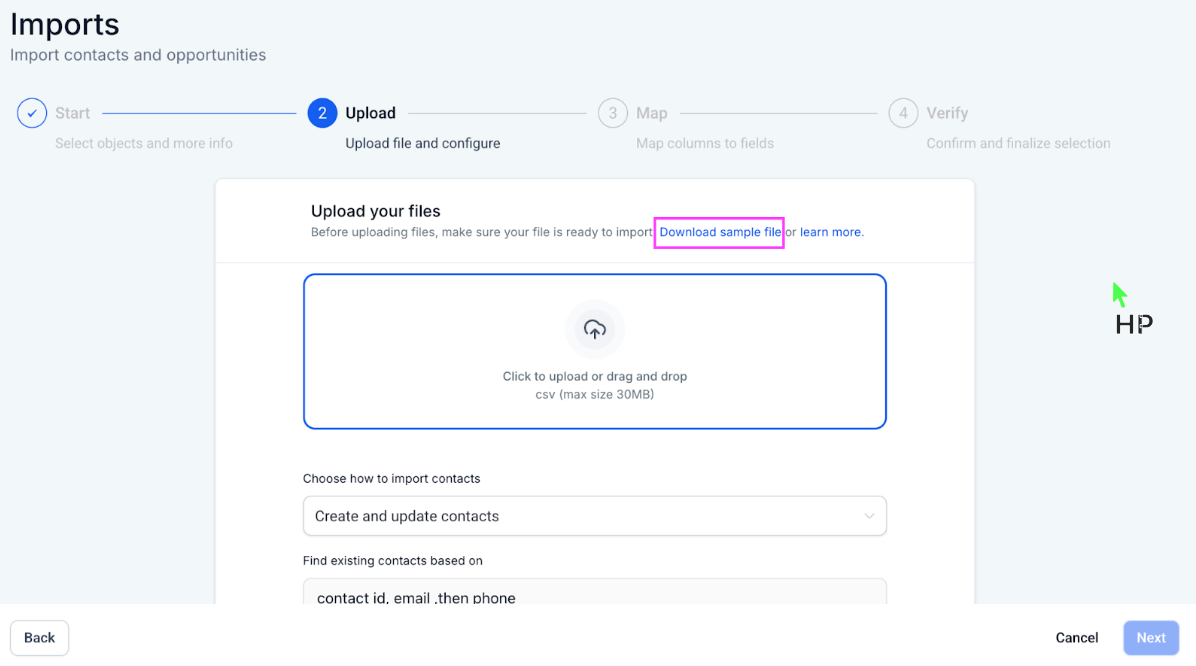 🌟 Step 3: Add the columns related to the saved search criteria:

- min_price
- max_price
- beds
- baths
- cities
- zipcodes
- counties
⚠️ Important Only include city, county OR ZIP Code.
🎨 Step 4: Clean data in the CSV file- Remove double quotes in zipcode
- Remove the word “County” in the counties column
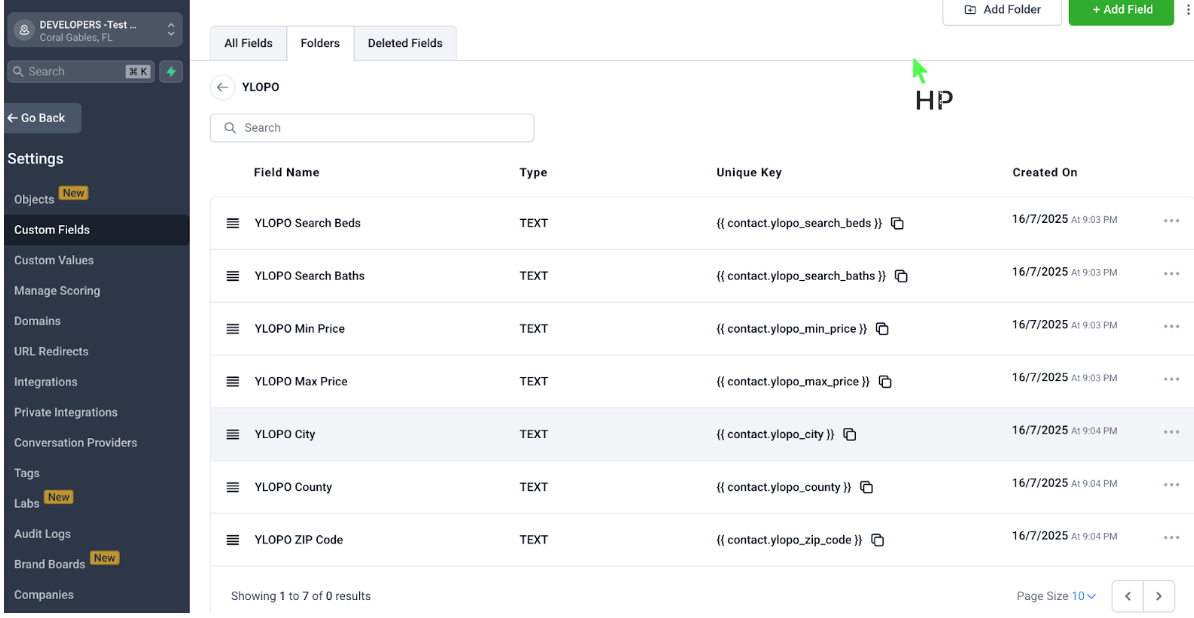 🔗 Step 6: Create the workflow to send GHL contacts to IDX Broker
This workflow will send the contacts to IDX Broker and create a saved search for them using the CRM search criteria passed in the custom fields.
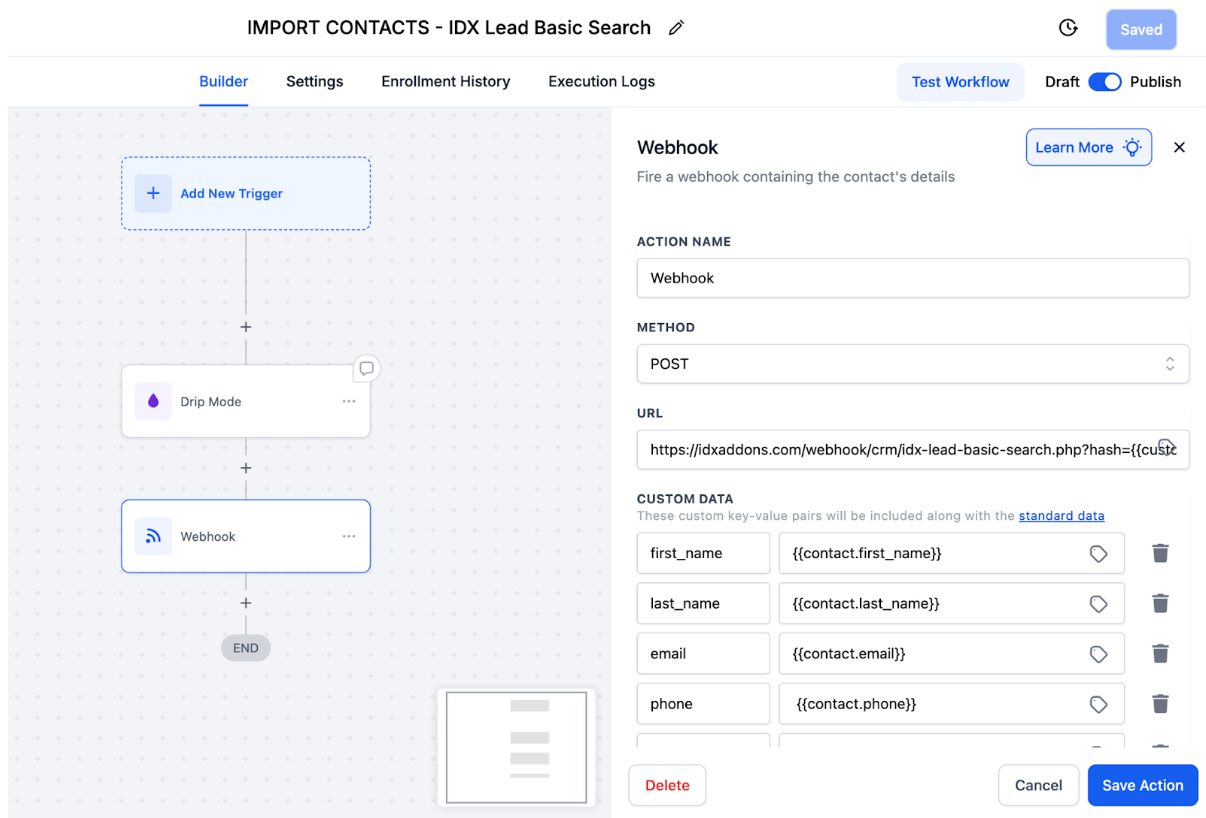
⚠️ Important: Add a Drip action to avoid sending all the contacts at the same time. If this is not done, your IDX Broker account will reach out the API Limit access per hour, incurring several errors.
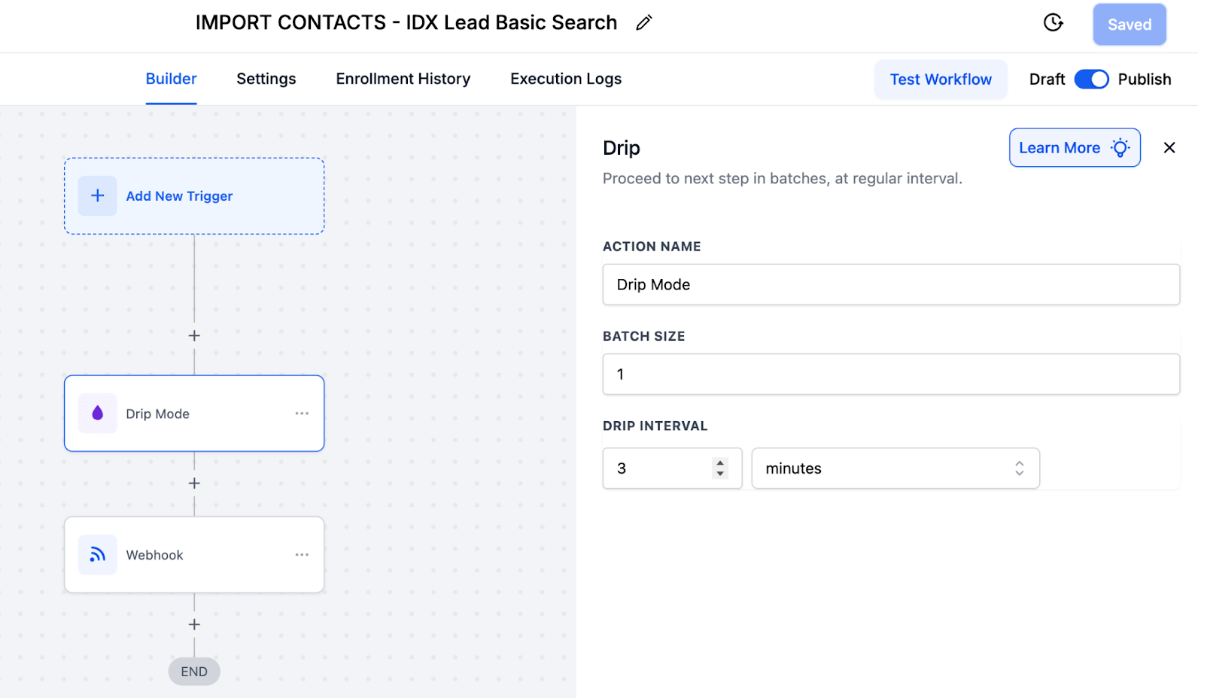 Webhook URL:
https://idxaddons.com/webhook/crm/idx-lead-basic-search.php?hash={{custom_values.idxaddons_hash}}
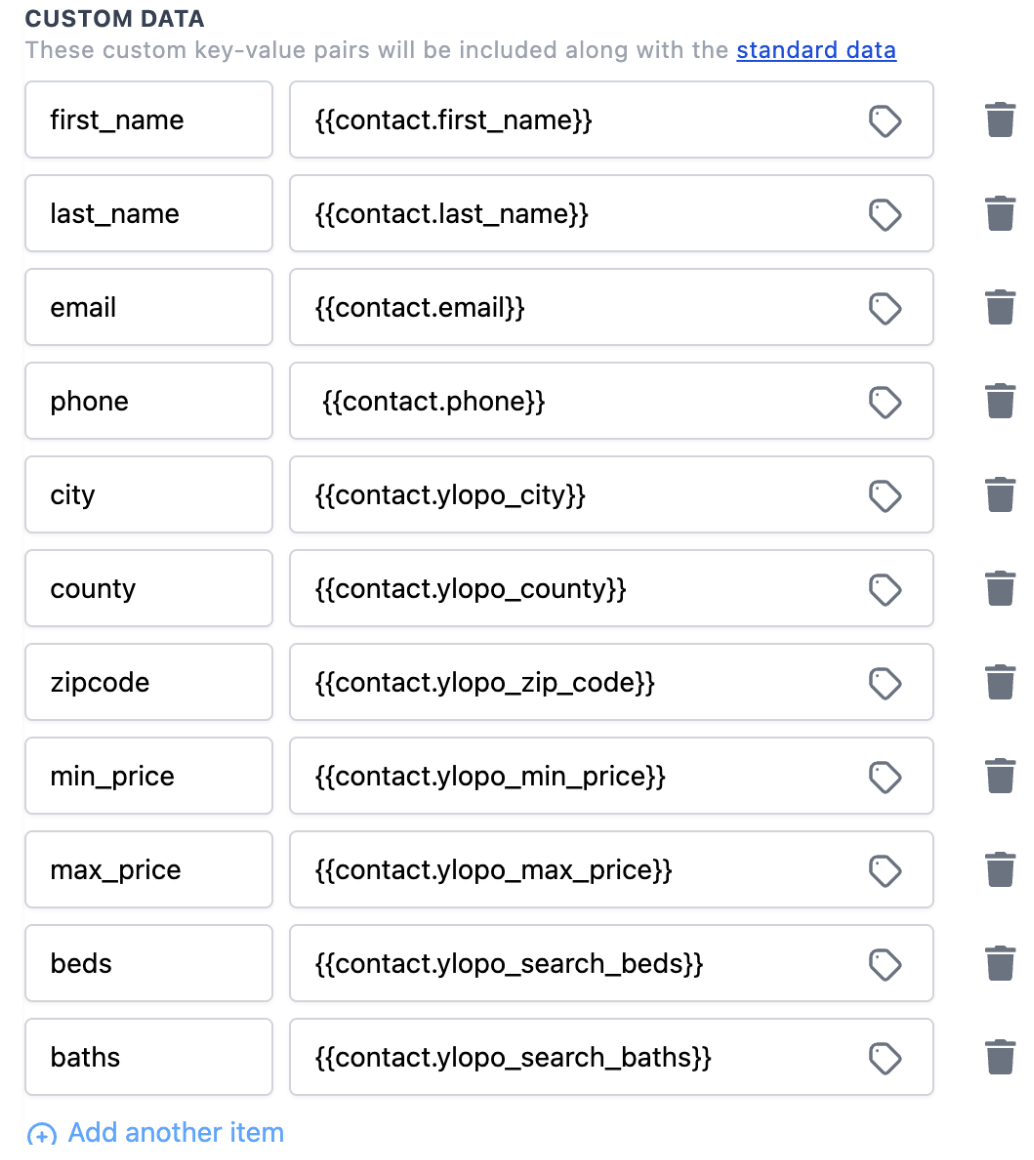
Custom Data:You will pass the following fields with the new custom fields that will store the CRM search criteria
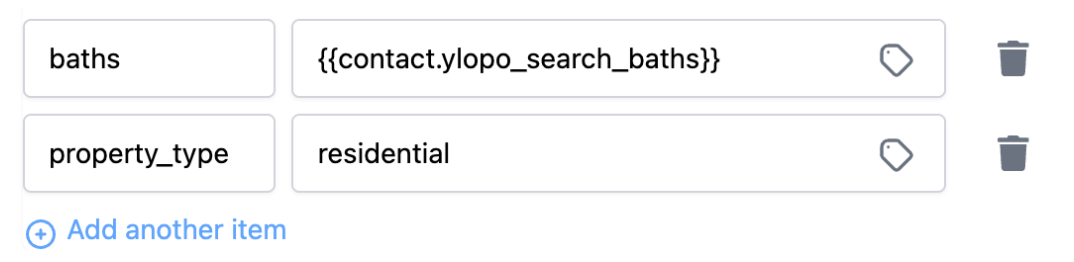
⚠️ Important: If the spreadsheet provided by your CRM doesn't include a column that indicates the property type, you can set up a default property type like residential, add this as a new custom data field:
 🛠 Step 7: Now let’s import the contacts by uploading the CSV file
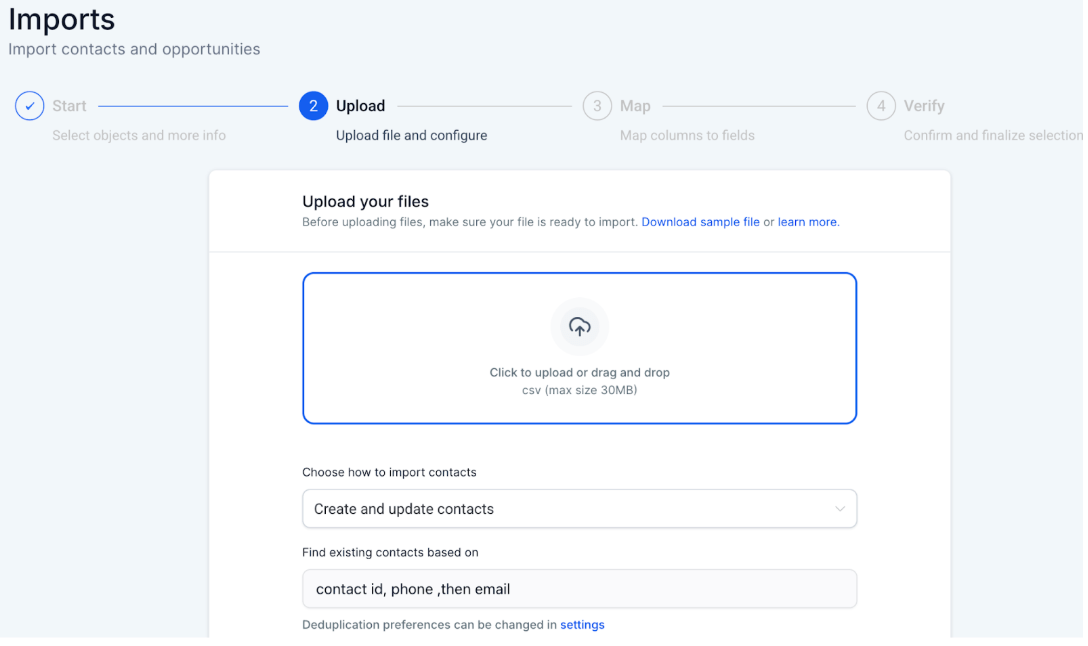 🛠 Step 8: Map the extra CRM columns that store the search criteria with the new HighLevel custom fields
 🛠 Step 9: Trigger the Import Contacts workflow so the contacts are sent to IDX Broker