-
Access the Platform
Log in to your IDXAddons Platform Account
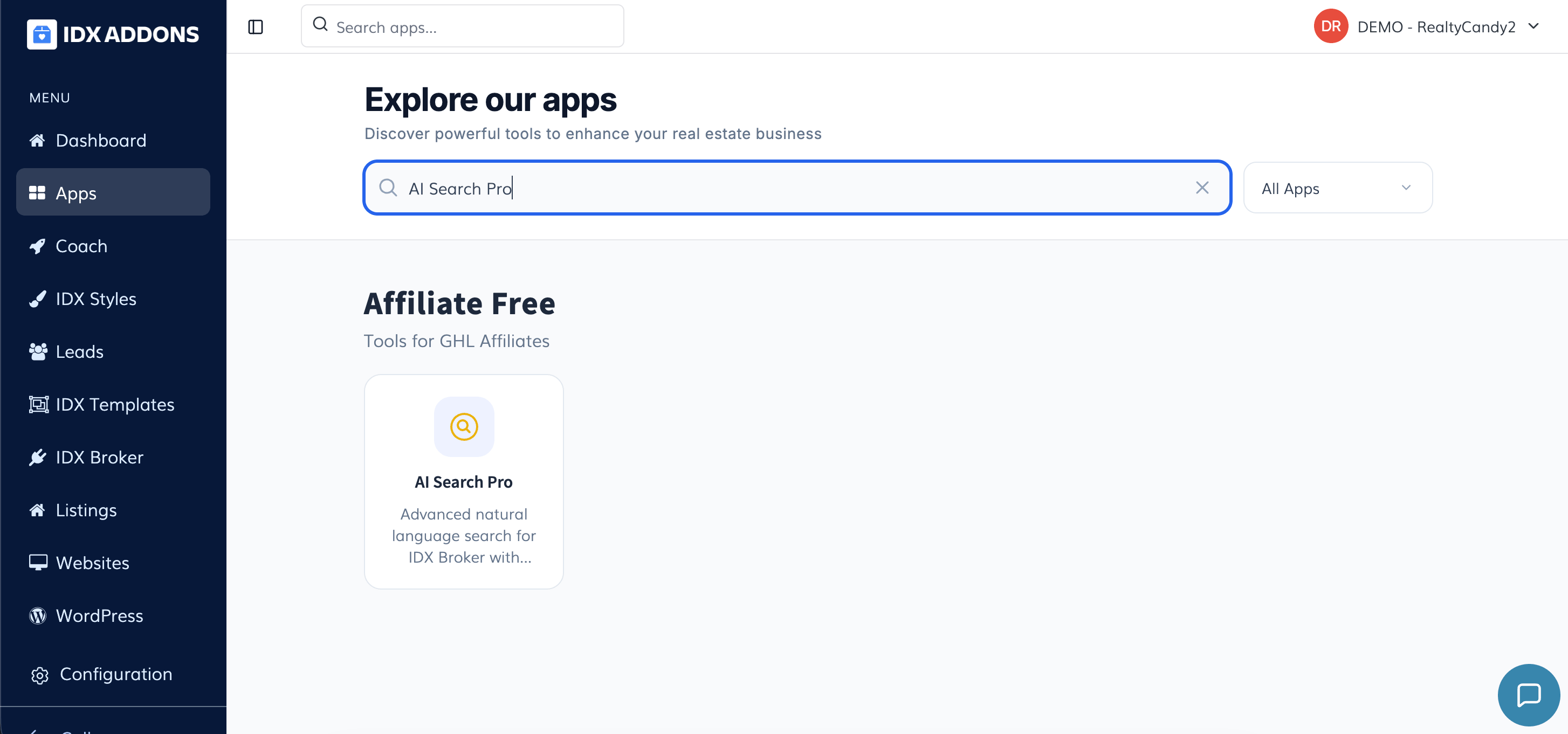
In the main menu, select the AI Search Pro App option.
-
Introduction
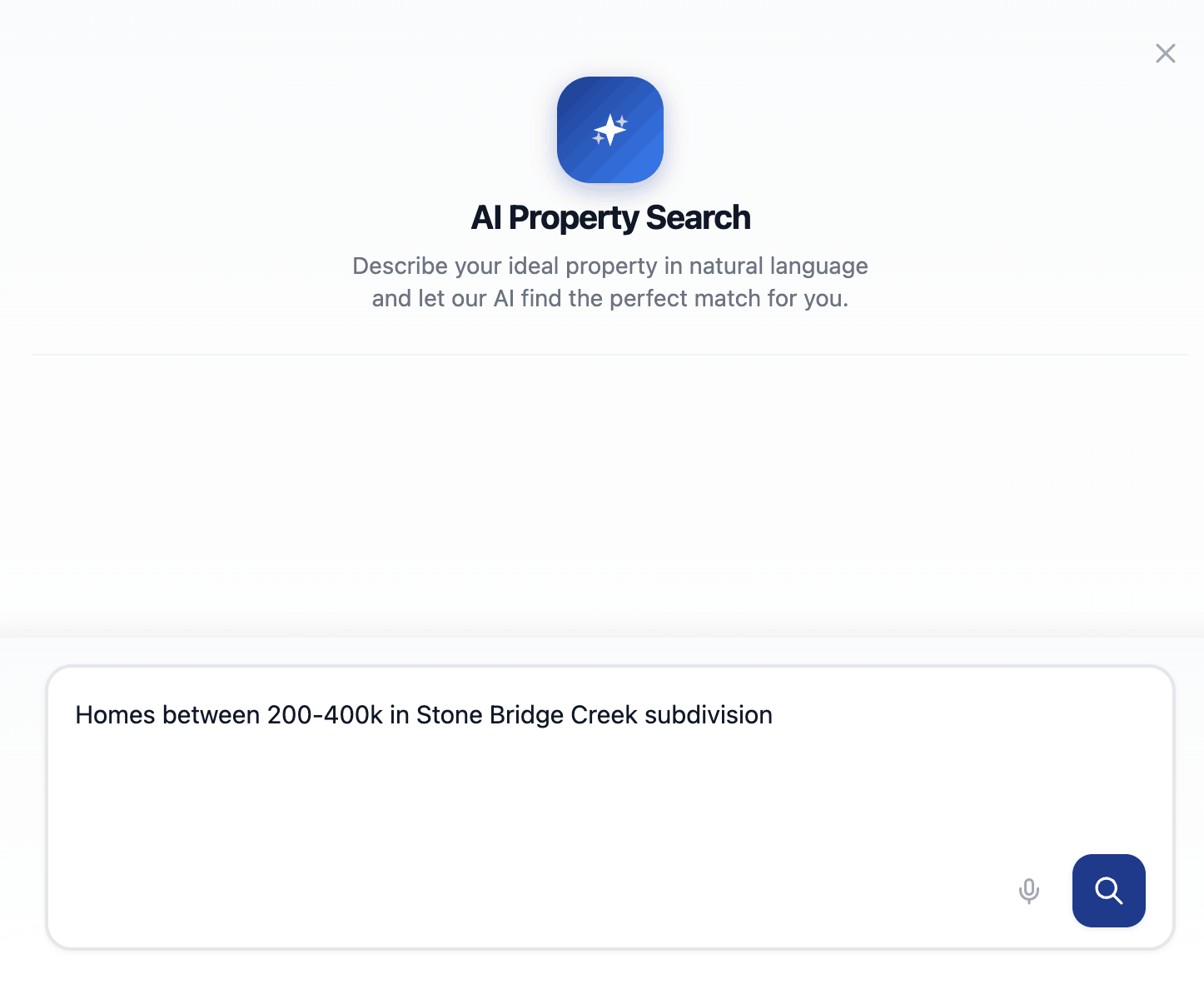
The AI Search Pro app allows your leads to use natural language to find properties more intuitively. This guide will walk you through how to set up, monitor usage, and customize the design to match your brand.
-
Setup Tab
In the Setup tab, you'll find the code snippet needed to enable the widget on your site. Simply copy the script and paste it into your website's HTML or through your platform’s custom code injection area.
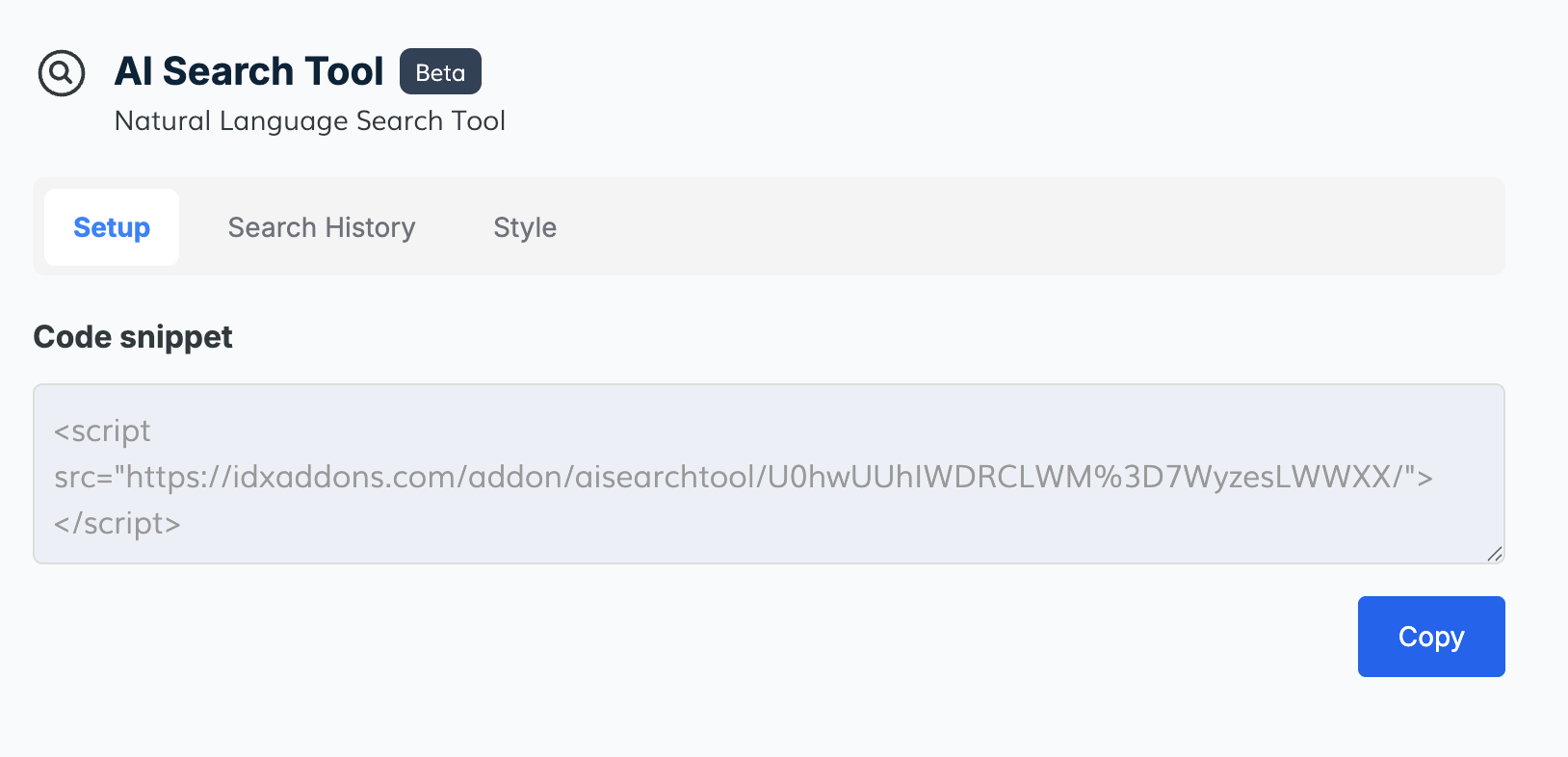
Make sure to place the snippet on every page where you want the AI Search bar to appear.
-
Search History Tab
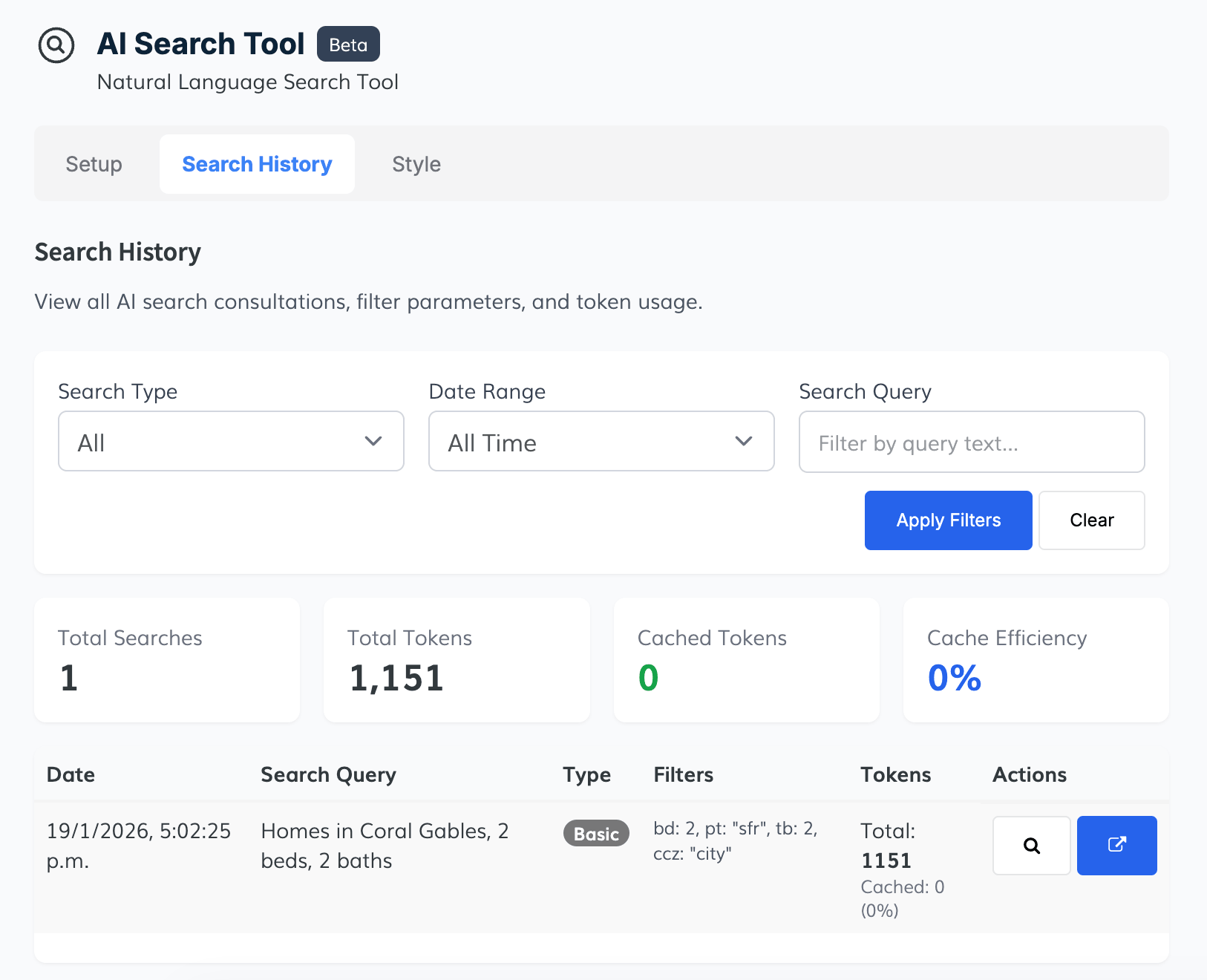
The Search History tab gives you a full overview of how your visitors are interacting with the AI search widget:
- Total Searches: Number of natural language queries submitted.
- Total Tokens: Total OpenAI tokens used.
- Cached Tokens: Indicates how many tokens were saved by reusing previously processed queries.
- Cache Efficiency: Shows the percentage of cached tokens to improve performance.
You can filter the search logs by:
- Type: (e.g., Basic, Advanced)
- Date Range: (Last 7 days, This Month, All Time)
- Search Query: (filter results by keyword)
Each record includes:
- Date & Time of the query
- Search Query submitted by the user
- Type of request
- Filters auto-generated from the query (e.g., bedrooms, city, property type)
- Token Usage
- Actions to preview the search or open the link in a new tab
This section is key to understanding how users are engaging with your search tool.
-
Style Tab
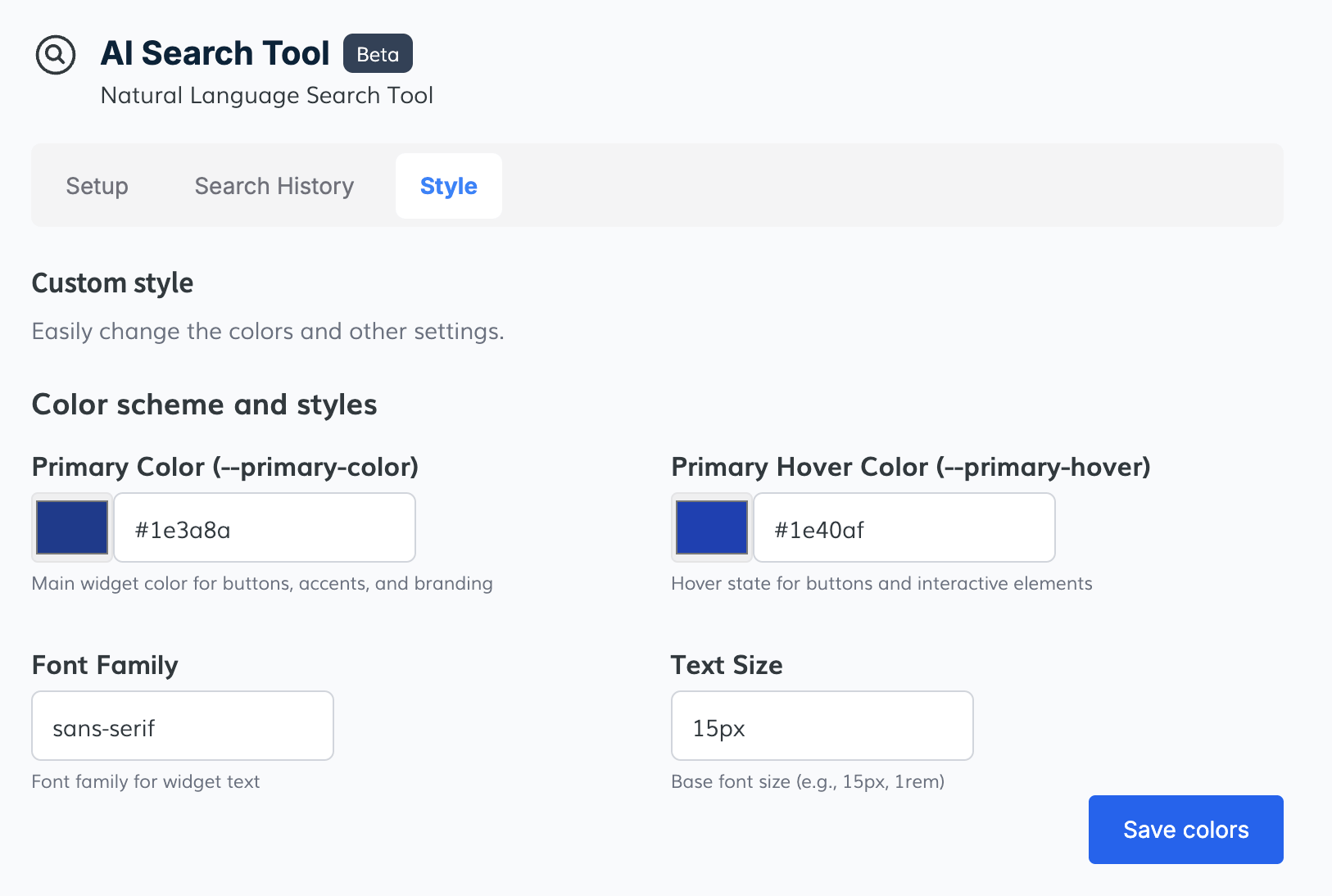
Use the Style tab to customize the visual appearance of the AI Search widget and seamlessly integrate it with your brand:
Color Scheme and Styles- Primary Color – Sets the main color used for buttons, highlights, and branding.
- Primary Hover Color – Defines the color when users hover over interactive elements.
- Font Family – Choose the font family for the widget's text.
- Text Size – Set the base font size using values like 14px, 15px, or 1rem.
Use this section to ensure that the widget aligns visually with your website’s design and accessibility standards.
-
Use the App
To start using the AI Search Pro widget:
- Go to the Setup tab and copy the code snippet.
- Paste it on your website where you want the AI Search bar to appear.
- Customize the Style tab to match your brand.
- Track all searches and token usage via the Search History tab.
The AI Search Pro app turns regular search into a conversational experience—making it easier for leads to find exactly what they're looking for.