-
Access the app
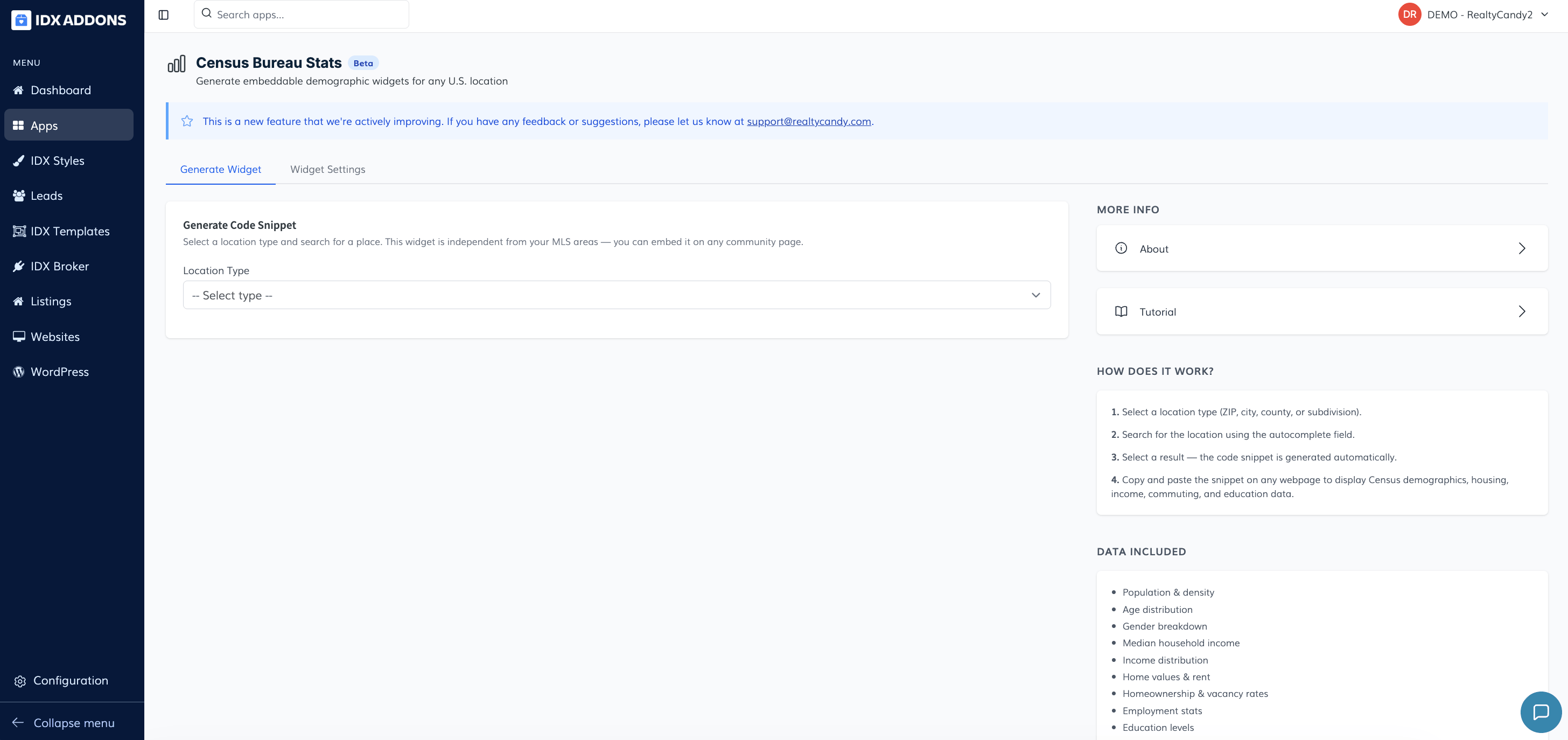
Log in to your IDXAddons account and open Census Bureau Stats from the Apps section.
Inside the app, you will see two tabs: Generate Widget and Widget Settings. The first tab is used to create the script snippet, and the second tab controls the global design of the widget.
-
Generate the widget
Open the Generate Widget tab. This is where you define the area you want to analyze and where the app generates the final embed code.
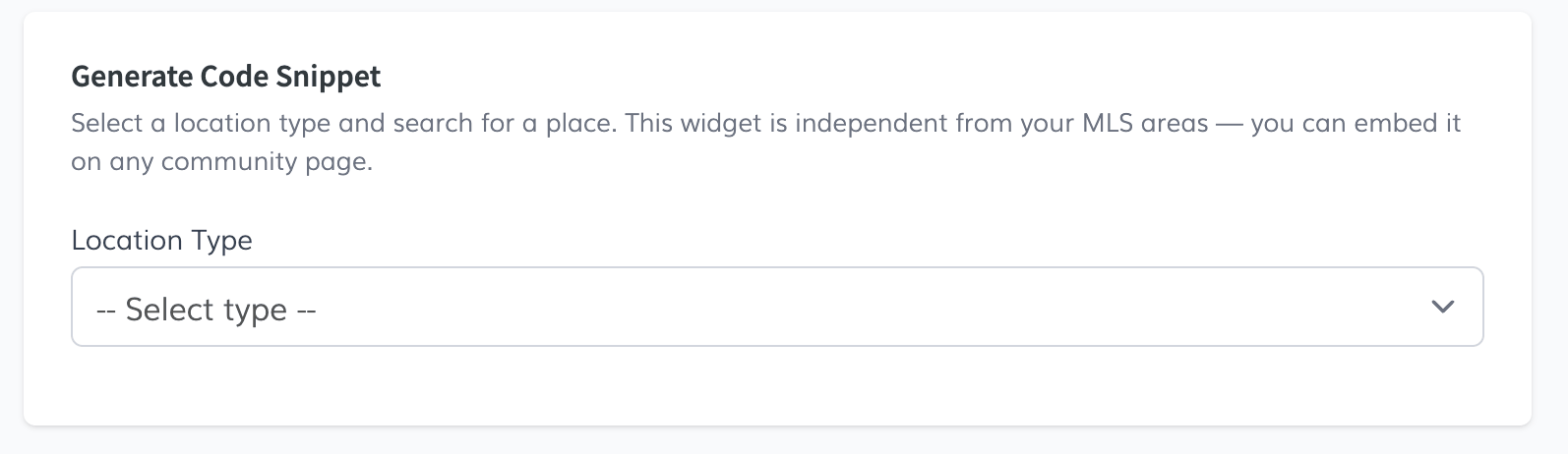
You will first see a Location Type dropdown and then a search field that updates based on your selection.
-
Choose a location type
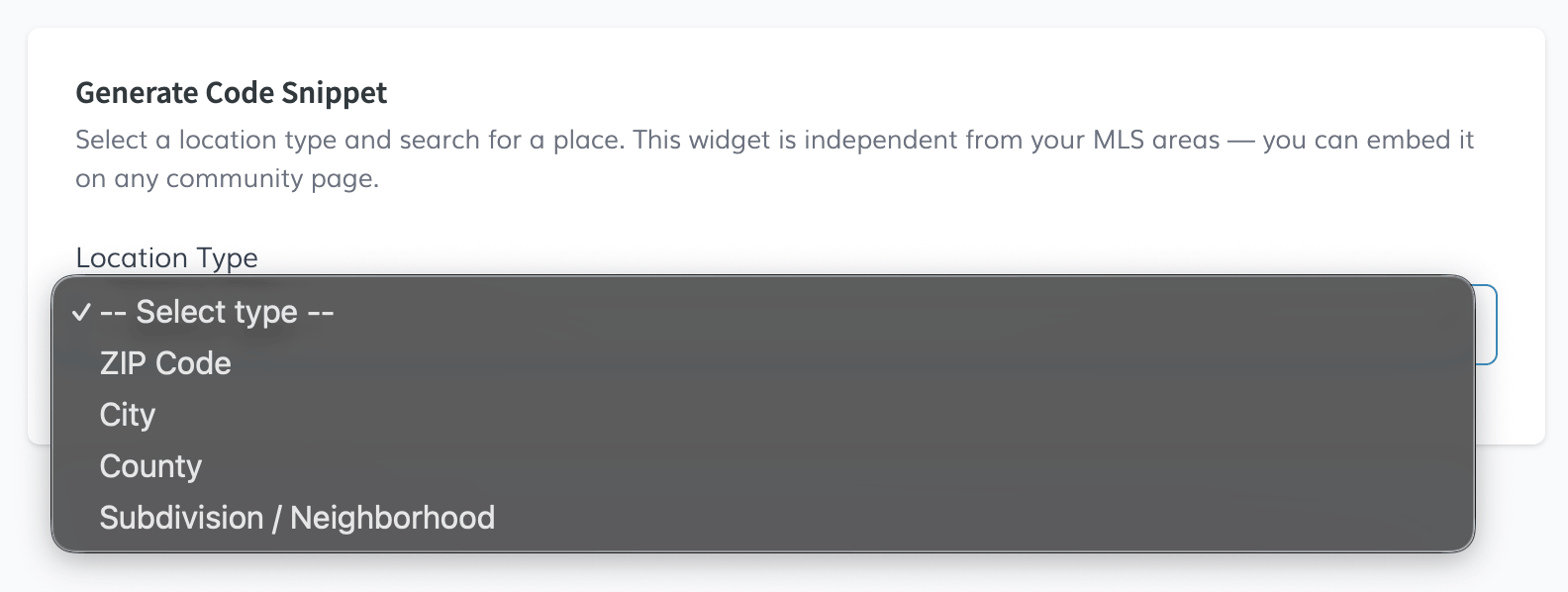
Select the location type that best matches the page where you want to place the widget:
- ZIP Code: Best for postal-code pages or local landing pages organized by ZIP.
- City: Best for city guide pages or broader market overview pages.
- County: Useful for county-level market pages.
- Subdivision / Neighborhood: Best when you want to show a custom neighborhood name, even though the Census lookup still relies on a real address.
After selecting the type, the app updates the instructions under the search input so you know what kind of address to enter.
-
Search and select an address
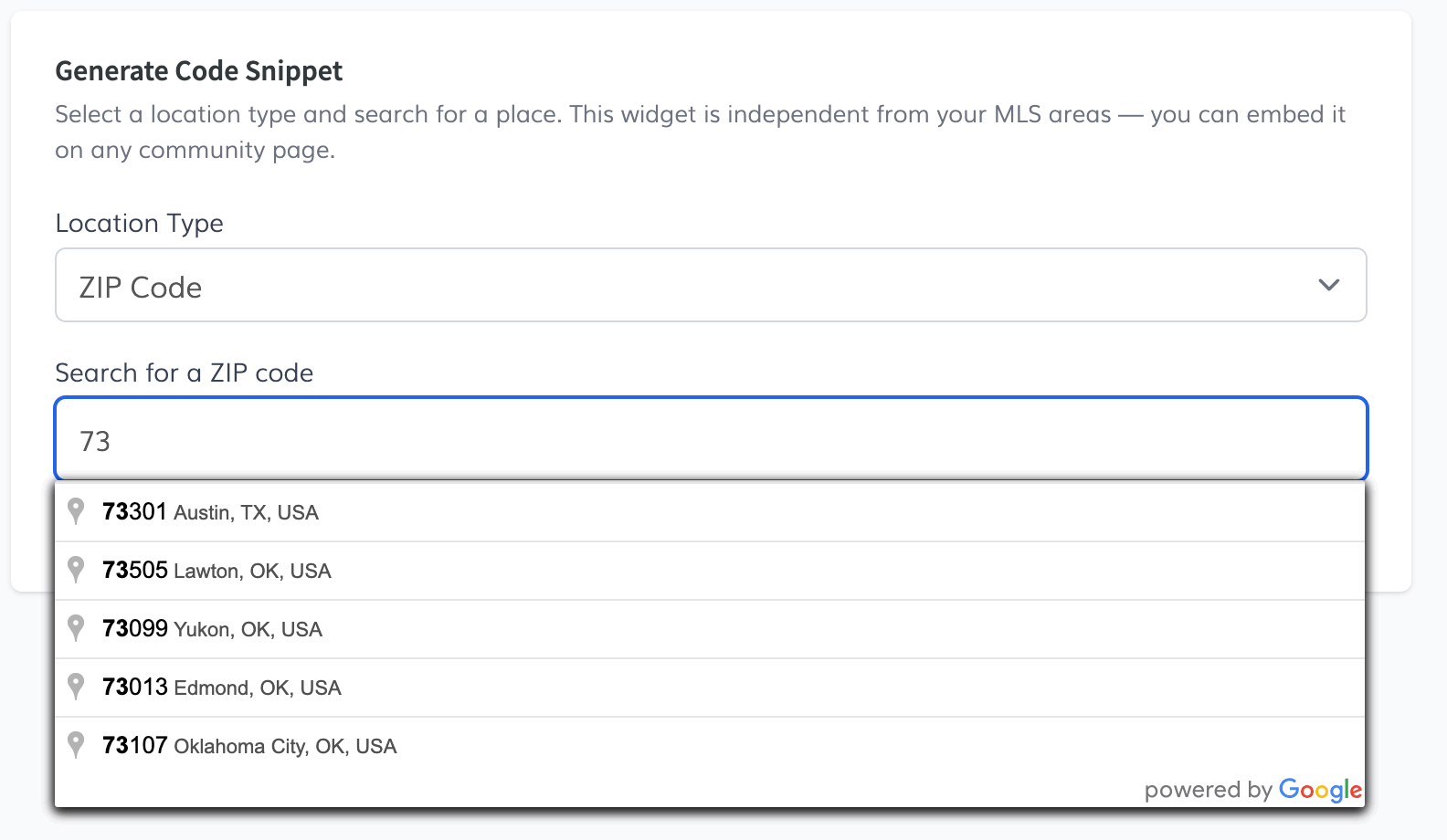
Use the autocomplete field to search for an address in the United States. The app uses that result to extract the details required for the Census request.
Depending on the location type, here is what to keep in mind:
- For ZIP Code, you can search a ZIP directly or select an address that contains the ZIP.
- For City and County, choose a complete address with house number and street when possible.
- For Subdivision / Neighborhood, enter the subdivision name first, then choose a matching address inside that area.
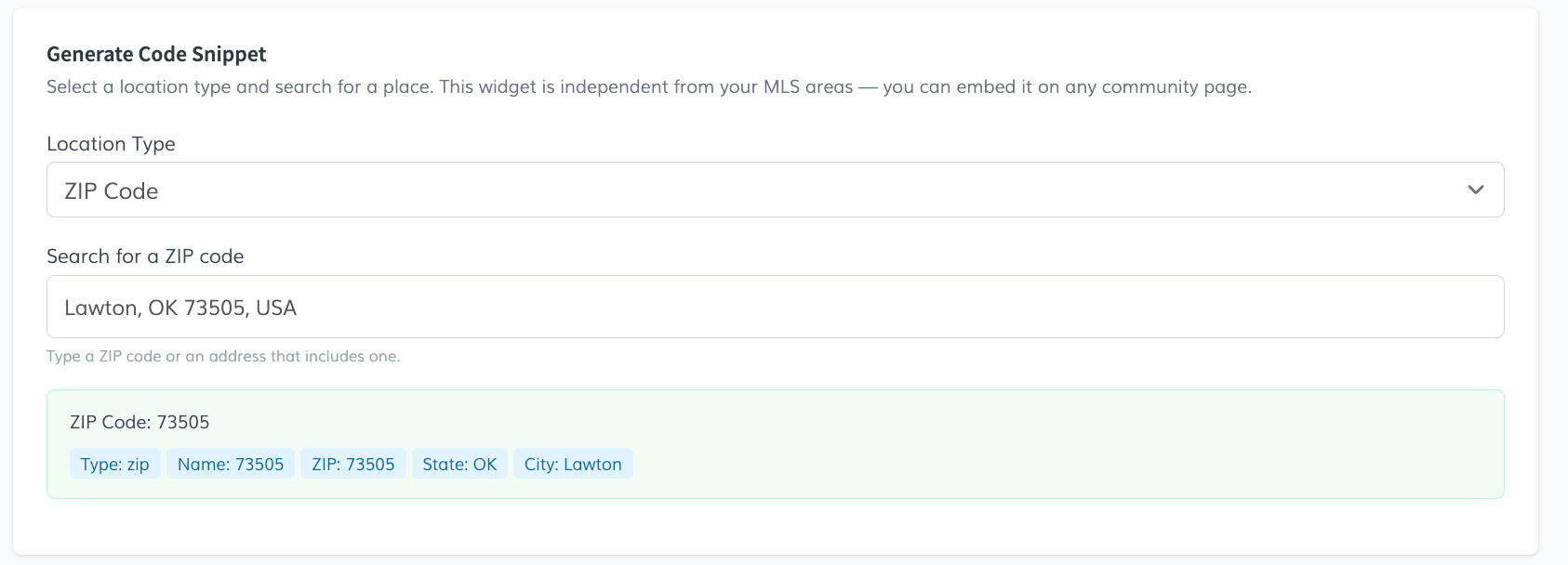
Once you select a result, the app shows a resolved preview with the final parameters it will use, such as type, name, state, ZIP, street, and city.
If the selected result is incomplete, the app may ask you to choose a more detailed address.
-
Copy the snippet
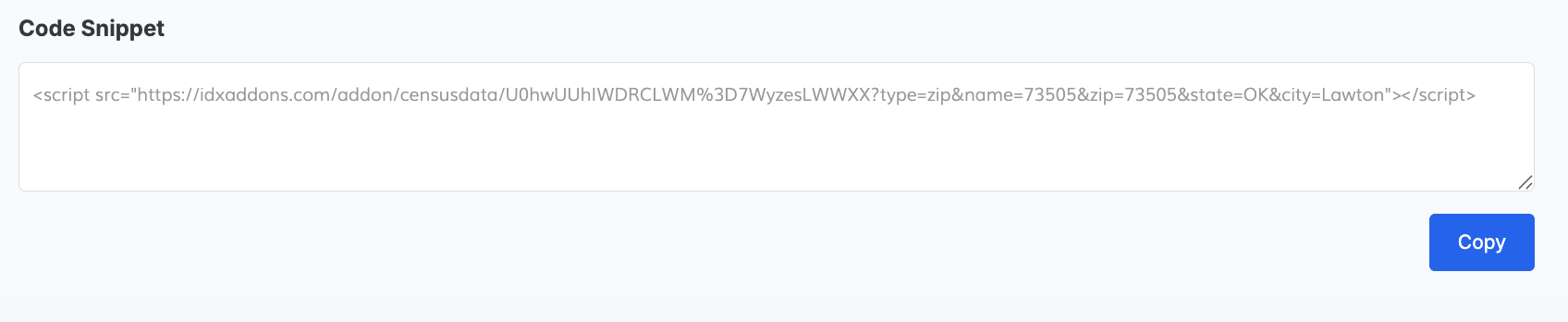
Once the location is resolved, the app automatically generates a script snippet in the Code Snippet box.
Click Copy to send the code to your clipboard, then paste it into the page, widget area, custom HTML block, or builder section where you want the Census widget to appear.
This snippet is what actually renders the Census Bureau widget on your site, so make sure you paste the full script exactly as generated.
-
Customize widget settings
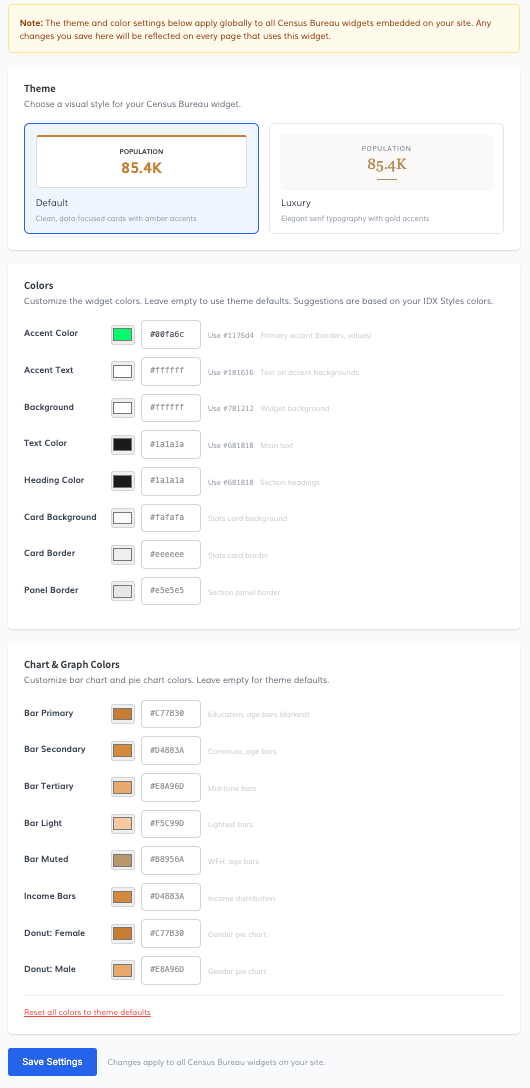
Open the Widget Settings tab to control the global look of all Census widgets on your site.
These settings are not per-widget. They affect every Census Bureau widget embedded for that client account.
- Choose between the Default and Luxury themes.
- Adjust the main colors for accent, background, text, headings, cards, and borders.
- Customize the chart colors for bars, income sections, and gender charts.
- Use the suggested IDX colors when you want the widget to match your existing site design.
- Use Reset all colors to theme defaults if you want to start over.
After making your changes, click Save Settings. Any updates saved here will apply automatically to all Census Bureau widgets you have already embedded.
-
What you can show and where to use it
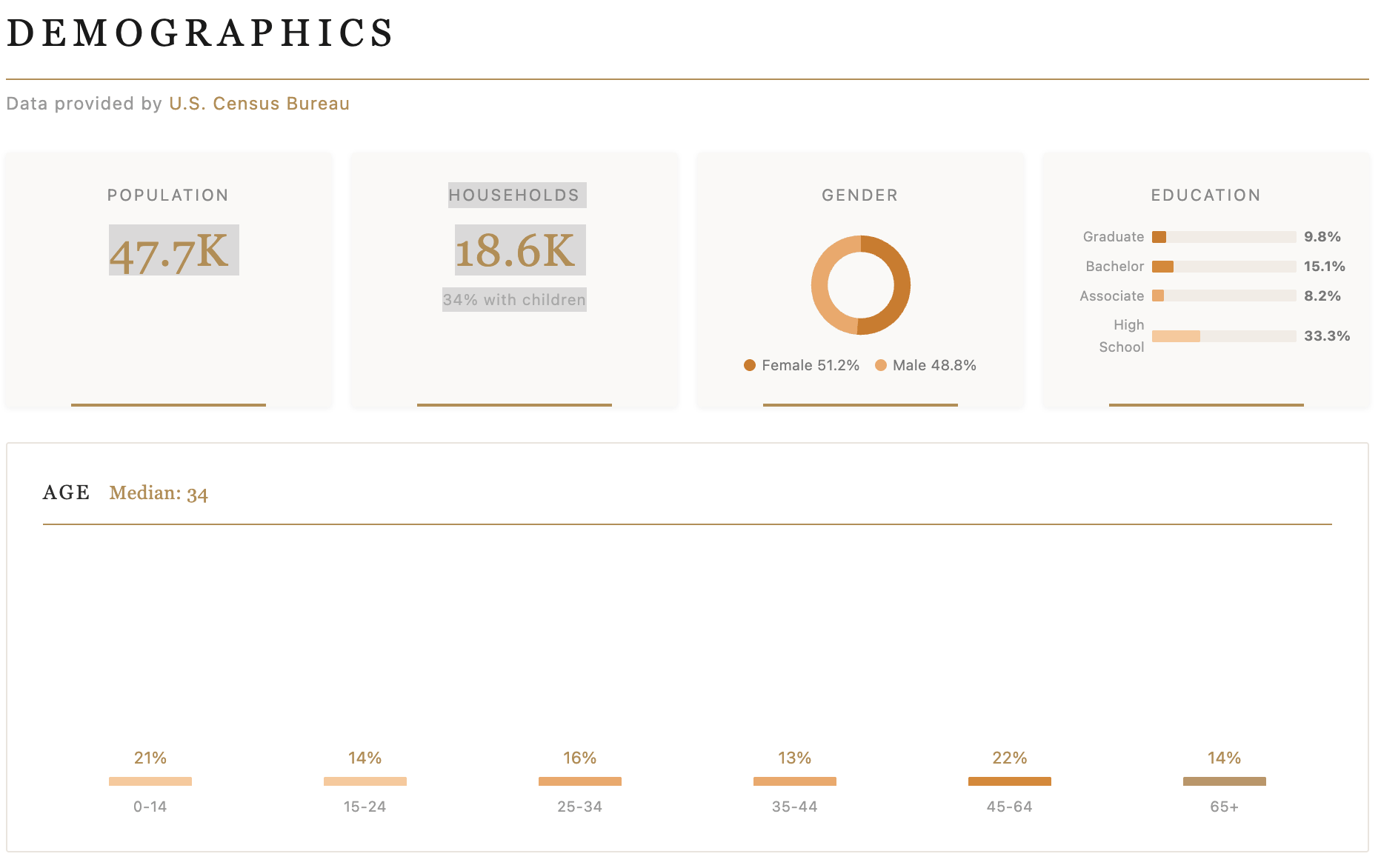
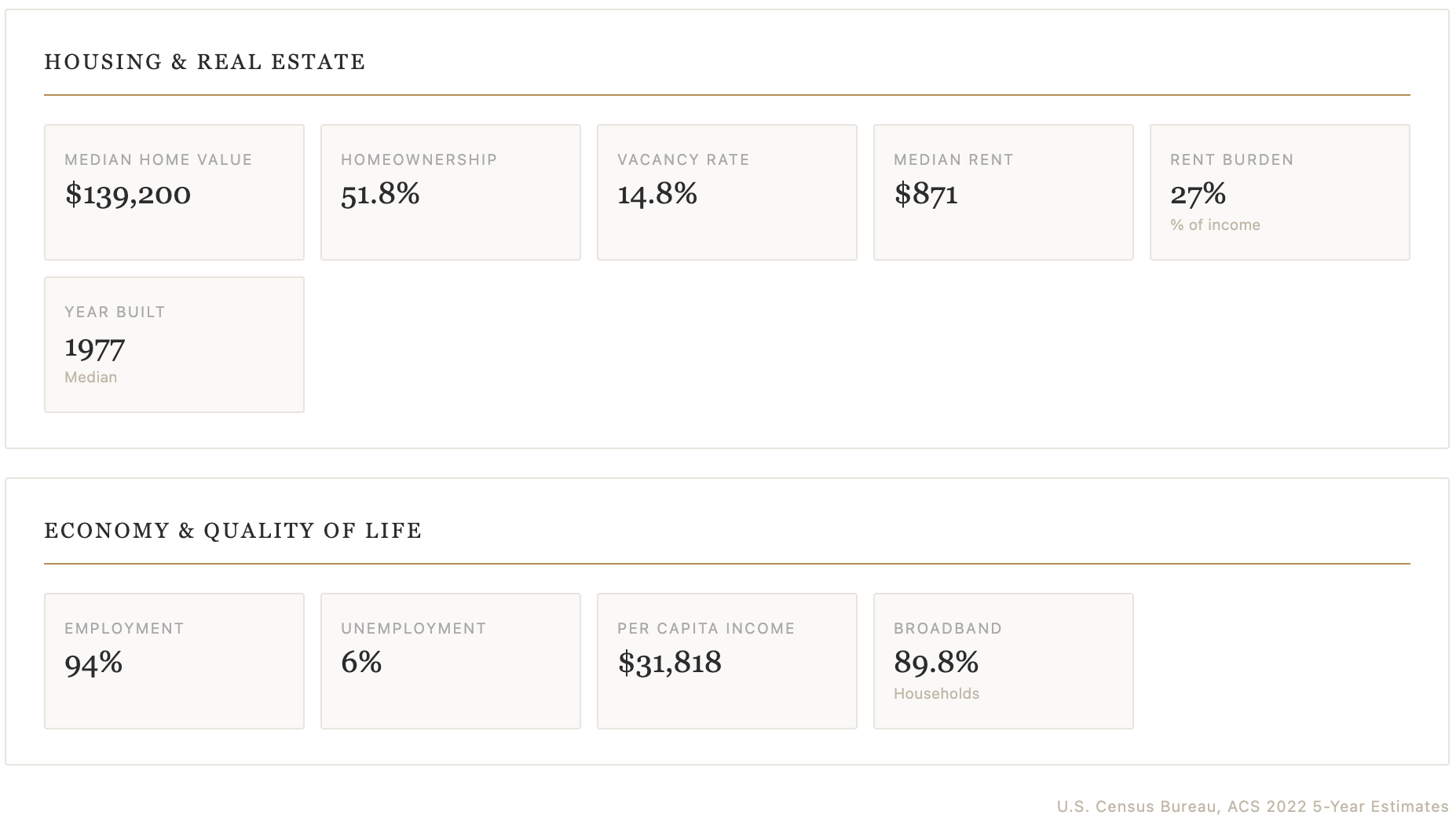
The Census Bureau widget is useful when you want to add extra context to a page, not just listings. It helps explain what an area looks like from a demographic and lifestyle perspective.
Based on the app, the widget can display information such as:
- Population and density
- Age distribution
- Gender breakdown
- Median household income
- Income distribution
- Home values and rent
- Homeownership and vacancy rates
- Employment statistics
- Education levels
- Commuting patterns
You can integrate it on pages like:
- City pages
- ZIP code landing pages
- Neighborhood or subdivision pages
- Community guides
- Local market overview pages
- Area pages built around SEO content
A good use case is placing the widget below your intro copy or near listings, so visitors can understand both the homes in the area and the characteristics of the location itself.