-
Purpose
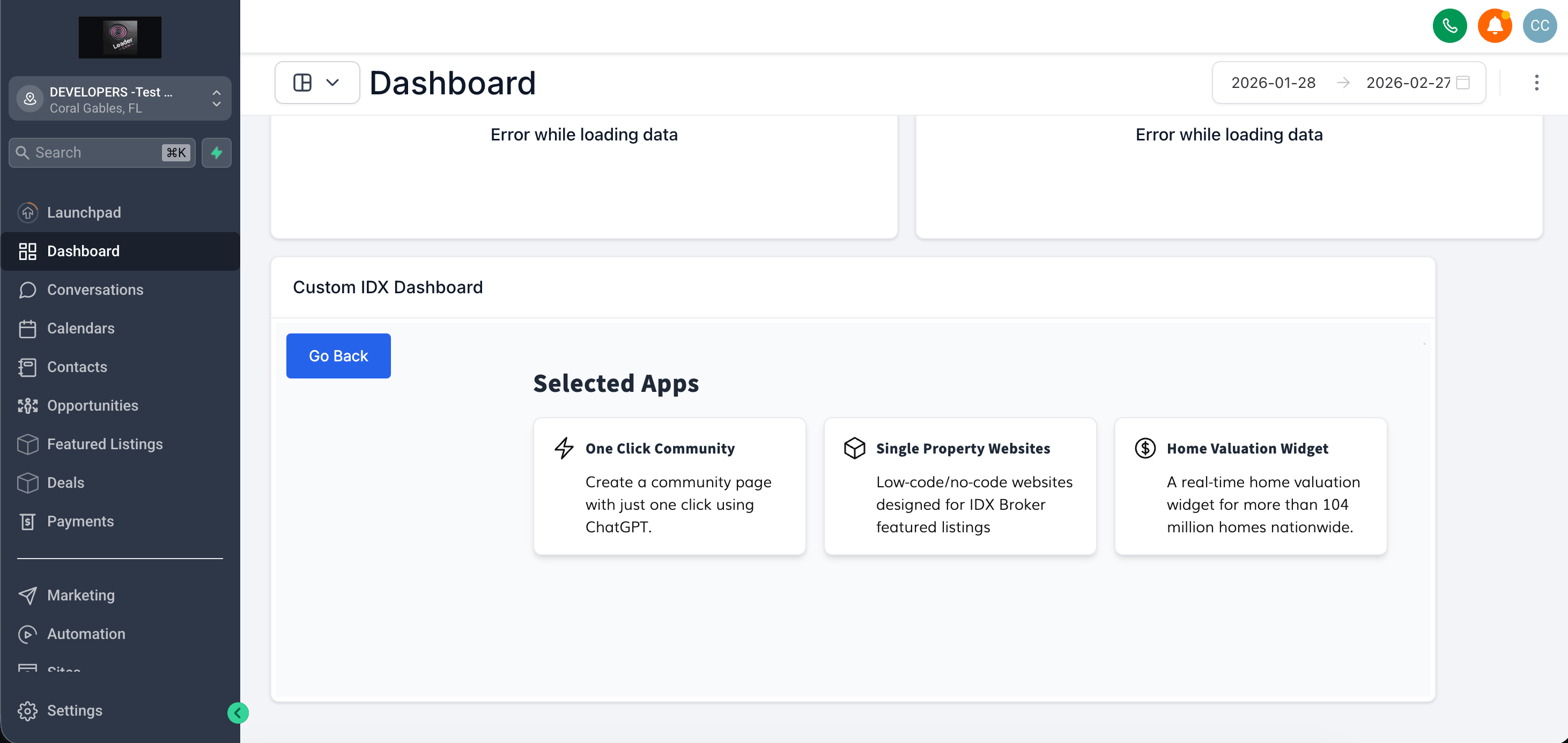
The Custom Dashboard app allows you to create your own custom dashboard by adding the apps you use the most.
-
Select the Apps for Your Custom Dashboard
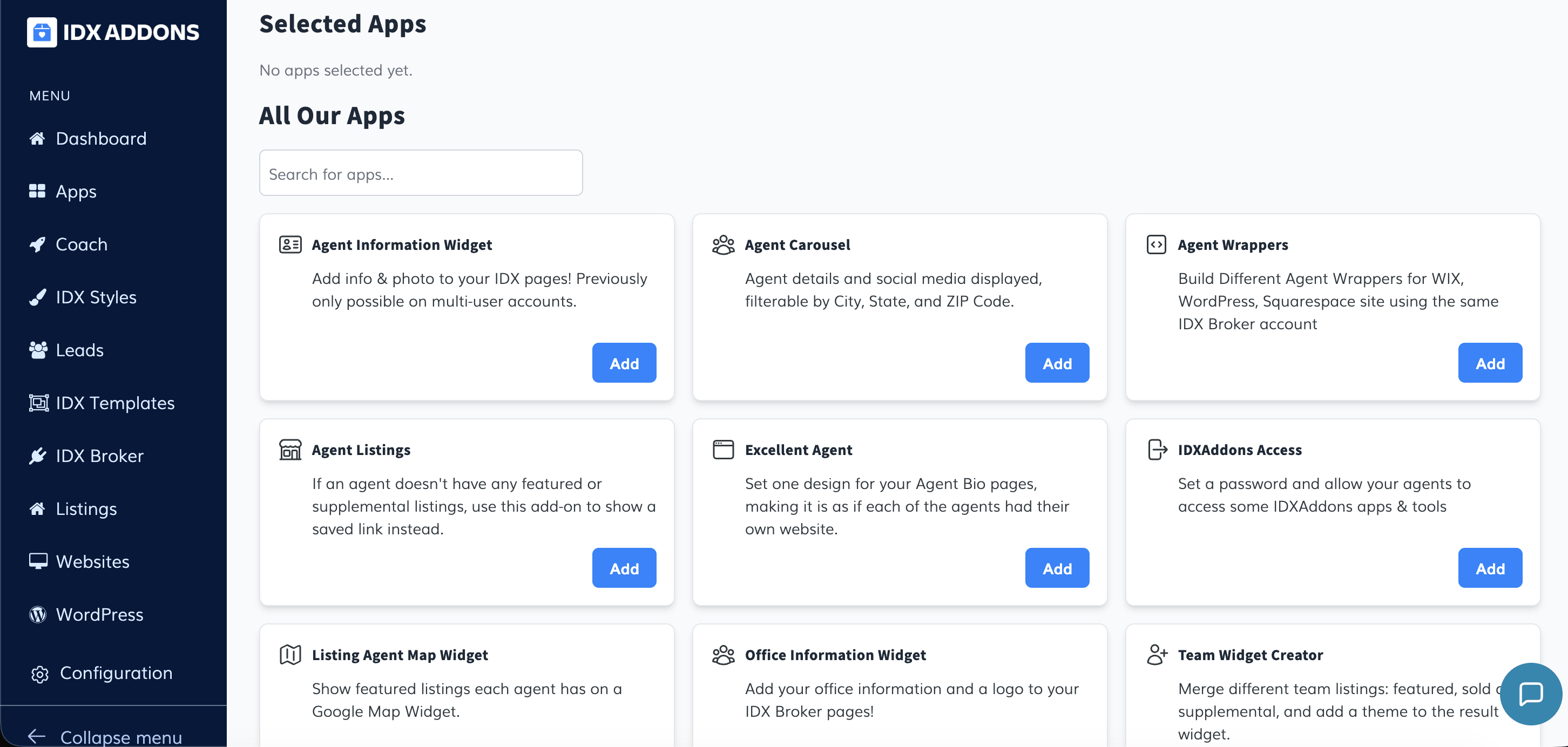
When entering the app, you must select the apps you want to have in your dashboard.
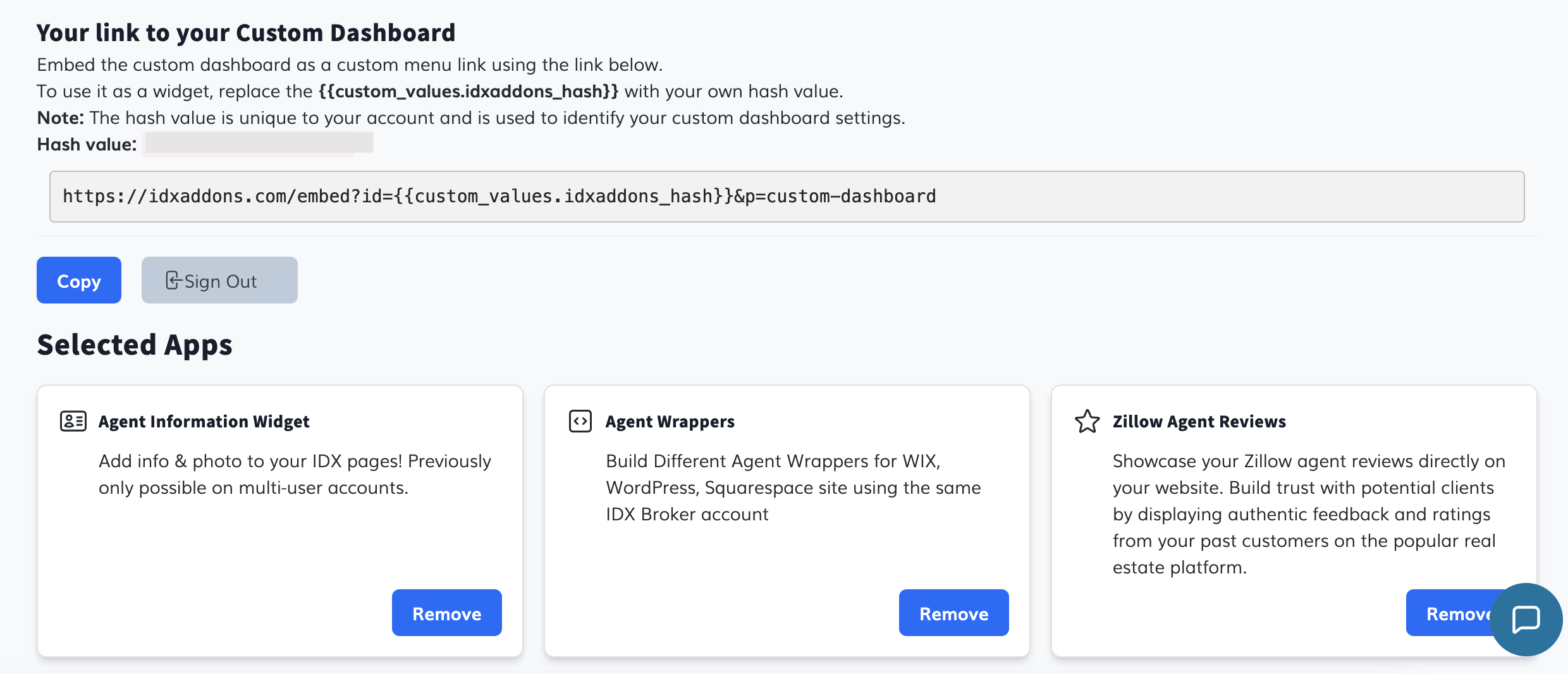
After selecting the apps, copy the Custom Dashboard link provided.
To use it as a widget, replace
{{custom_values.idxaddons_hash}}with your own hash value.Note: The hash value is unique to your account and is used to identify your Custom Dashboard settings.
-
Create a Custom Menu Link in HighLevel
Go to the HighLevel platform, you must log in as an agency.
In the left-side menu, scroll down and select Settings, located at the bottom of the menu.
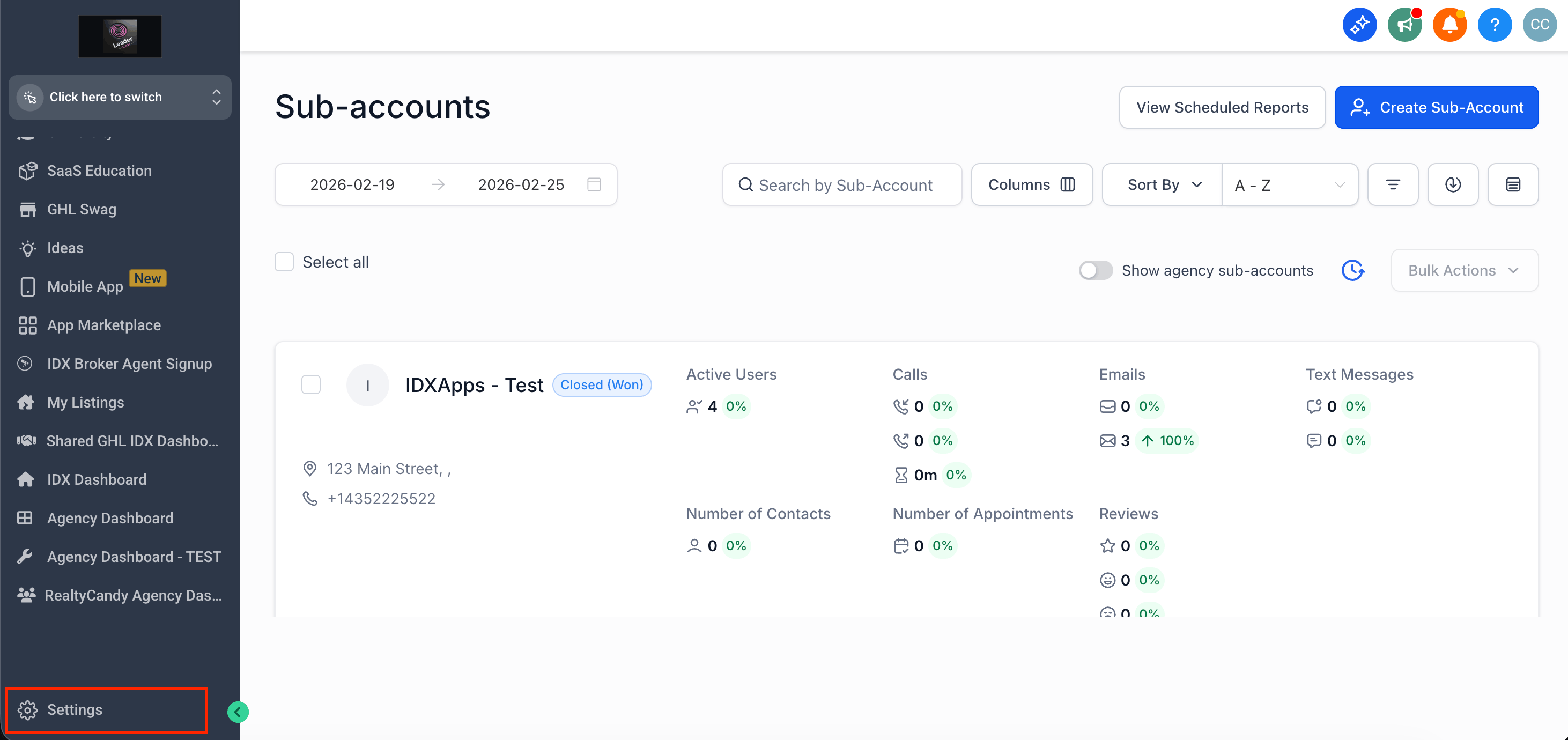
Then select Custom Menu Link.
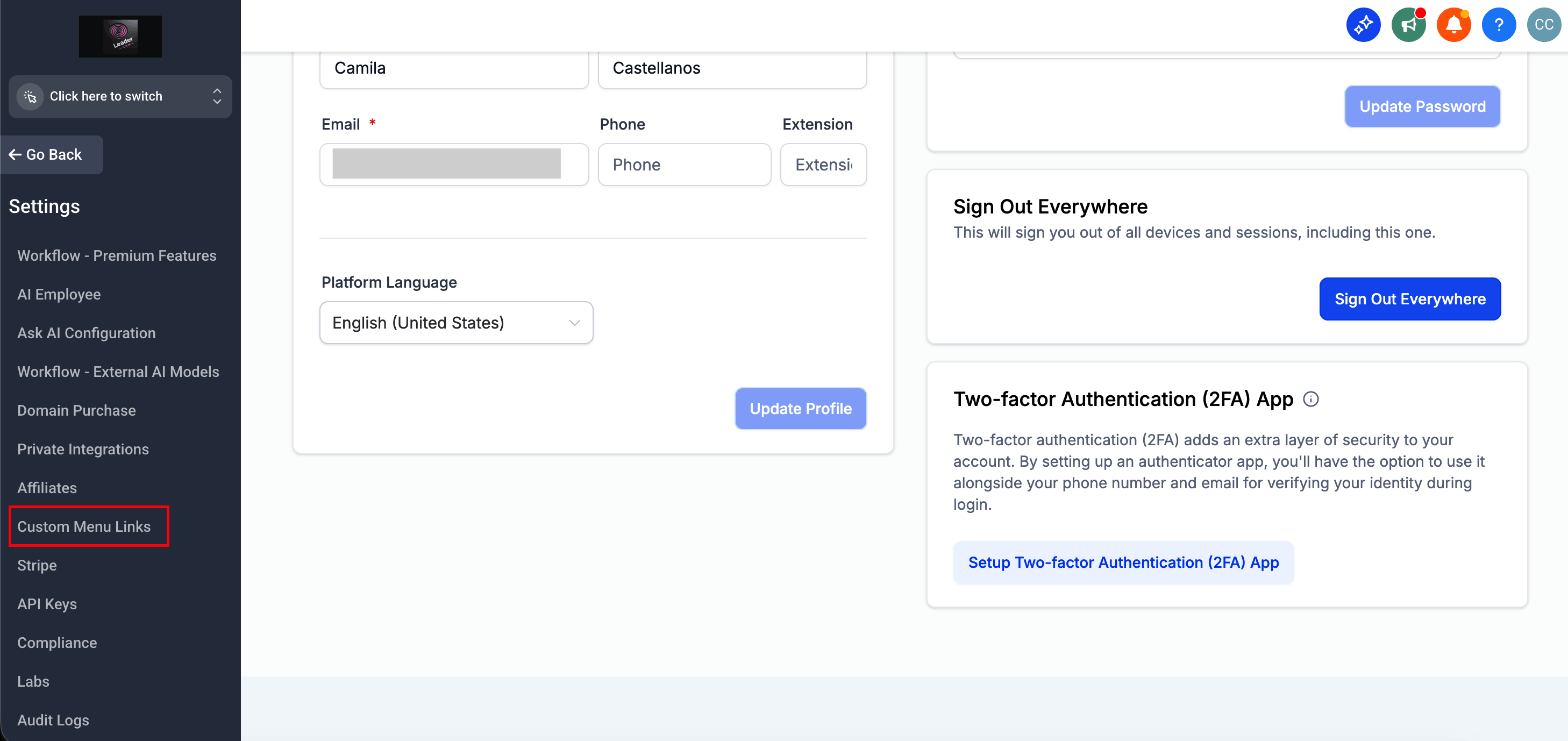
Inside the Custom Menu Link dashboard, click Create New. A popup window will open.
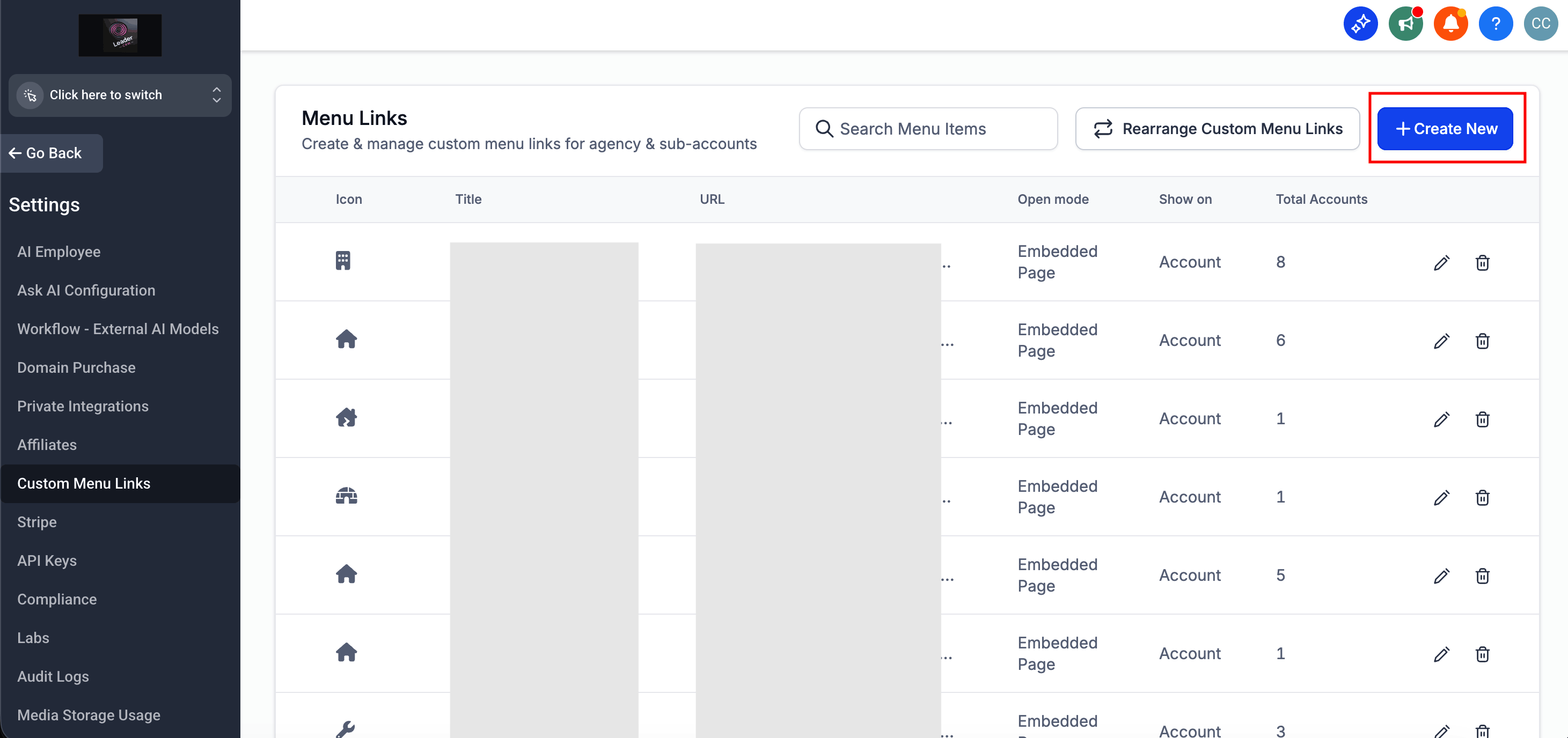
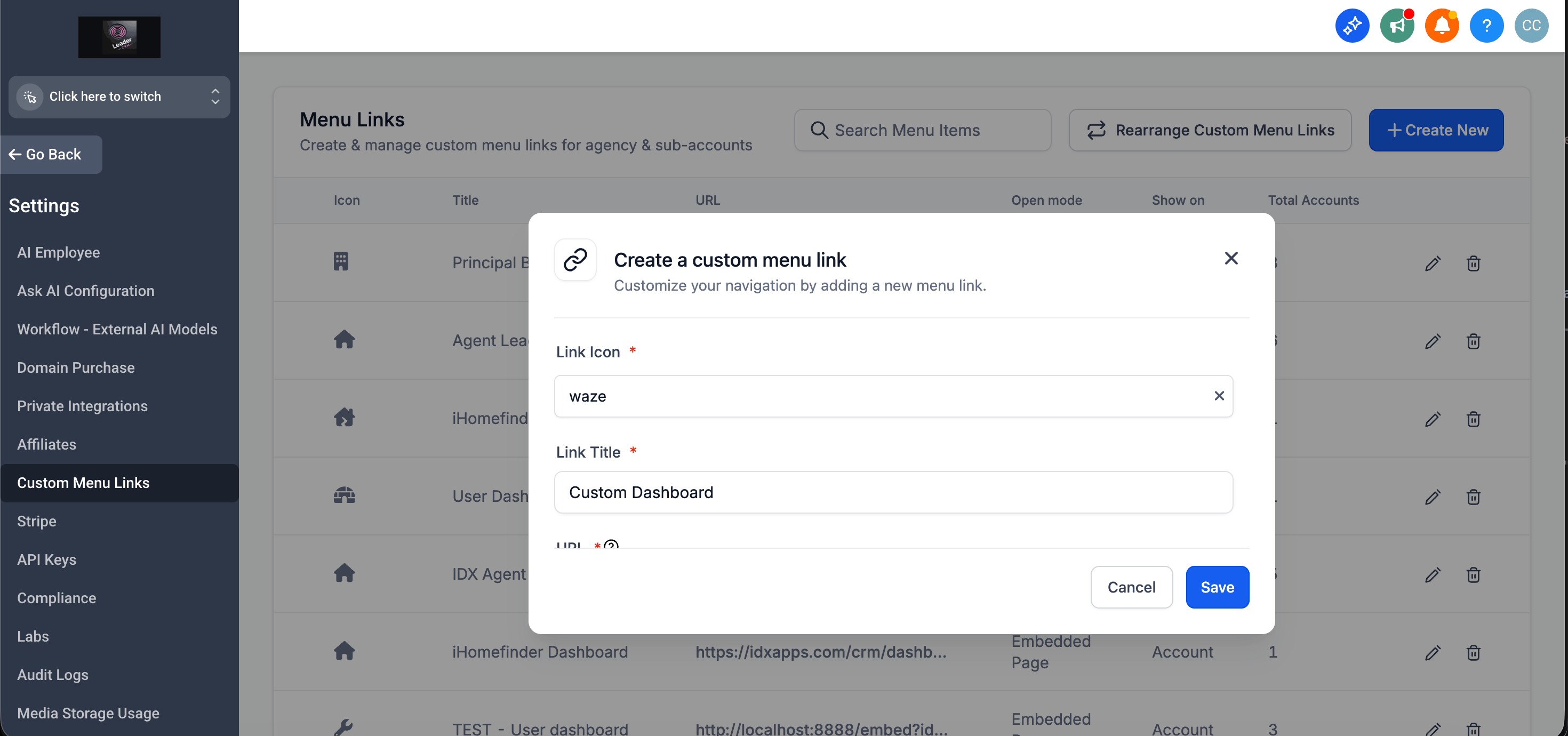
In this popup you must:
- Select an icon for the link.
- Enter a name.
- Paste the Custom Dashboard URL.
- Select what action should happen when clicking.
- Choose the sidebar preference.
- Select the account.
- Choose the role (who can see the link).
- Enable camera and microphone permissions if needed.
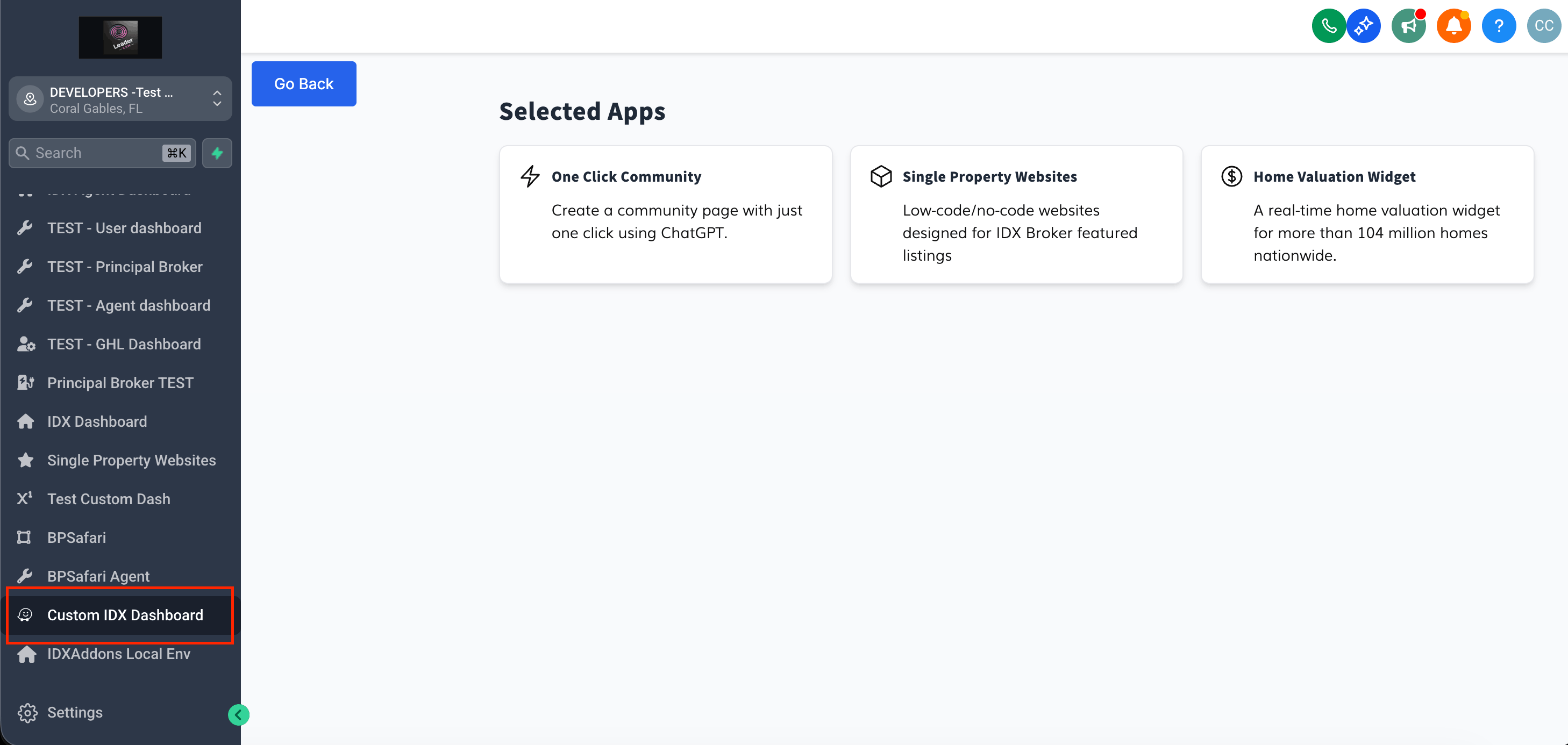
After returning to the Sub-account, the link you created will appear in the menu.
-
Add the Custom Dashboard as a Widget
Go to the dashboard of the Sub-account you are using.
Click Edit Dashboard.
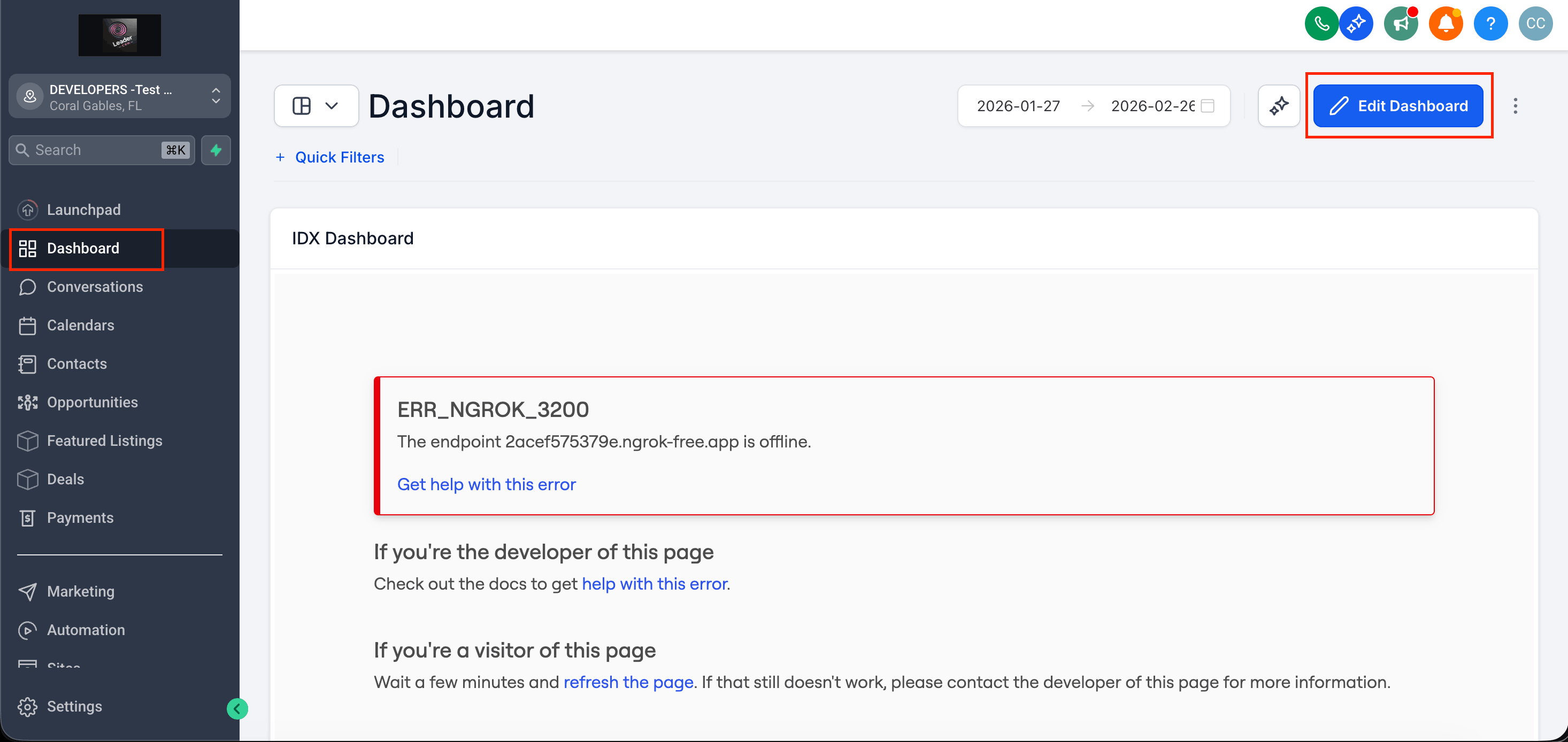
Then click Add Widget.
Select Elements.
Choose Embed.
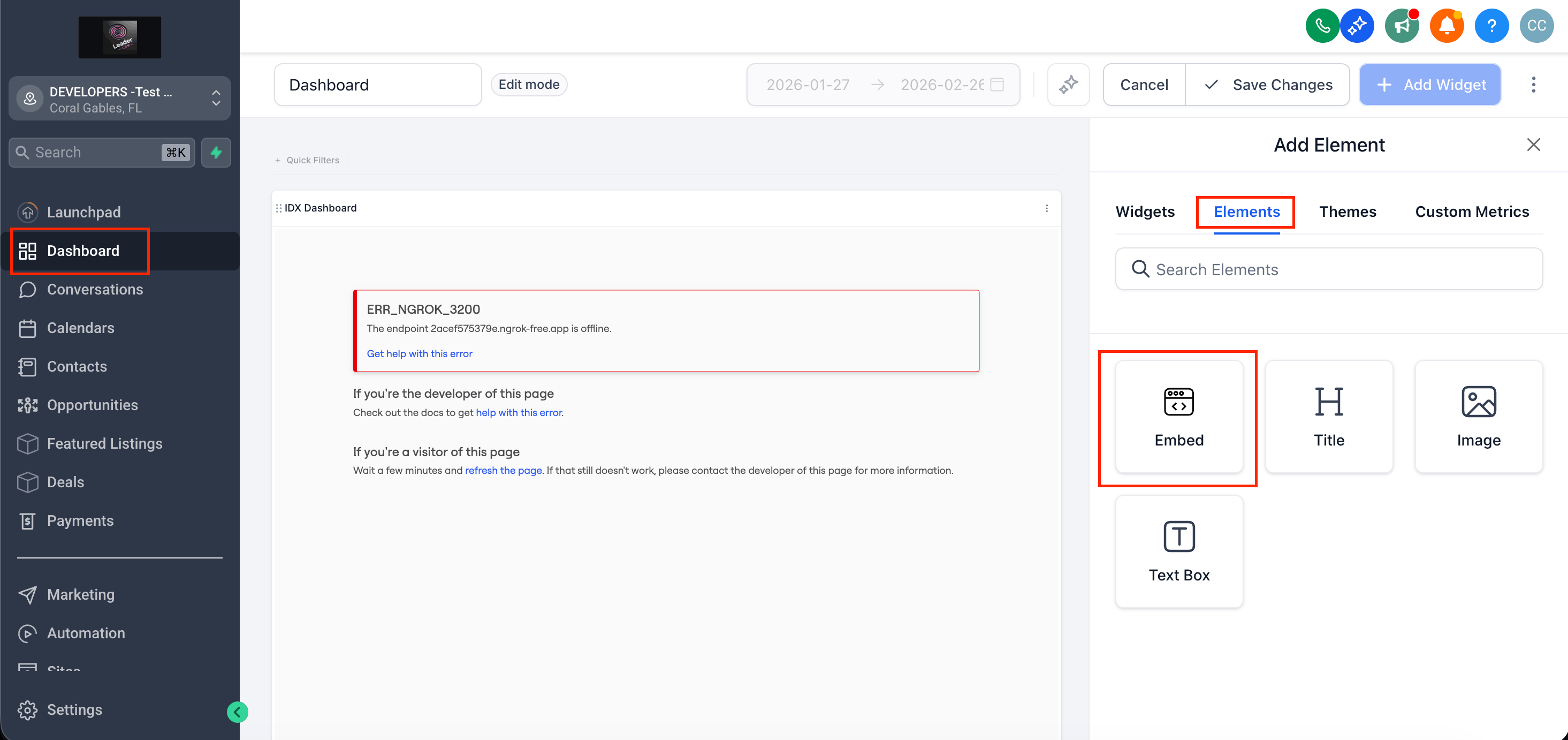
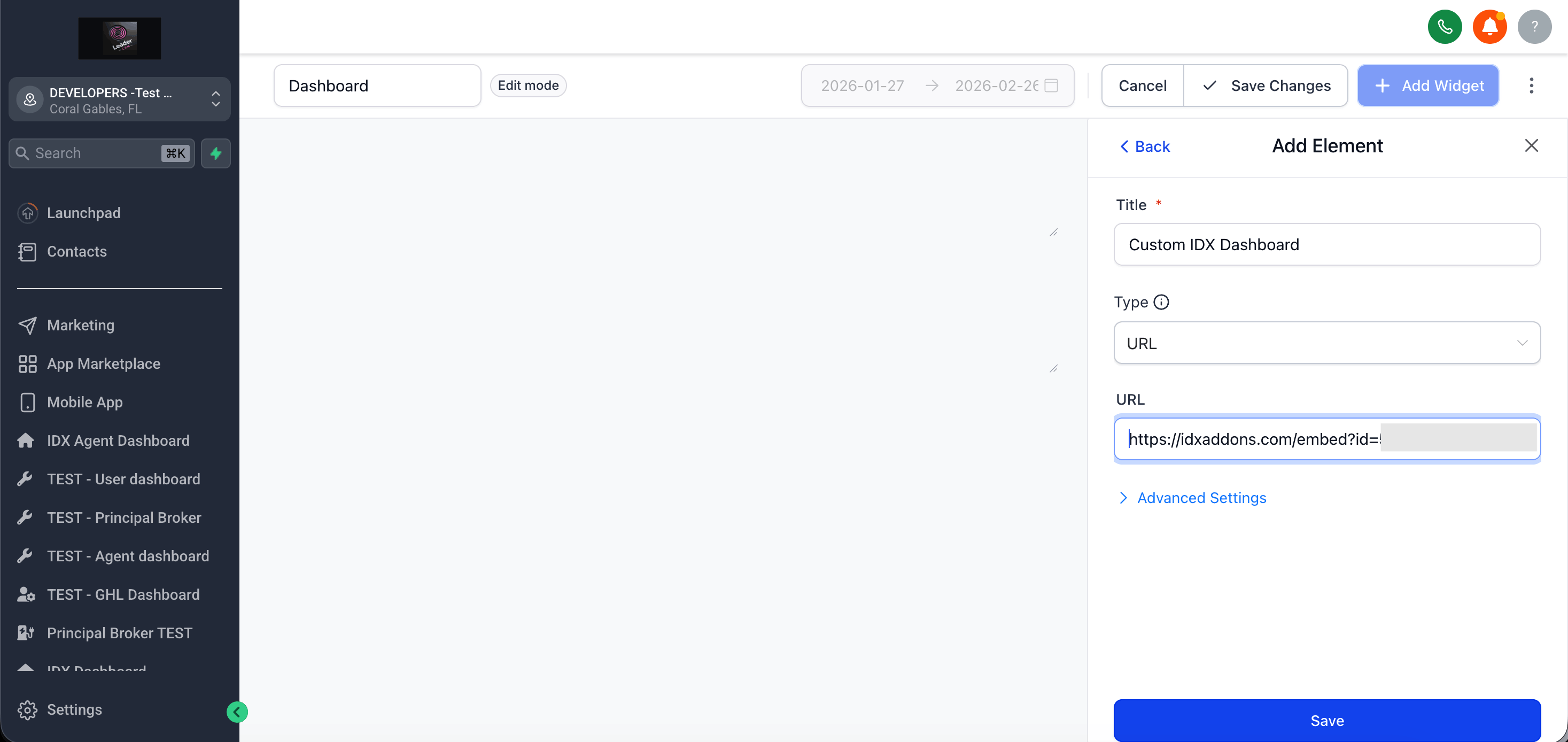
Now configure the widget:
- Enter the title.
- Select type: URL.
- Paste the Custom Dashboard link.
- Replace the custom value with the hash provided in the app.
Finally, click Save Changes.
This is what the Custom Dashboard would look like.