-
Reconnect Your GHL Account
Log in to your IDXAddons platform account.
In the main menu, go to Apps and search for GHL Custom Objects.
If you already have an existing HighLevel connection, you will see a warning message indicating incomplete scopes. You need to reconnect your account to add additional permissions to support Custom Objects and Associations.
Click on Reconnect GHL Account. You'll be redirected to the LeadConnector advanced settings app. Click on Remove Connection, and then connect again to HighLevel.

Make sure you select the same sub-account you were using before. Once reconnected, the new permissions for Objects and Associations will be active.
-
Install the Listings Schema
Go back to the GHL Custom Objects app in IDX Addons.
Scroll down to step 1 and click the Create IDX Featured Listings Schema button. This will create a complete custom object in HighLevel specifically for managing your IDX Broker featured listings.
The address will be used as the primary field, and it will automatically add other fields like Listing ID, Status, Price, Bedrooms, Bathrooms, and more.

Once the process is complete, you will see a success message. To verify the changes, go to your HighLevel dashboard and reload the page. You will notice a new menu option on the left sidebar called Featured Listings.
-
Sync Featured Listings
Return to the IDX Addons page and reload it so the sync button becomes active.
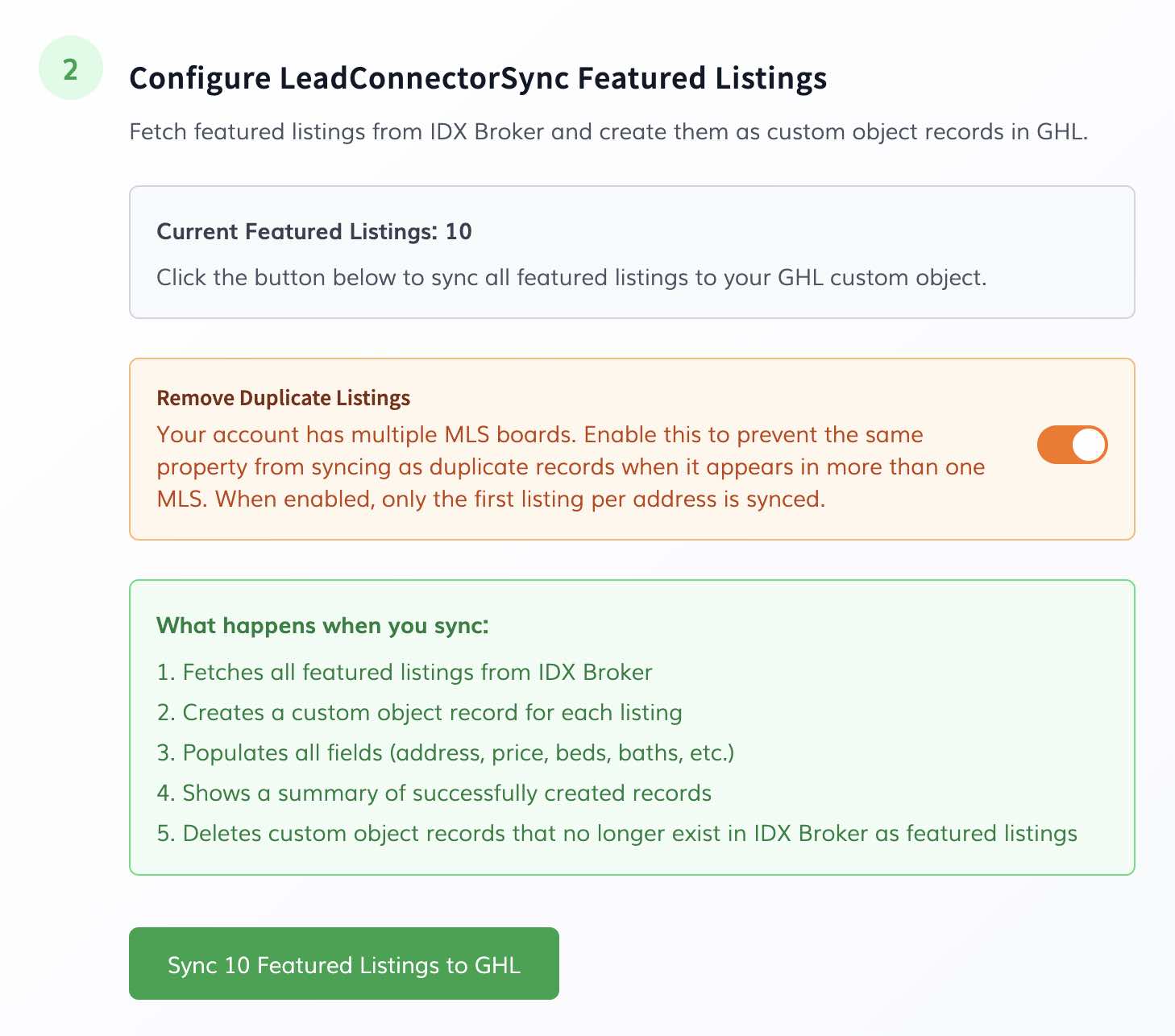
In step 2, click the Sync Featured Listings to GHL button. This allows you to manually sync your featured listings to HighLevel.

After the sync completes, a success message will show how many listings were created, updated, or deleted. Go back to HighLevel, reload the Featured Listings page, and you will now see all your listings populated in the table.
Multiple MLS Boards — Duplicate ListingsIf your IDX Broker account is connected to more than one MLS board, the same property may appear as a featured listing in multiple boards. This can result in duplicate records being synced to HighLevel.
To prevent this, enable the Remove Duplicate Listings toggle that appears in Step 2 on the Custom Objects page. When enabled, only the first listing per address is synced — any additional listings with the same address from other MLS boards are skipped.
Note: This toggle only appears if your account has multiple MLS boards. If you only have one MLS, you will not see this option and no action is needed.
-
Create Association Between Listings and Contacts
Now, we will create a seller association to link your featured listings with your contacts.
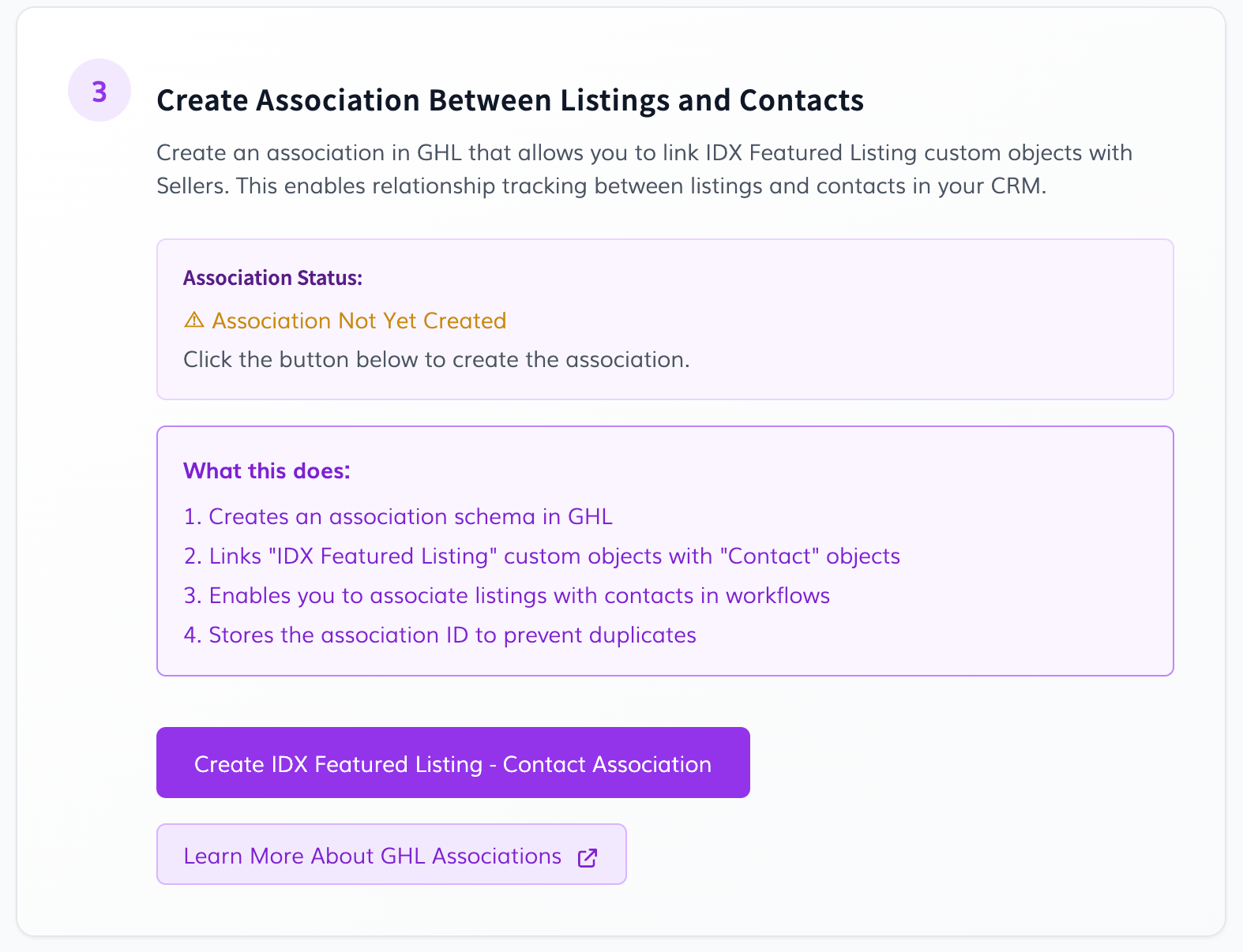
In IDX Addons, scroll down to step 3 and click on Create IDX Featured Listing - Contact Association. Wait for the success message.
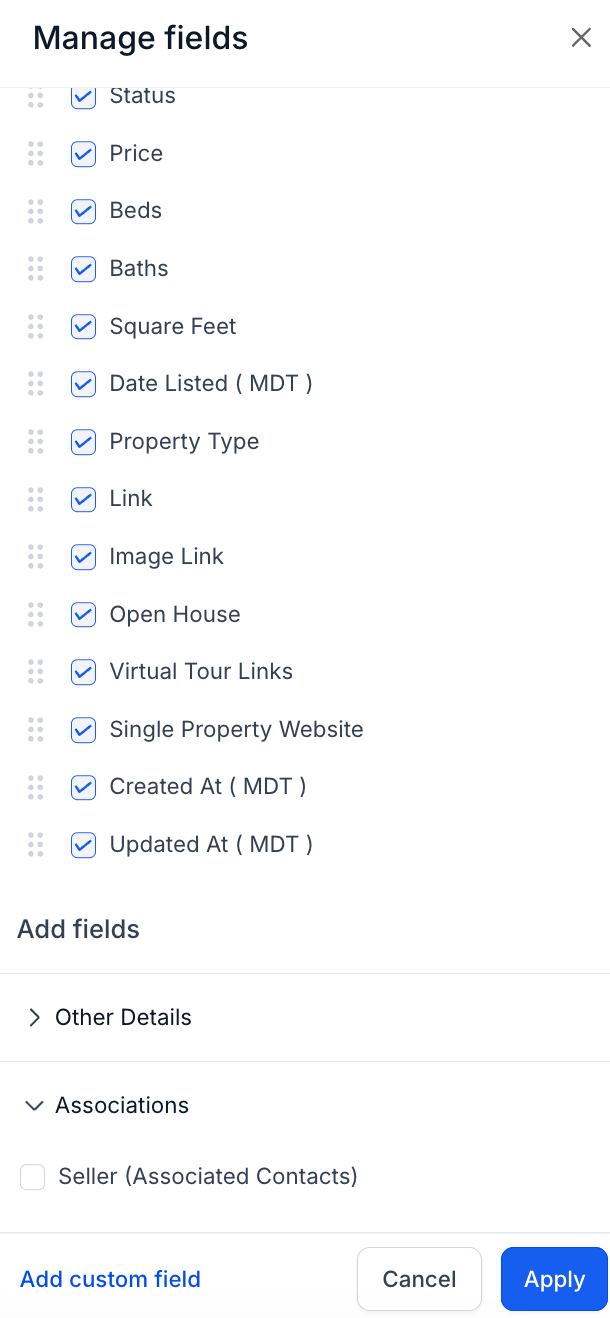
Go back to HighLevel (Featured Listings tab) and reload the page. Click on Manage Fields on the right side. Scroll to the bottom to the Associations section.
You will find the Seller (Associated Contacts) option. Check the box to add it to your table fields, and drag it to adjust the order (e.g., right after the Address column). Click Apply.
-
Link a Contact to a Listing
To associate a listing with a contact (Seller), click the edit icon (pencil) next to a listing in your GHL Featured Listings table.

In the right panel, go to the Associations section and click + Associate new Contact.
Search and select the contact you want to link as the seller, and click Save.
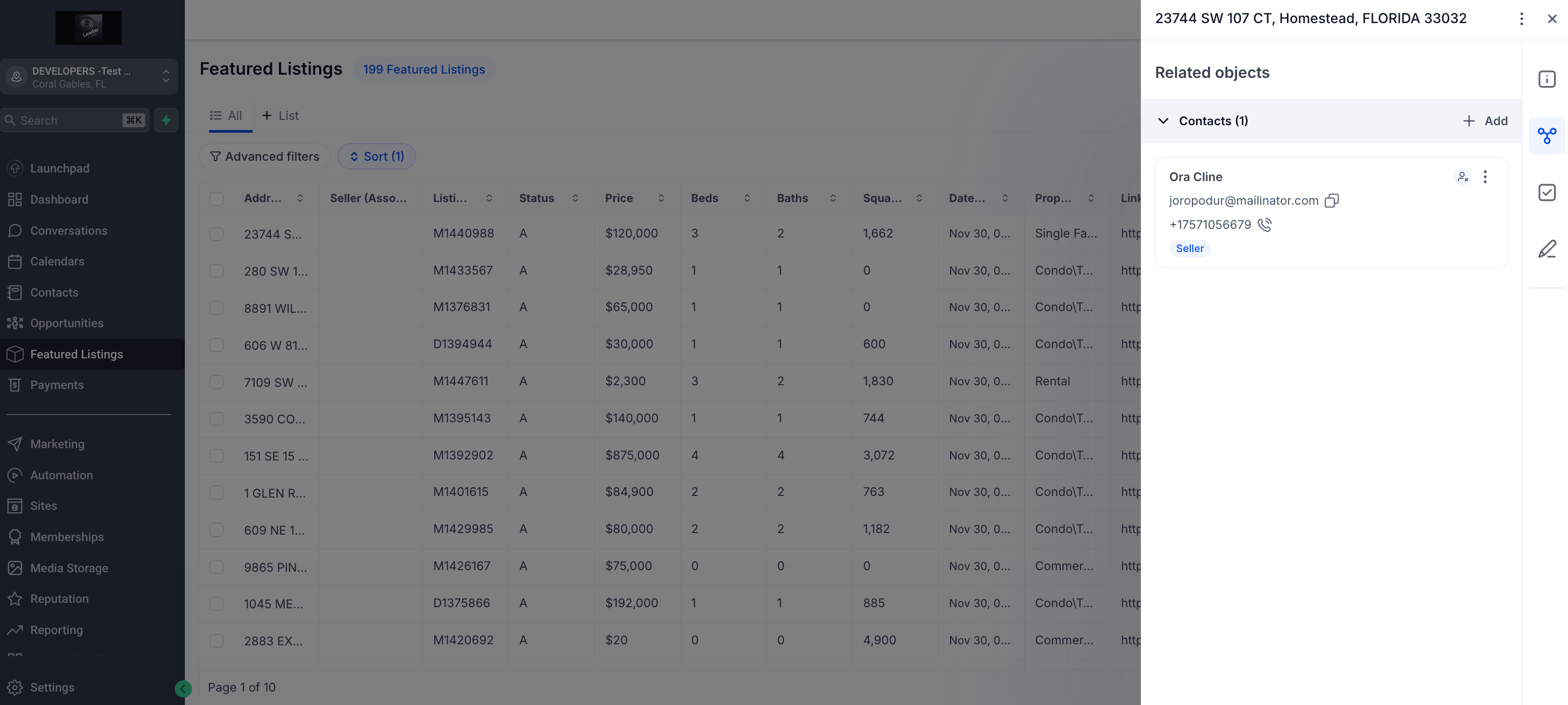
From now on, the associated contact will be visible in the table. If you click on the contact's name, it will open their profile, where you can also see the related "Featured Listings" object attached to them.
-
Sync Listings inside HighLevel (Optional - Agency Only)
To make keeping your listings updated even easier, you can add a "Sync Listings" button directly inside HighLevel. Note: This feature is only available for Agency accounts with access to the Custom Javascript section.
In IDX Addons (Step 4), copy the provided Javascript code snippet.
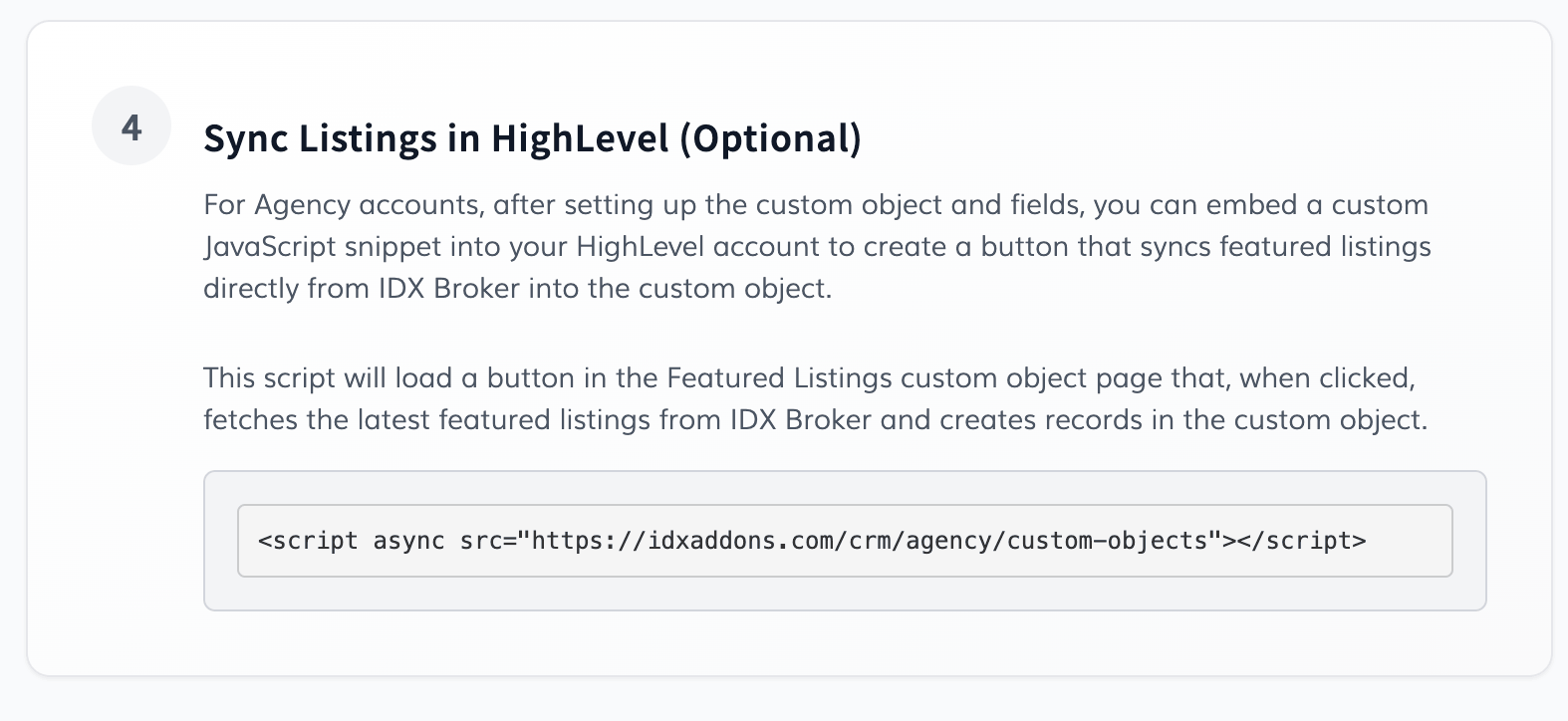
Go to your HighLevel Agency View. Navigate to Settings > Company and open the White Label tab.
Scroll down to the Custom JS section, paste the code snippet you copied, and click Save Changes (Proceed if a warning appears).
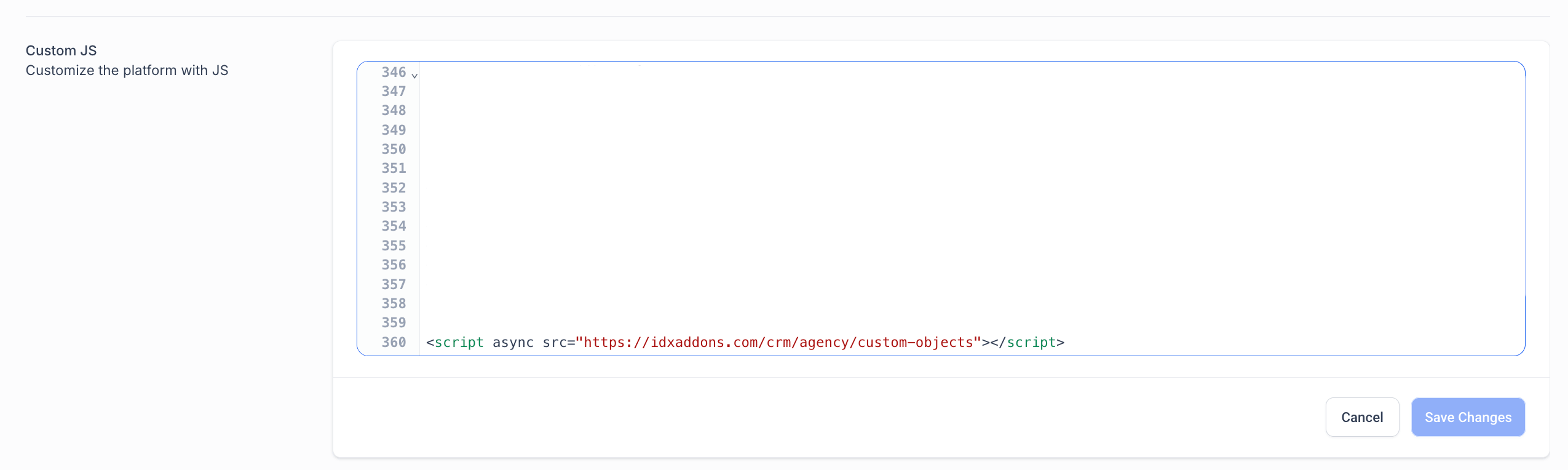
Return to your sub-account's Featured Listings page and reload. You will now see a blue Sync Listings button at the top right of the screen.

Whenever you click it, your listings will automatically stay up to date: adding new listings, updating existing ones, and removing listings that are no longer active.

-
You're All Set!
And that's how easy it is to manage your listing inventory directly inside HighLevel.
Friendly Reminder: This is a completely free tool for all clients who have an IDX Broker account and use RealtyCandy as their developer partner.
Thanks for reading! If you need any further assistance or want to explore more tools to enhance your real estate business, feel free to check out our other apps inside the IDX Addons platform.