-
Purpose
This webhook lets you automatically create Saved Searches for your leads based on the exact searches they perform on your website. Whenever a lead views a search results page, IDXAddons captures that URL and sends it to HighLevel. This workflow then uses that URL to silently create a saved search in IDX Broker.
This is a great automation because it ensures your leads keep receiving listing alerts for properties they are interested in, even if they forget to manually click the "Save Search" button on your site.
-
Get the Webhook URL
Log in to your IDXAddons account and navigate to the HighLevel Webhooks page. Scroll down until you find the IDX Broker Lead Basic Search section.
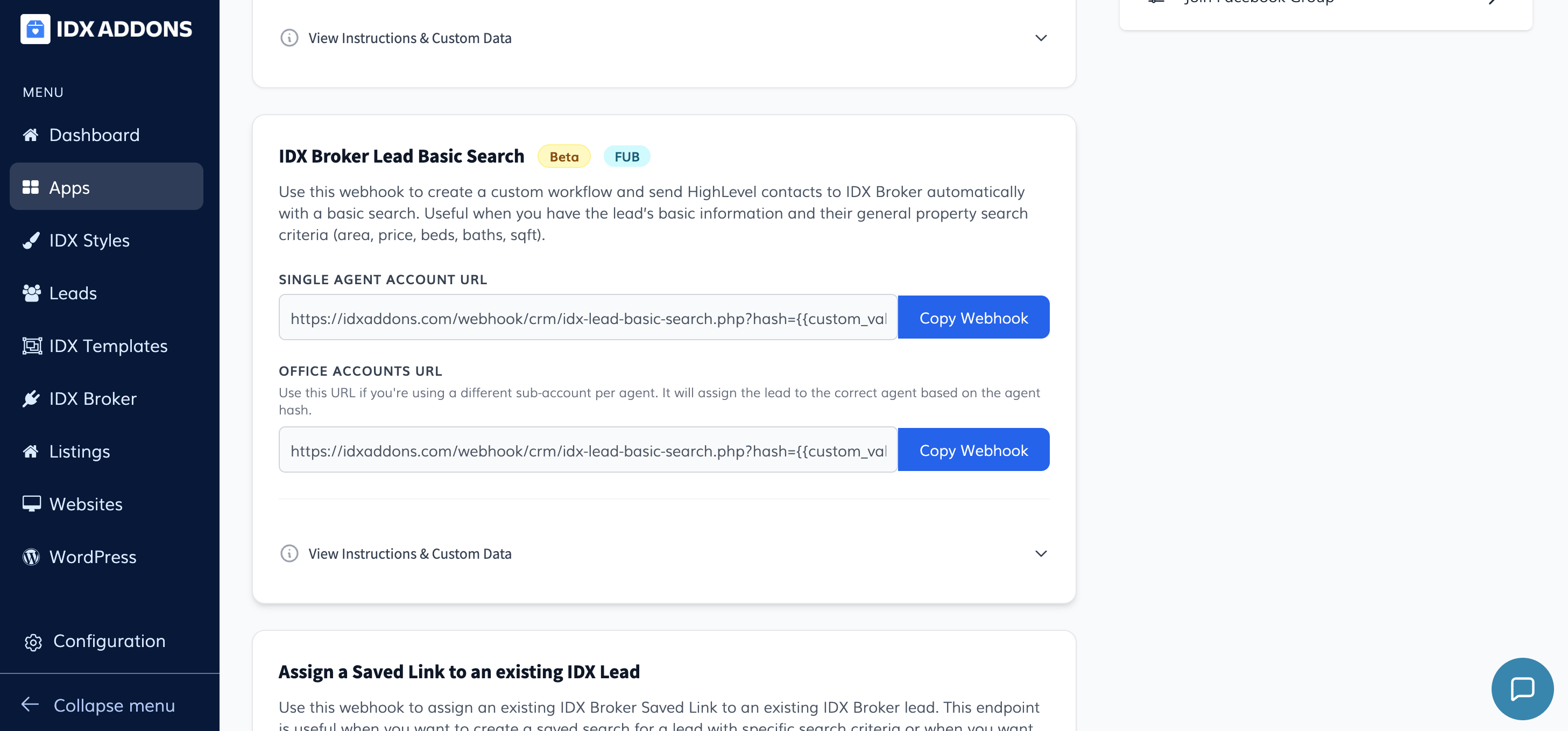
You will find two webhook URLs depending on your account type:
-
Single Agent Account URL: Use this if all your leads go to one IDX Broker account.
https://idxaddons.com/webhook/crm/idx-lead-basic-search.php?hash={{custom_values.idxaddons_hash}} -
Office Accounts URL: Use this if you manage multiple agents under different sub-accounts. It assigns each lead to the correct agent based on the agent hash.
https://idxaddons.com/webhook/crm/idx-lead-basic-search.php?hash={{custom_values.idxaddons_hash}}&aid={{custom_values.idxaddons_agent_hash}}
Click the Copy Webhook button next to the URL that matches your setup and keep it ready for the next step.
You can also click View Instructions & Custom Data to review all available fields before building your workflow.
-
Single Agent Account URL: Use this if all your leads go to one IDX Broker account.
-
Build the HighLevel Workflow
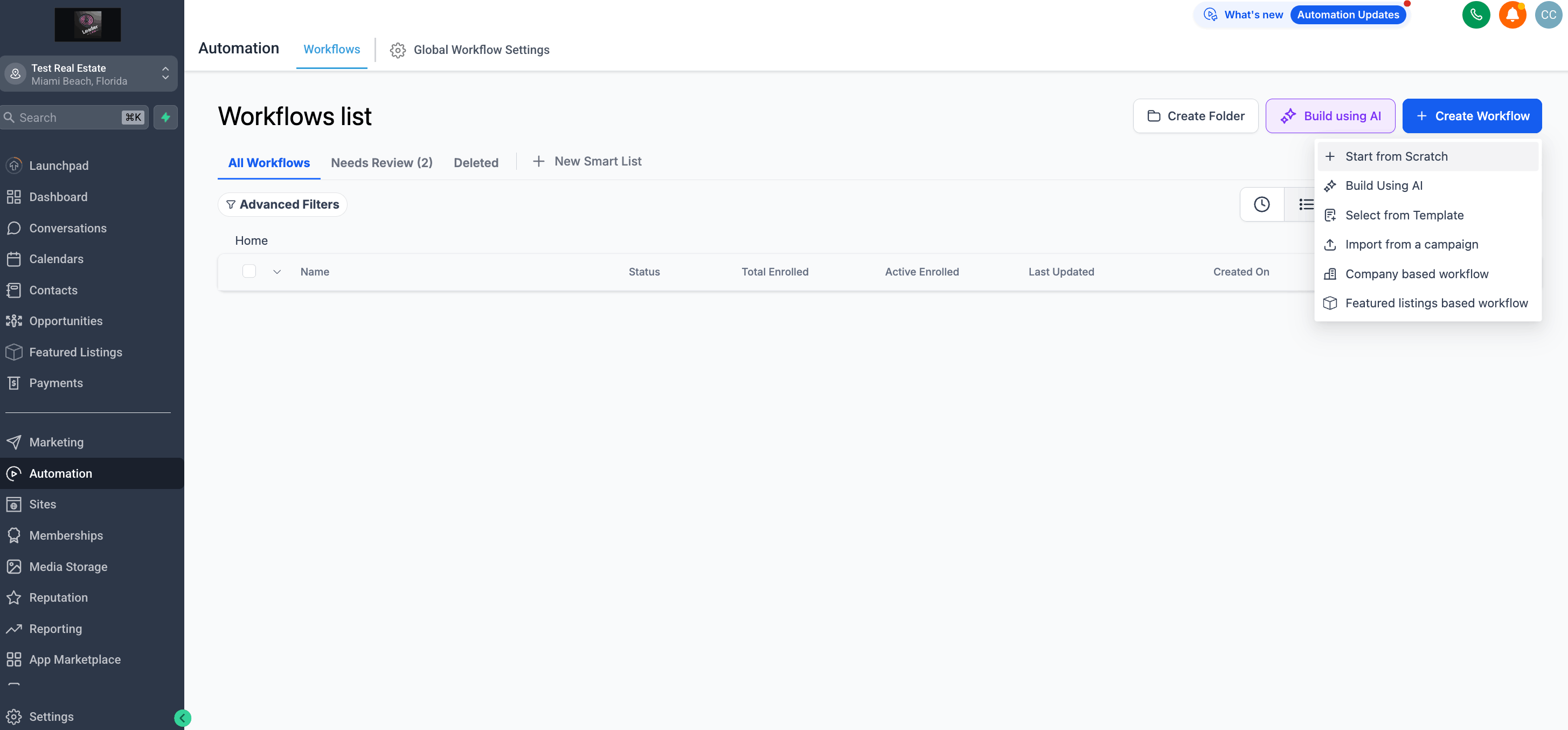
Go to your HighLevel account. In the left menu, navigate to Automation and click the + Create Workflow button. Select Start from Scratch and give your workflow a descriptive name such as "IDX Lead Basic Search".
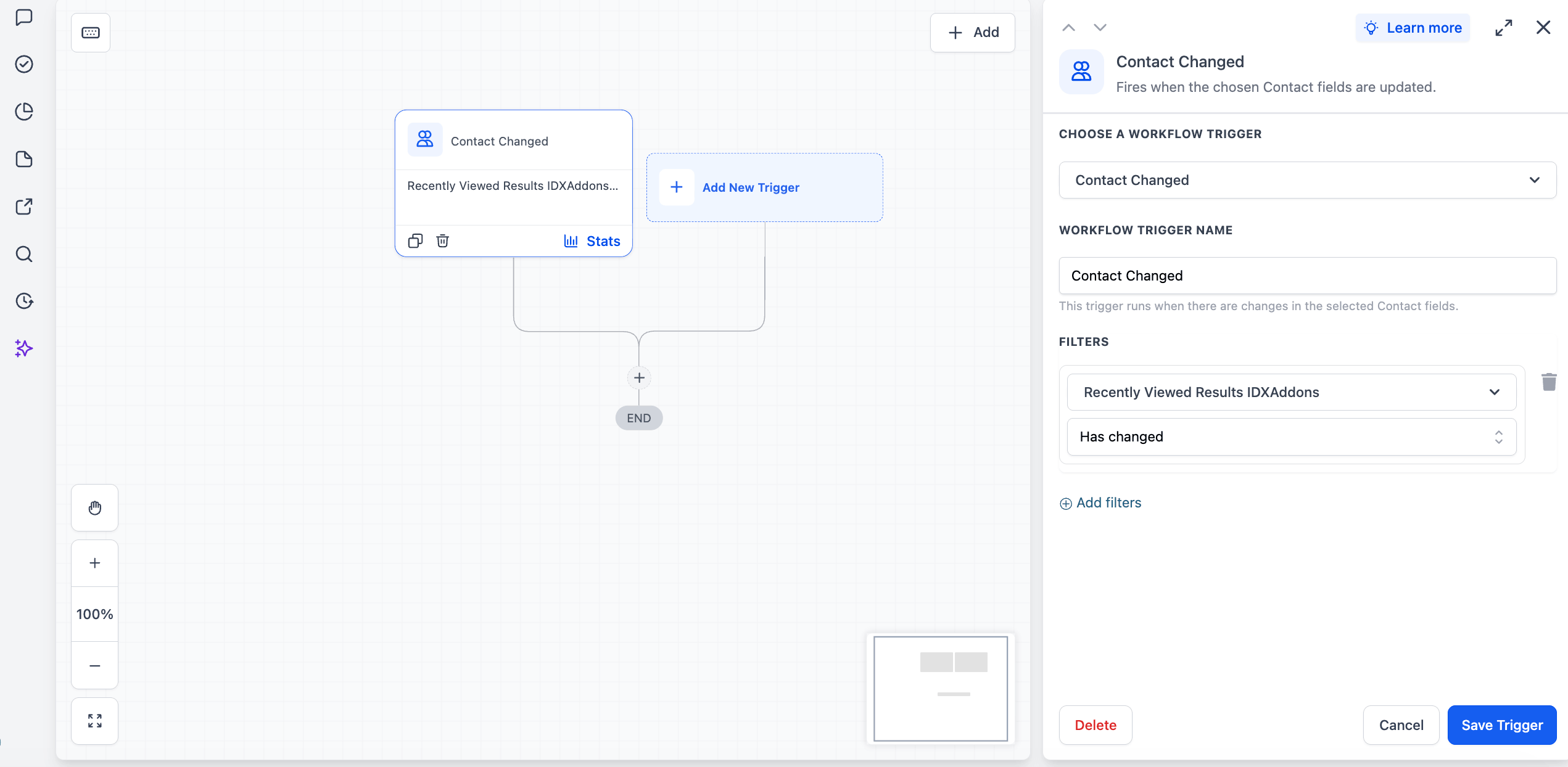
Set your trigger based on when the lead performs a search on your website. IDXAddons automatically stores the URL of the last search results page the lead visited in a custom field. Do the following:
- Choose Contact Changed as the trigger.
- Add a filter and select the custom field: Recently Viewed Results IDXAddons.
- Set the operator to Has Changed.
This ensures the automation fires every time the stored URL updates.
Next, click the + button below the trigger to add a new action. Search for and select Drip.
This step is very important. The Drip action spaces out the requests sent to IDX Broker, preventing your workflow from hitting the IDX Broker API rate limit when multiple contacts perform searches at the same time.
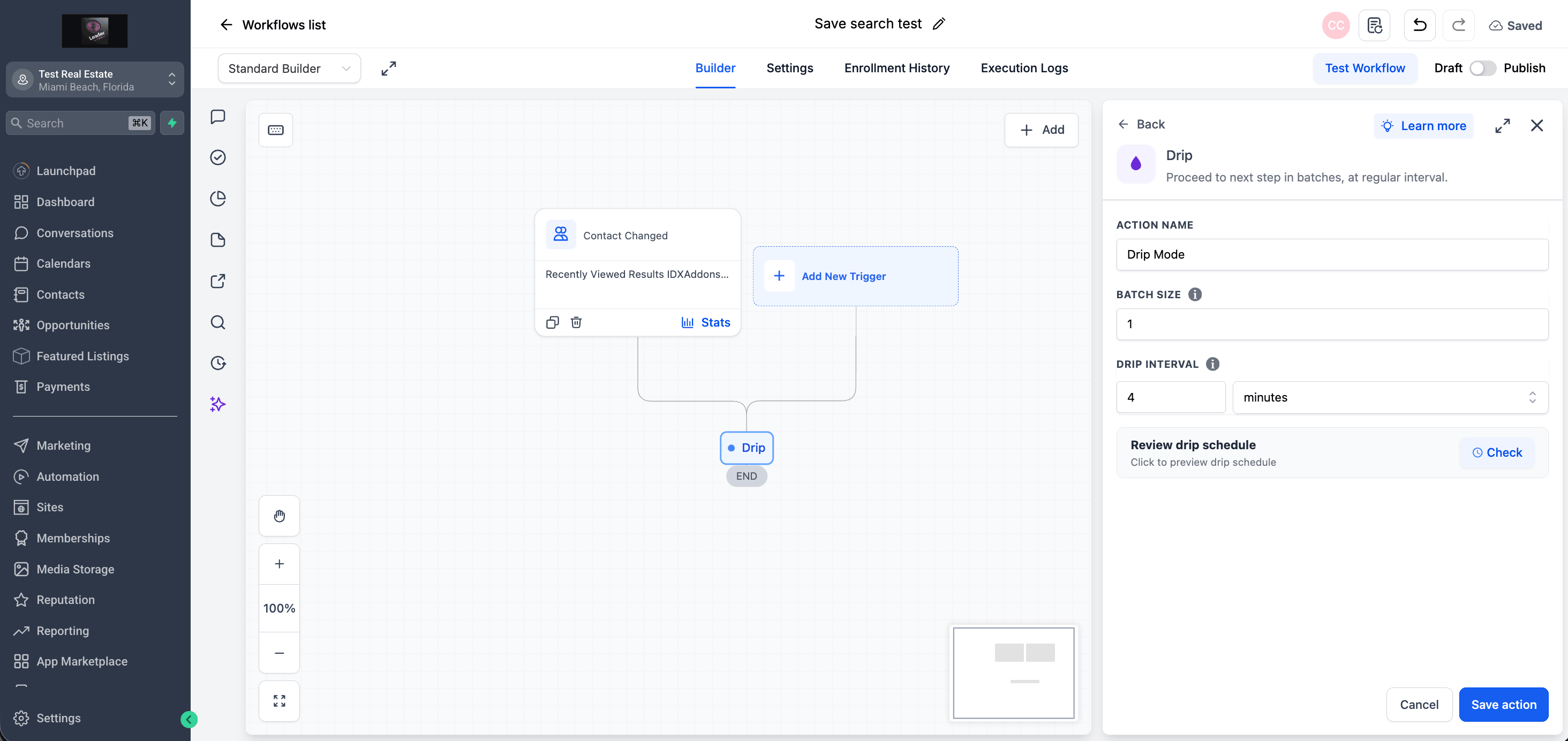
Configure the Drip action with the following settings:
- Action Name: Drip Mode (or any descriptive label).
- Batch Size:
1— this ensures contacts are sent to IDX Broker one at a time. - Drip Interval:
4minutes — this adds a 4-minute gap between each contact, giving the API enough time to process each request.
Click Save Action. Then click the + button again below the Drip action to add a Webhook action.
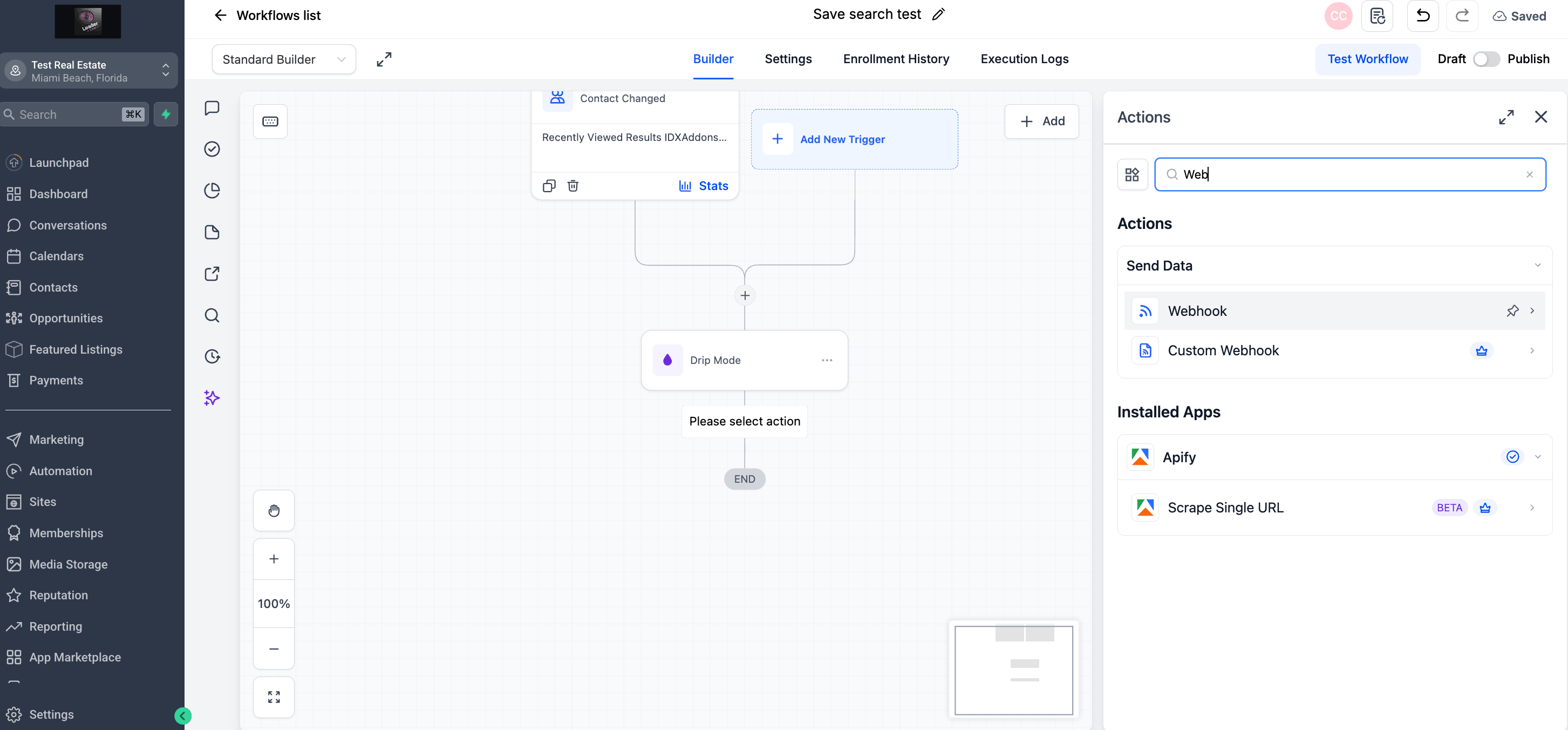
Your workflow sequence should look like this: Trigger → Drip → Webhook → End.
-
Map Contact Data Fields
Inside the Webhook action panel, configure the following settings:
- Method: Select
POST. - Webhook URL: Paste the IDXAddons URL you copied in the previous step.
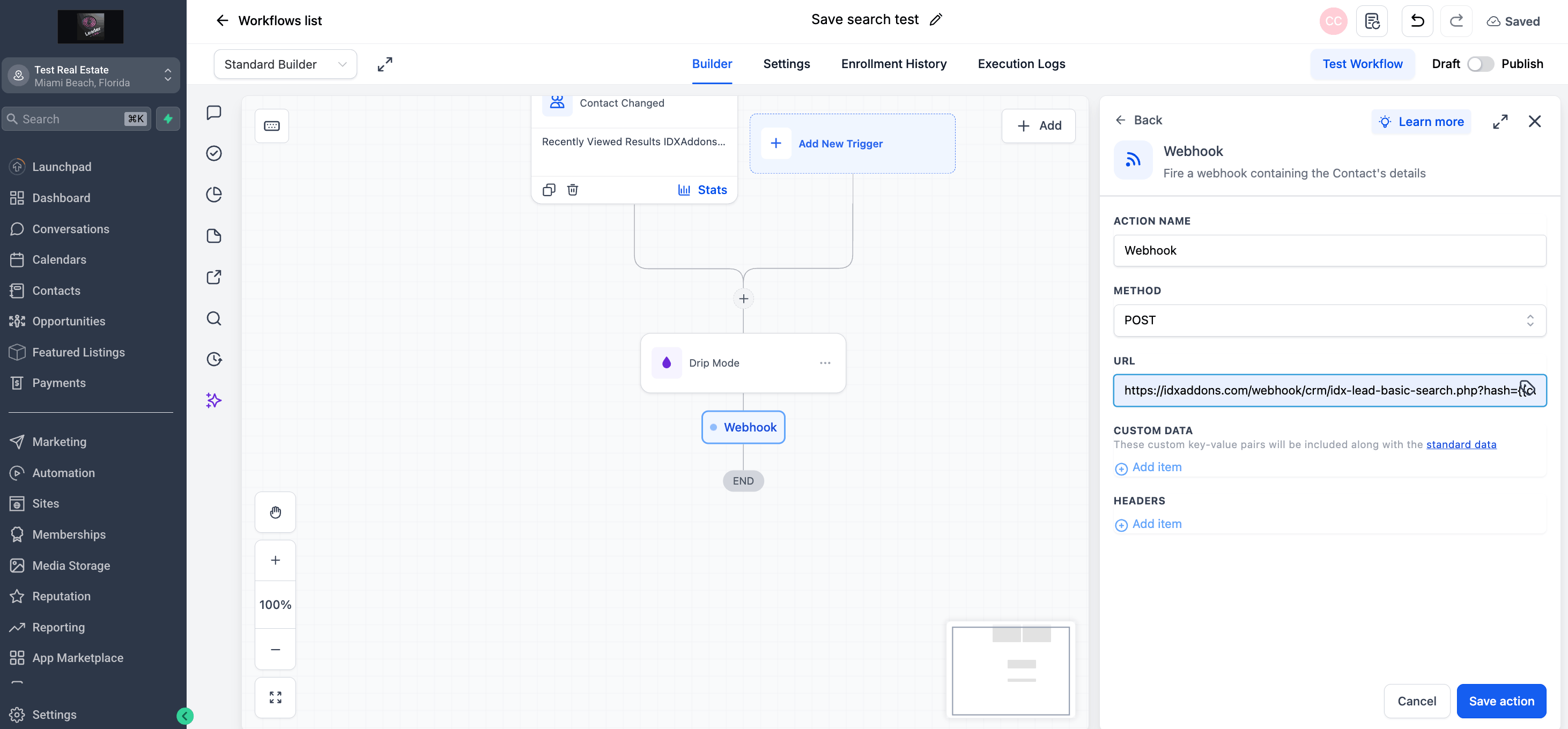
In the Request Body (Custom Data) section, we need to map the fields. To make this automation work exactly like the video, we only need to add four items:
first_name→ Select Contact > First Name ({{contact.first_name}})last_name→ Select Contact > Last Name ({{contact.last_name}})email→ Select Contact > Email ({{contact.email}})search_url→ Select Custom Fields > Recently Viewed Results IDXAddons
💡 Pro Tip (Crucial for the Webhook to work)
When you select the Recently Viewed Results field for the
search_url, HighLevel might insert extra text or details inside the value box. You must delete all the extra text and leave only the clean tag exactly like this:{{contact.recently_viewed_results_idxaddons}}. If you leave the extra details, the webhook will fail.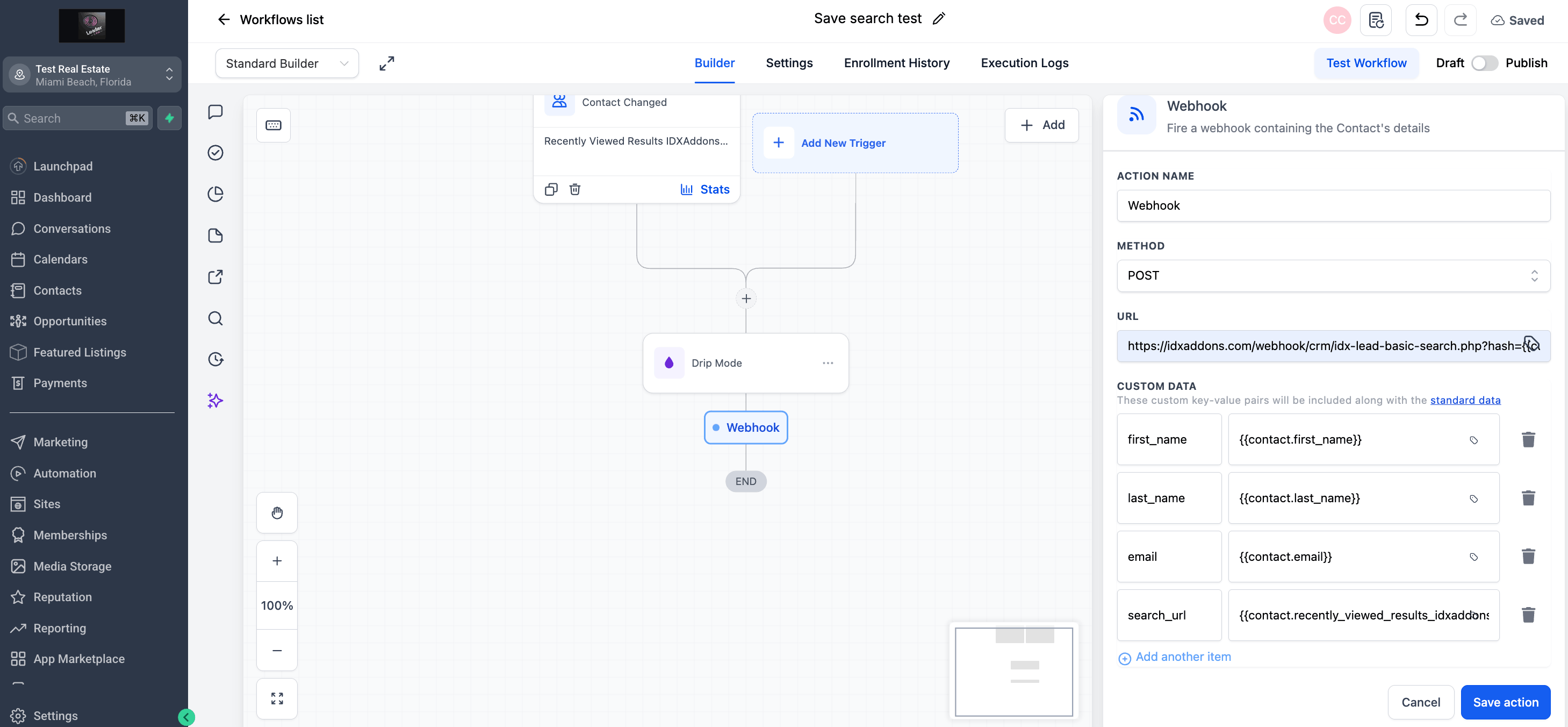
⚠️ Why aren't we adding city, beds, or price?
As noted in the app instructions, if the
search_urlis provided, it takes full priority. IDXAddons automatically extracts all the search criteria (like area, price, beds, baths) directly from that URL to create the saved search, so you can completely ignore all the other individual search criteria fields.Once all four fields are configured, click Save Action. Then, give your workflow a name at the top, click the main Save button at the top right of the screen, and toggle the workflow to Publish.
- Method: Select
-
Test the Workflow
To verify everything is working, we will do a live test exactly like in the video. You don't need to trigger it manually in HighLevel; instead, we will trigger it by acting as a lead.
- Go to your IDX website and log in as an existing test lead.
- Perform a property search (e.g., select a city, price range, and number of bedrooms).
- Click Search to view the results page.
Normally, a lead would have to manually click the "Save Search" button here. But because they just viewed the results page, the HighLevel custom field updated automatically, which triggered our new workflow.
Go back to HighLevel, open your workflow, and check the Execution Logs tab. You should see that your test lead entered the workflow, passed through the Drip step, and the Webhook action marked as Executed successfully.
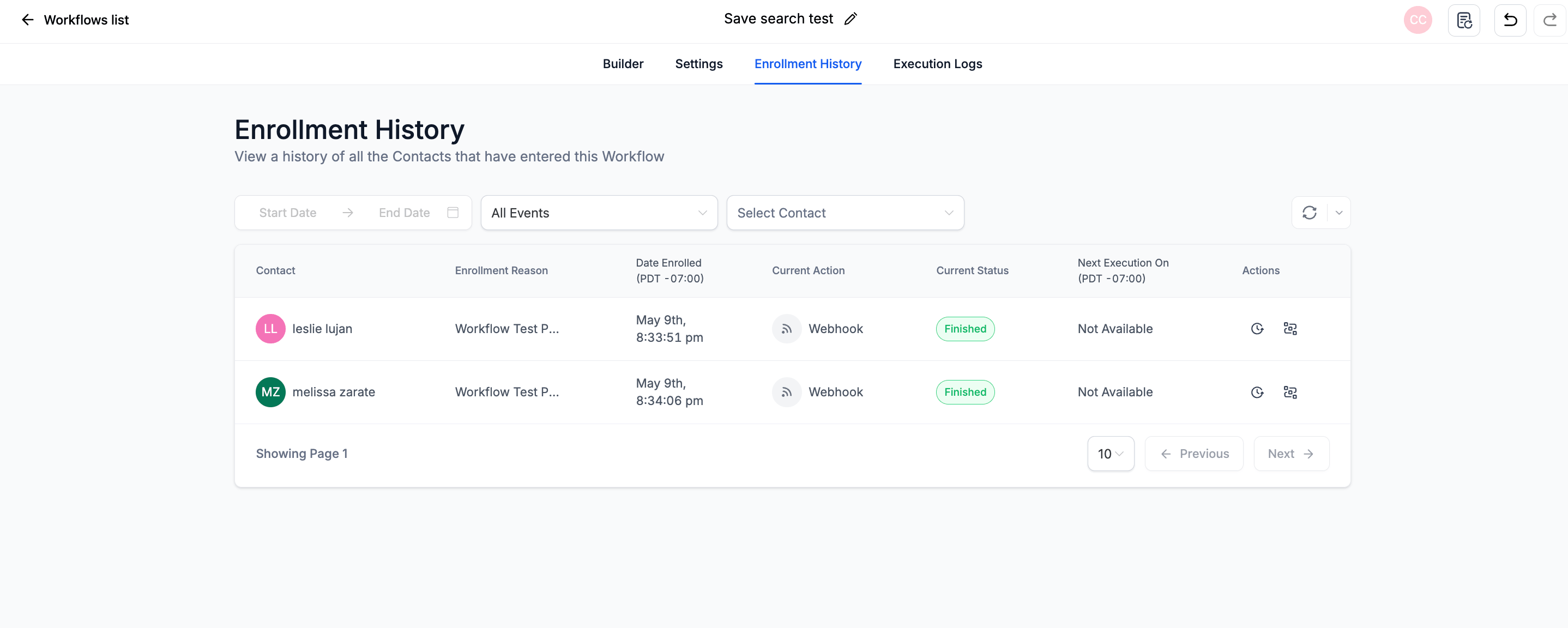
Finally, check the lead's profile in HighLevel (inside the IDX section) or directly in IDX Broker. You will see that a brand new Saved Property Search was automatically created with the exact criteria you just searched for!
You're all set!
Your workflow is now live. From this point on, every time a lead views a search results page on your website, IDX Broker will automatically create a Saved Search for them — matching exactly what they searched for, with no manual action needed from you or your lead.
This means your leads will keep receiving listing alerts for properties they are genuinely interested in, even if they never click the "Save Search" button themselves. It's one of the most effective automations you can run to keep leads engaged and coming back to your site.
Important: Remember that this automation creates a new Saved Search every time the lead views a new search results page. If a lead performs multiple different searches, they will end up with multiple Saved Searches in IDX Broker. Adjust your workflow settings or add additional filters if you want to limit this behavior (e.g., only create a Saved Search if the lead doesn't already have one).