-
Activate Property Rich Data
- Open Property Rich Data in IDXAddons.
- Click Subscribe Now to activate your subscription.
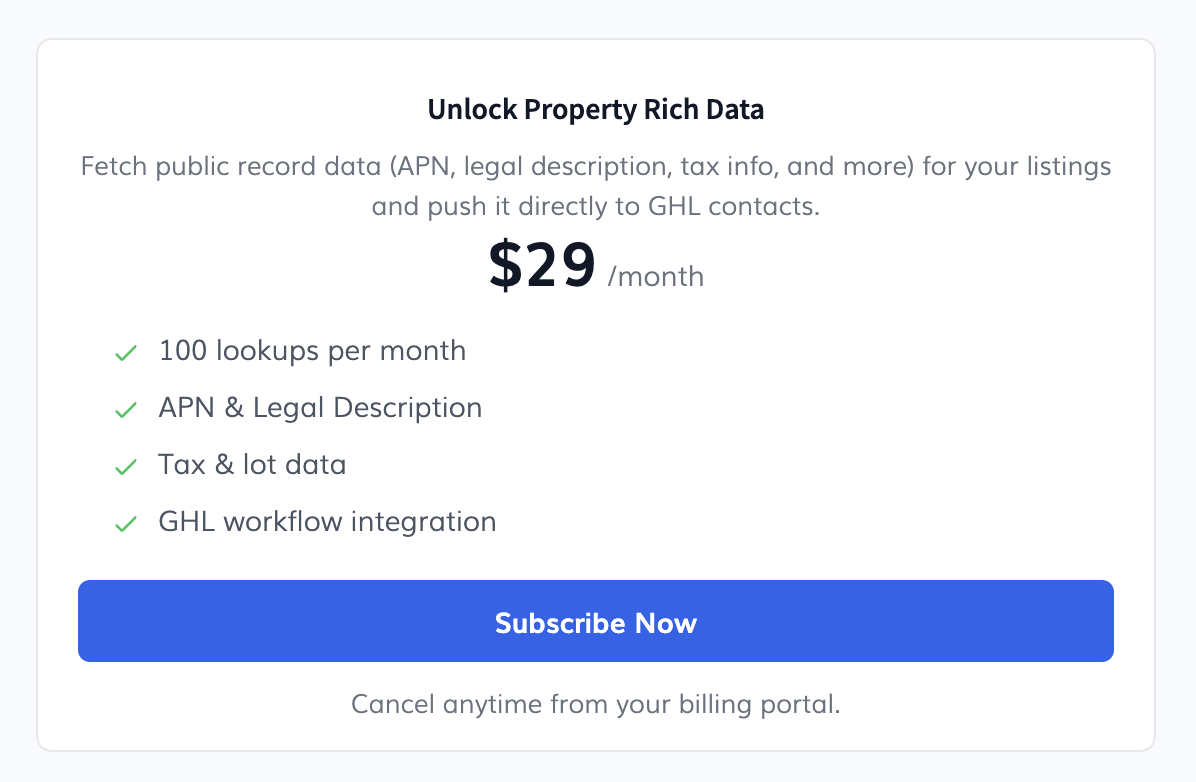
- Once activated, access the HighLevel Integration tab.
-
Install HighLevel Custom Fields
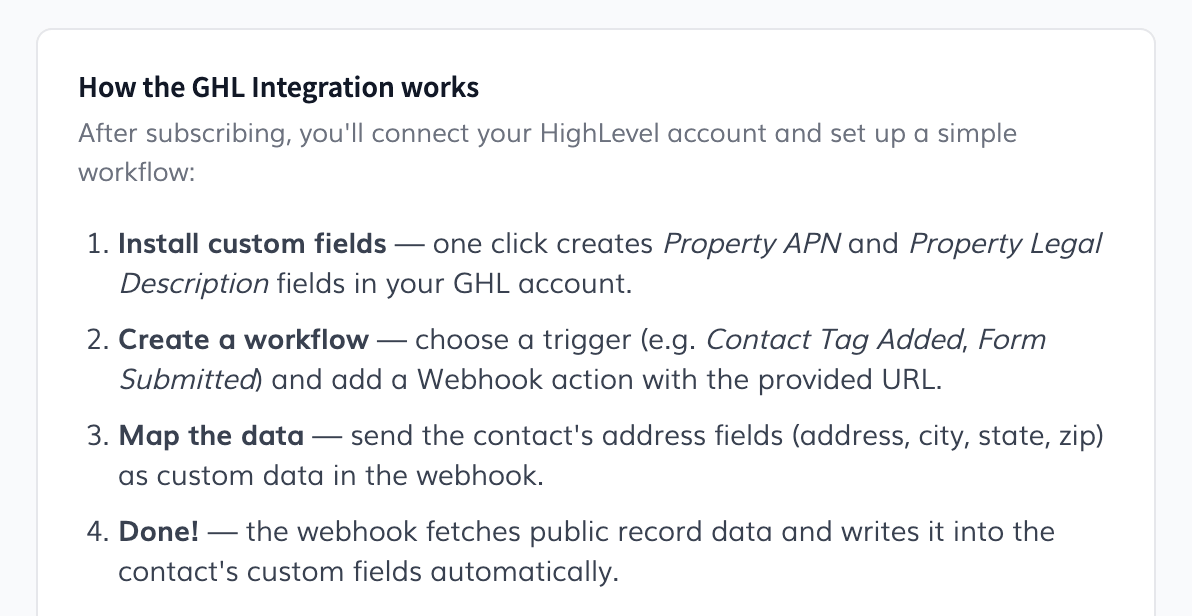
- In the HighLevel Integration tab, install the required custom fields.
- The app creates two fields in your HighLevel account:
- Property APN
- Property Legal Description
- Both fields are organized under IDX Property Rich Data.
-
Copy the Webhook URL
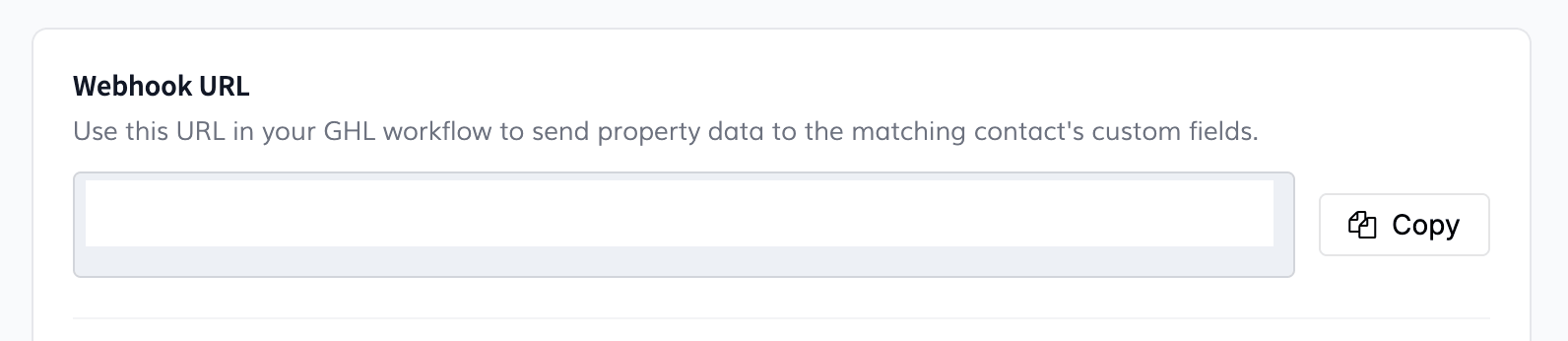
- Locate the Webhook URL section.
- Click Copy to copy the provided URL.
- Use this URL when configuring your HighLevel workflow.
-
Create a HighLevel Workflow
- In HighLevel, navigate to Automation → Workflows → New Workflow.

- Select a trigger, such as Contact Tag Added or Form Submitted.
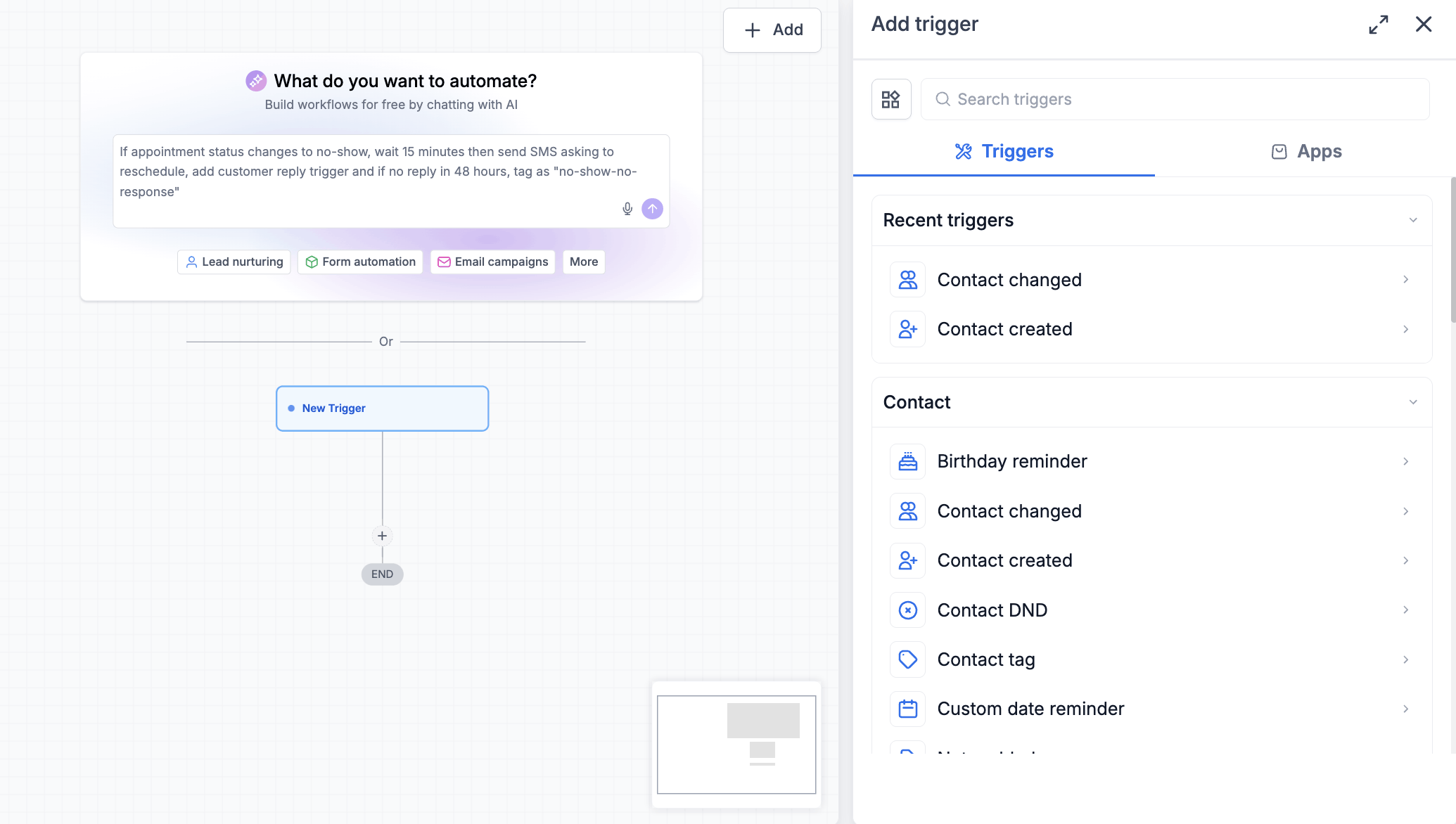
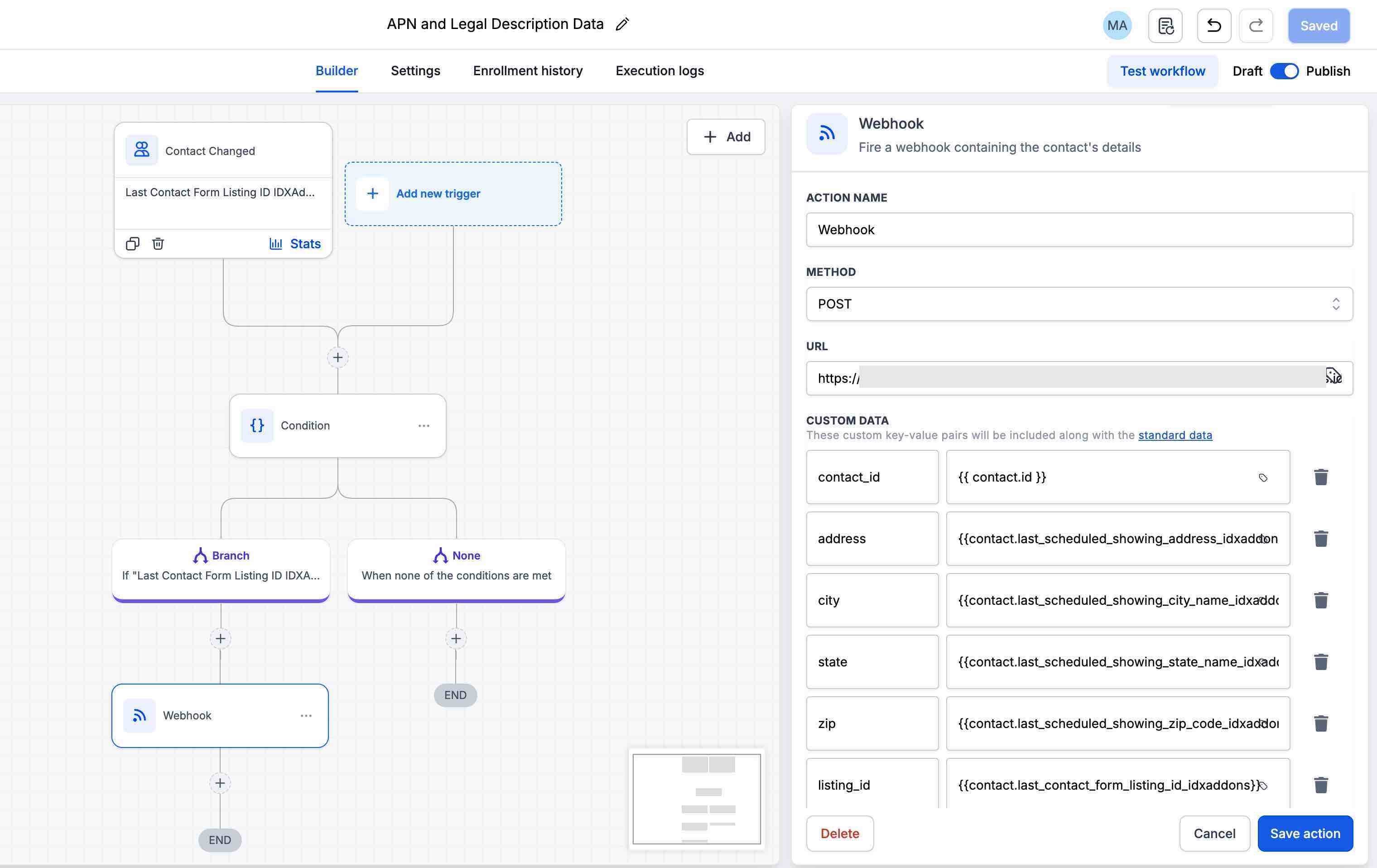
- Add a Webhook action.
- Set the request method to POST.
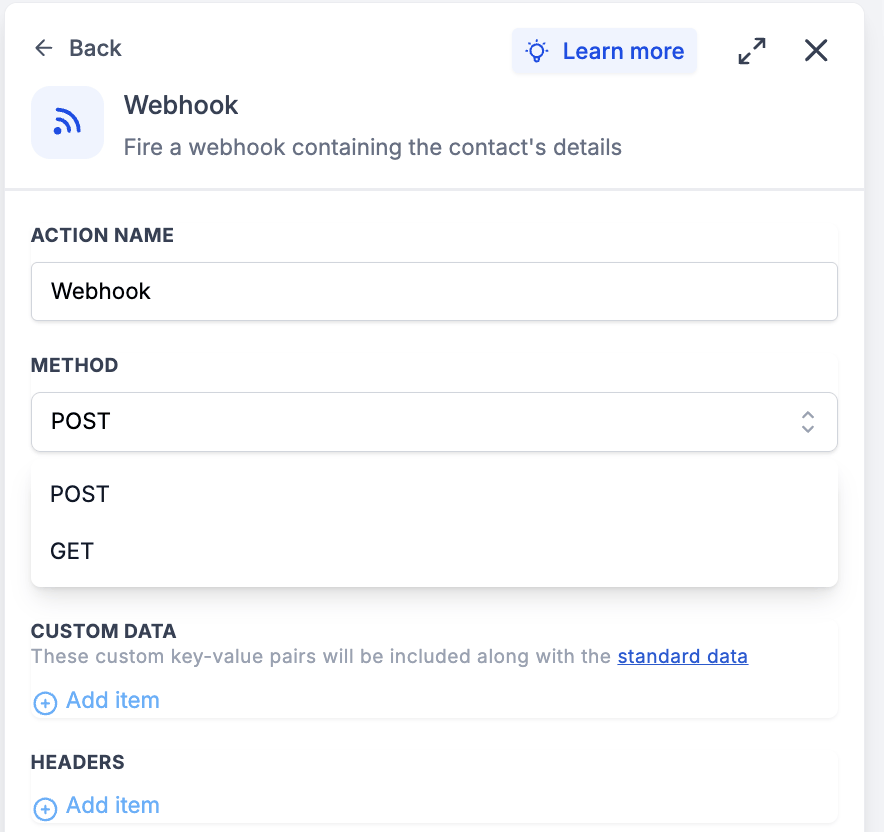
- Paste the copied Webhook URL.
- In HighLevel, navigate to Automation → Workflows → New Workflow.
-
Configure Custom Data
Under the webhook's Custom Data section, add the following key-value pairs:
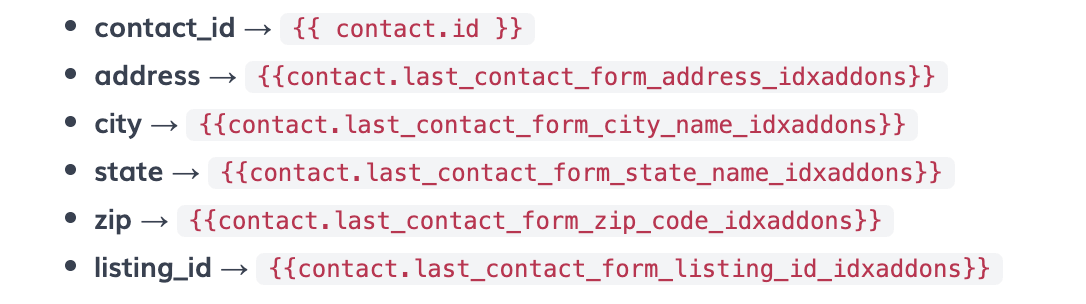
Ensure that each value matches the corresponding field in your HighLevel account.
-
Publish and Verify
- Save and publish your workflow.
- Trigger the workflow using a contact with property address information.
- Open the contact record in HighLevel.
- Locate the IDX Property Rich Data custom fields to view the retrieved APN and legal description.
Once configured, Property Rich Data automatically retrieves available public record information and updates the matching contact's custom fields.
🚀 You're All Set!
You have successfully configured the Property Rich Data app! Now, whenever your HighLevel workflow is triggered, the app will automatically retrieve available public property records and populate the Property APN and Property Legal Description fields in the corresponding contact's profile, making property information easier to access and manage.