-
Purpose
This guide will help you connect your IDX Broker leads to Sure Send CRM using an API Token and webhook integration. You will also learn how to manually send leads and view lead activity inside Sure Send.
-
Access the App
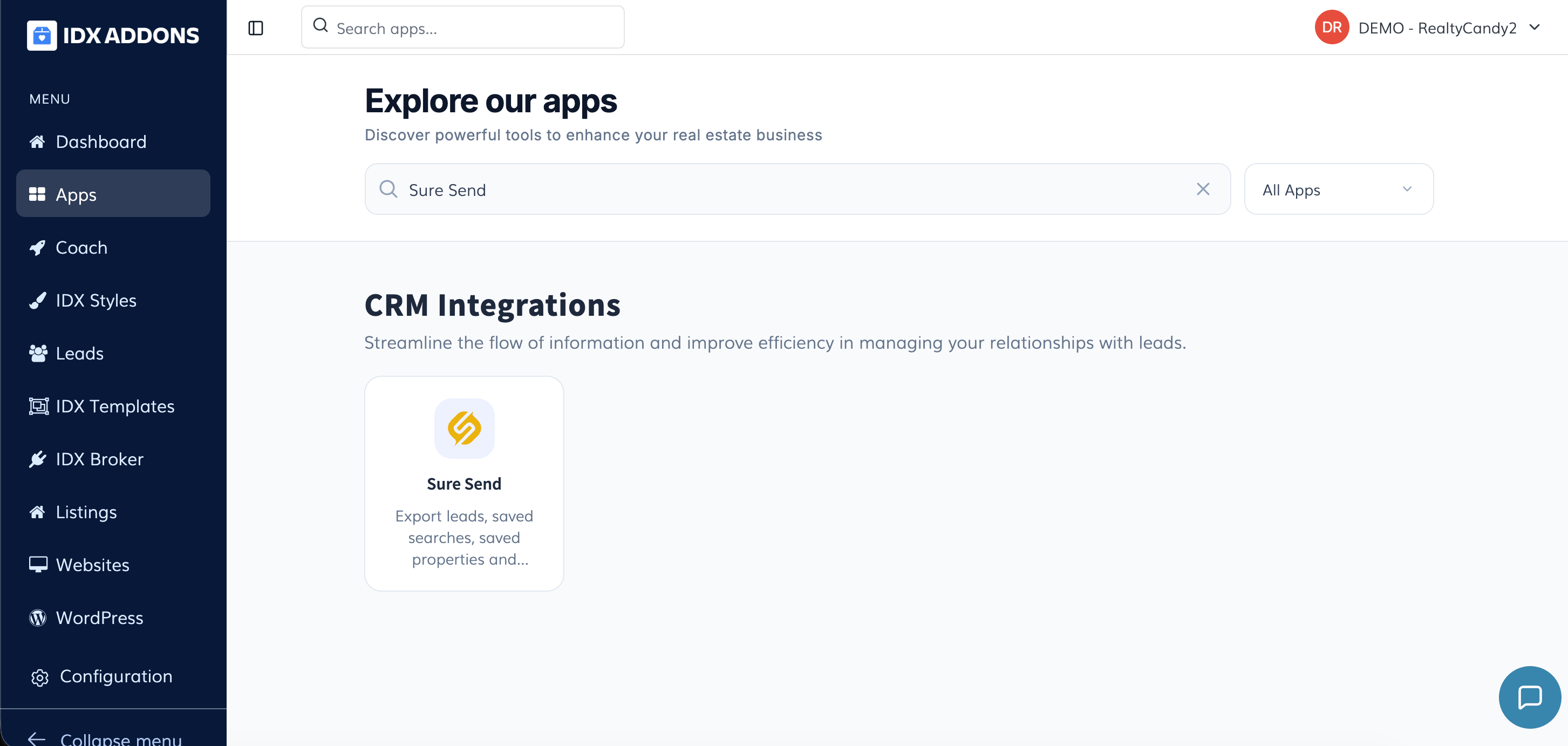
Log in to your IDXAddons platform and open the Sure Send app.
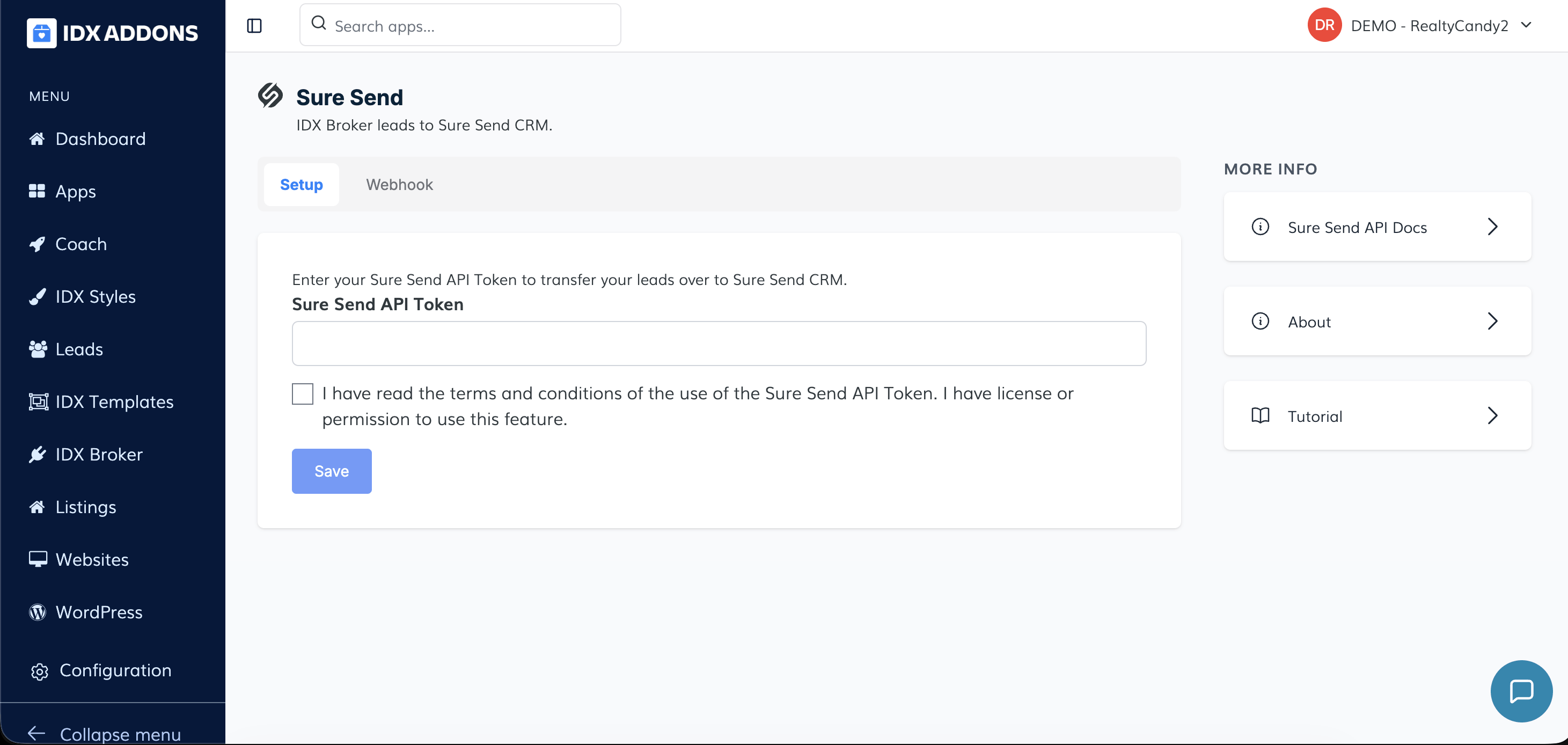
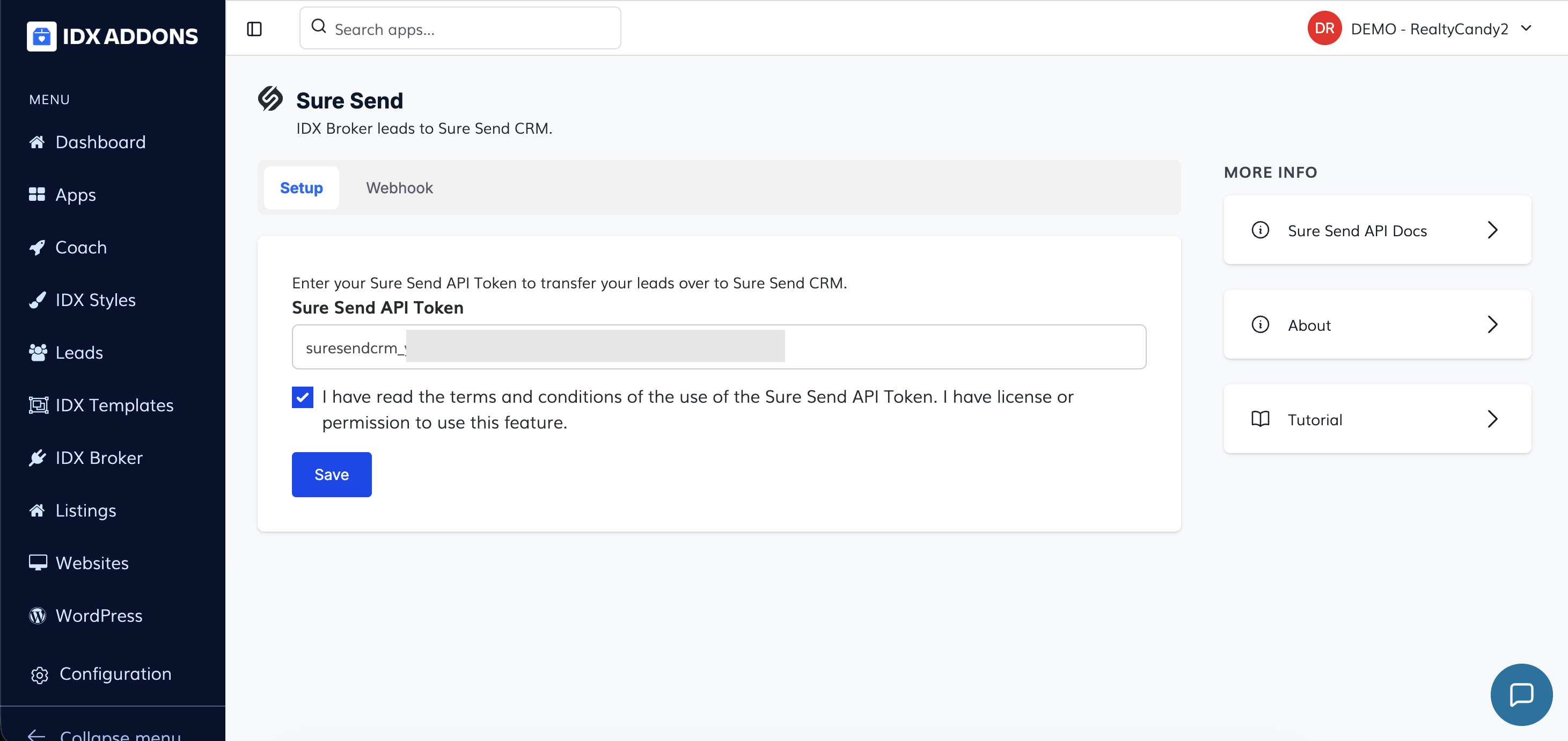
When entering the app, the first tab you will see is the Setup tab.
Inside this section, you will find a field where you must enter your Sure Send API Token in order to transfer your leads to Sure Send CRM.
You must also check the confirmation box indicating that you have read the terms and conditions and that you have permission or license to use the Sure Send API Token feature.
After completing this step, click Save.
-
Generate Your Sure Send API Token
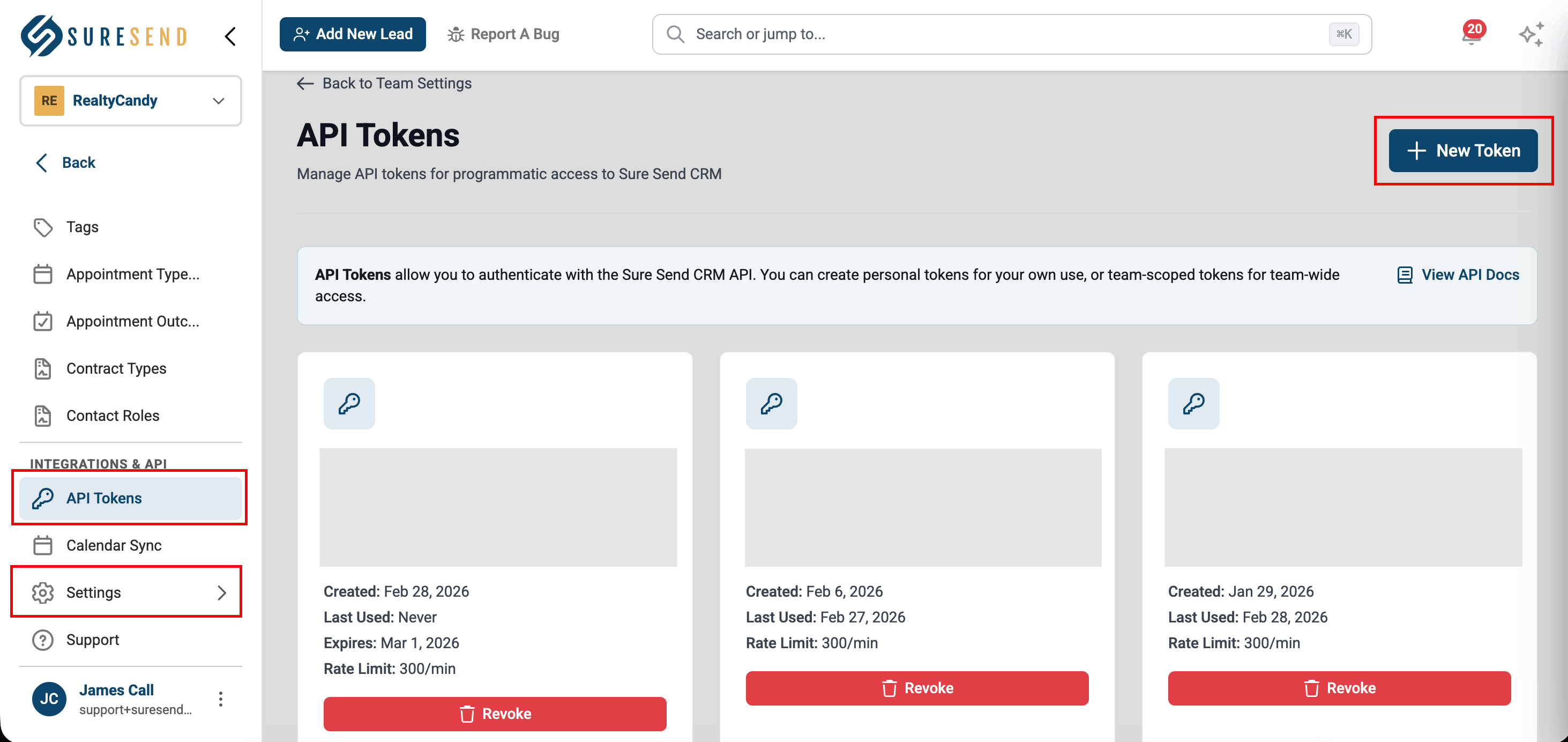
To obtain your API Token, go to the following URL:
Once inside, you will see the API Tokens dashboard.
To create a new token, click the "New Token" button.
A popup window will open where you must complete the following information:
- Token Name
- Scope
- Expiration Date
After filling out the required information, click the "Create Token" button.
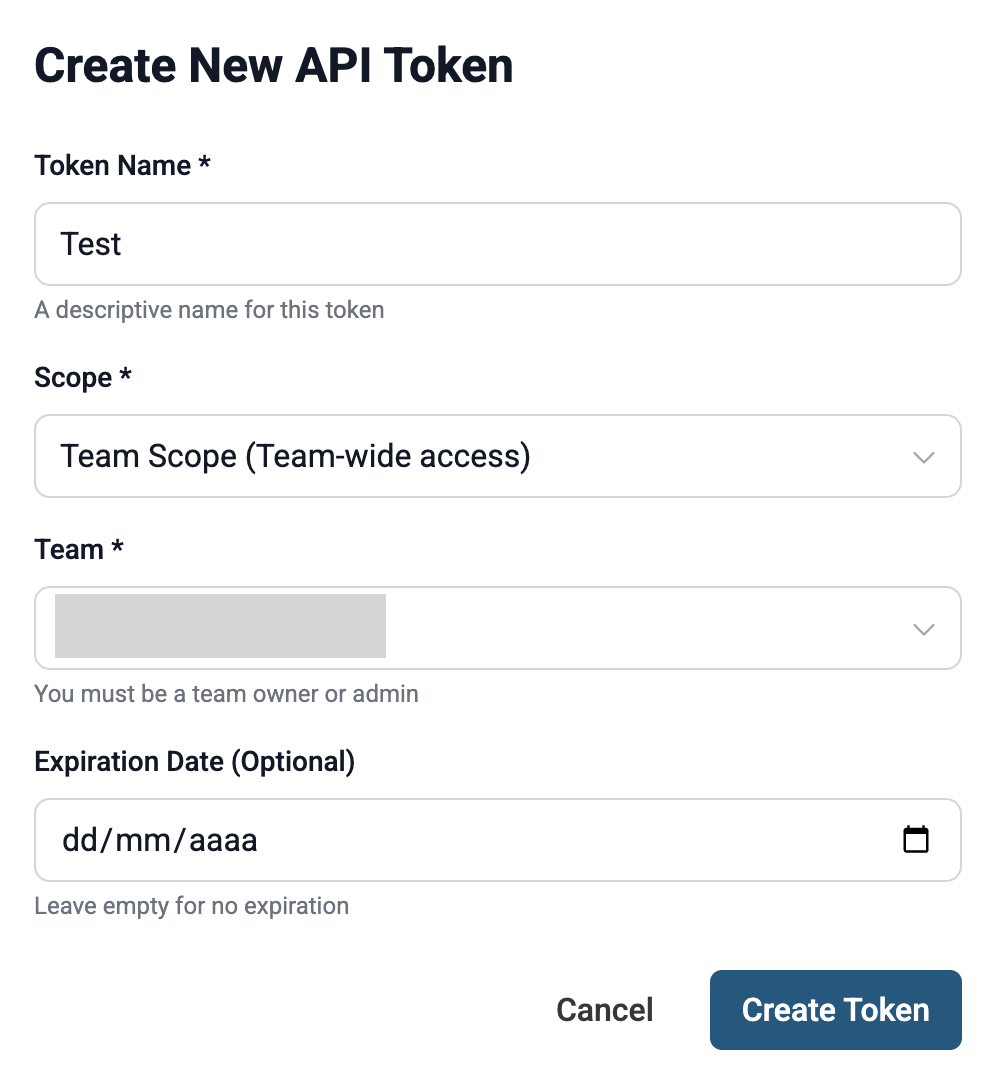
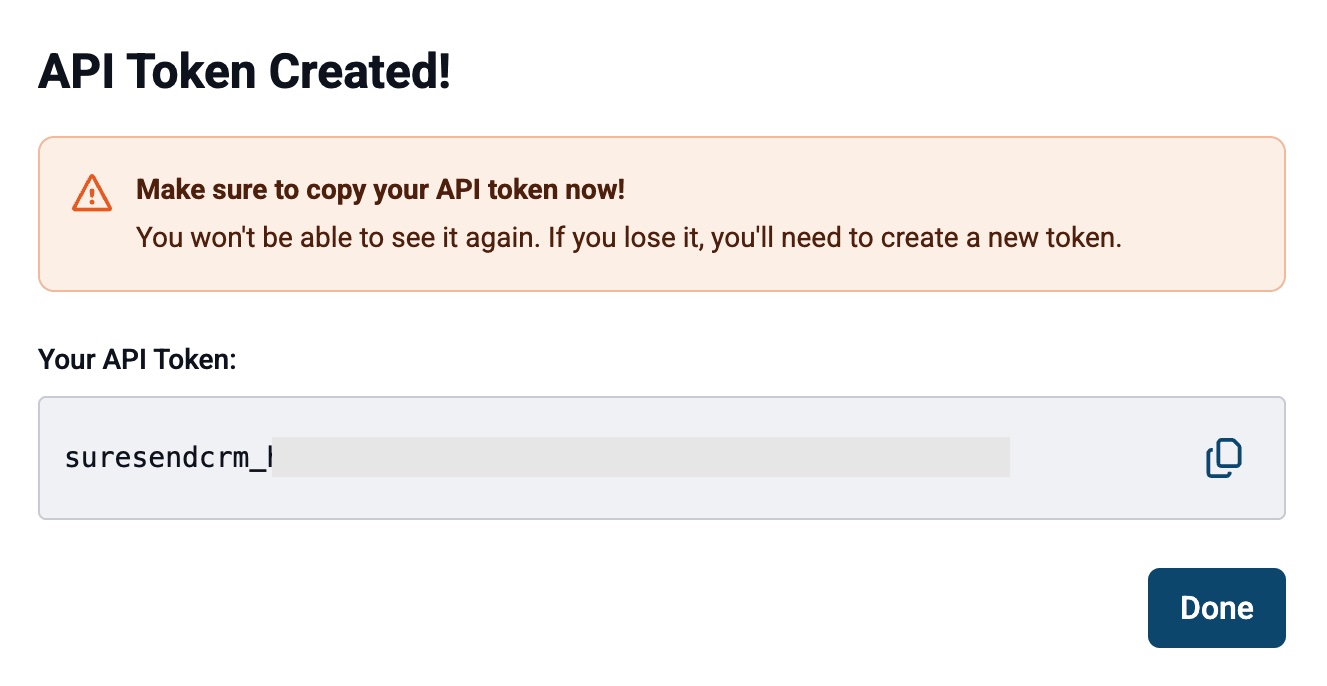
A confirmation popup will appear indicating that the API Token was successfully created.
You must copy the generated token immediately.
Then return to the Sure Send app inside IDXAddons, paste the API Token into the corresponding field, accept the terms and conditions, and click Save.
-
Manual Send or Webhook Integration
After saving your API Token, additional options will be enabled.
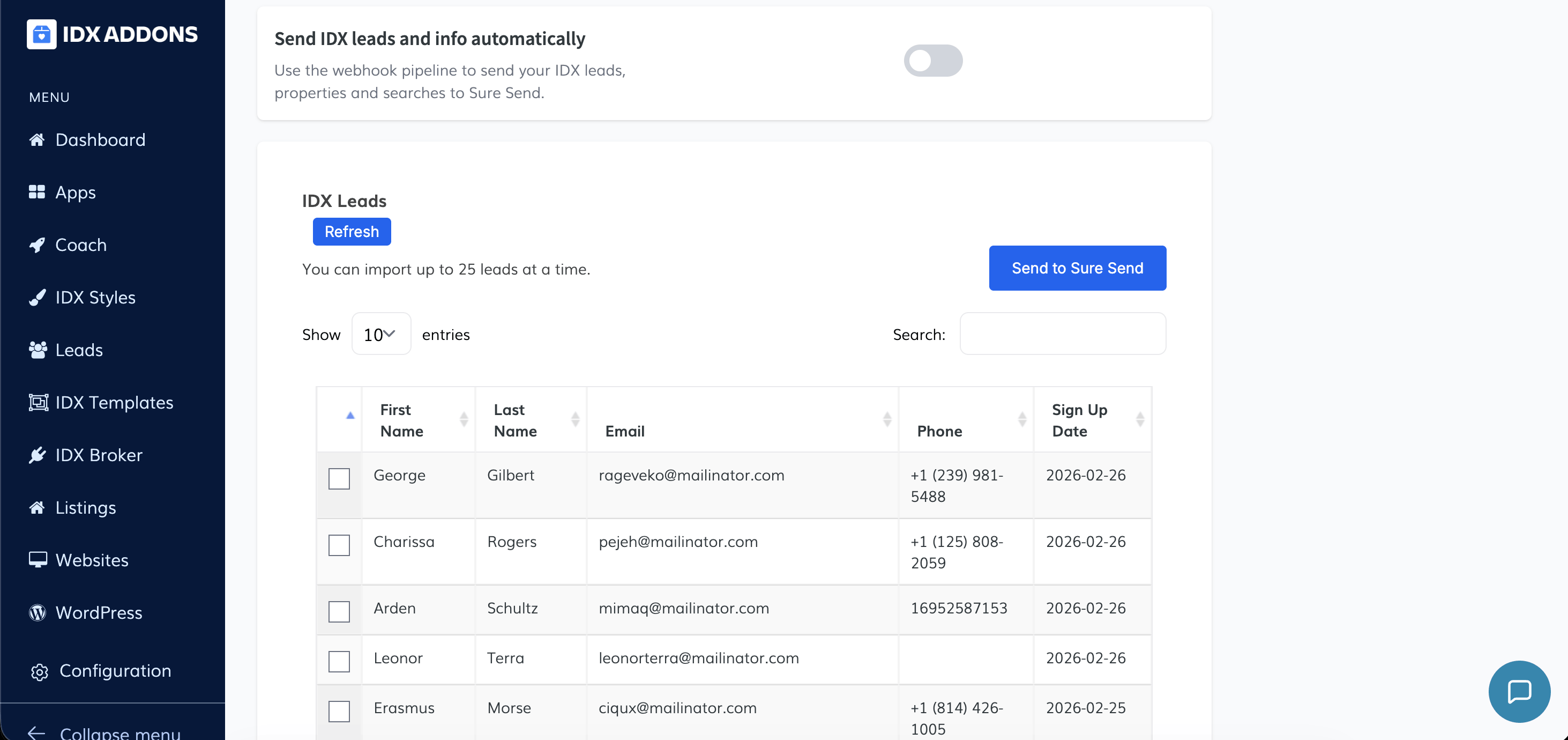
You can manage your leads manually and send them to Sure Send by selecting the leads and clicking the "Send to Sure Send" button.
Alternatively, you can use the Webhook option to automatically send IDX leads, properties, and searches to Sure Send.
To enable automatic syncing, activate the toggle "Send IDX leads and info automatically". This option uses the webhook pipeline to send your IDX leads, properties, and searches directly to Sure Send.
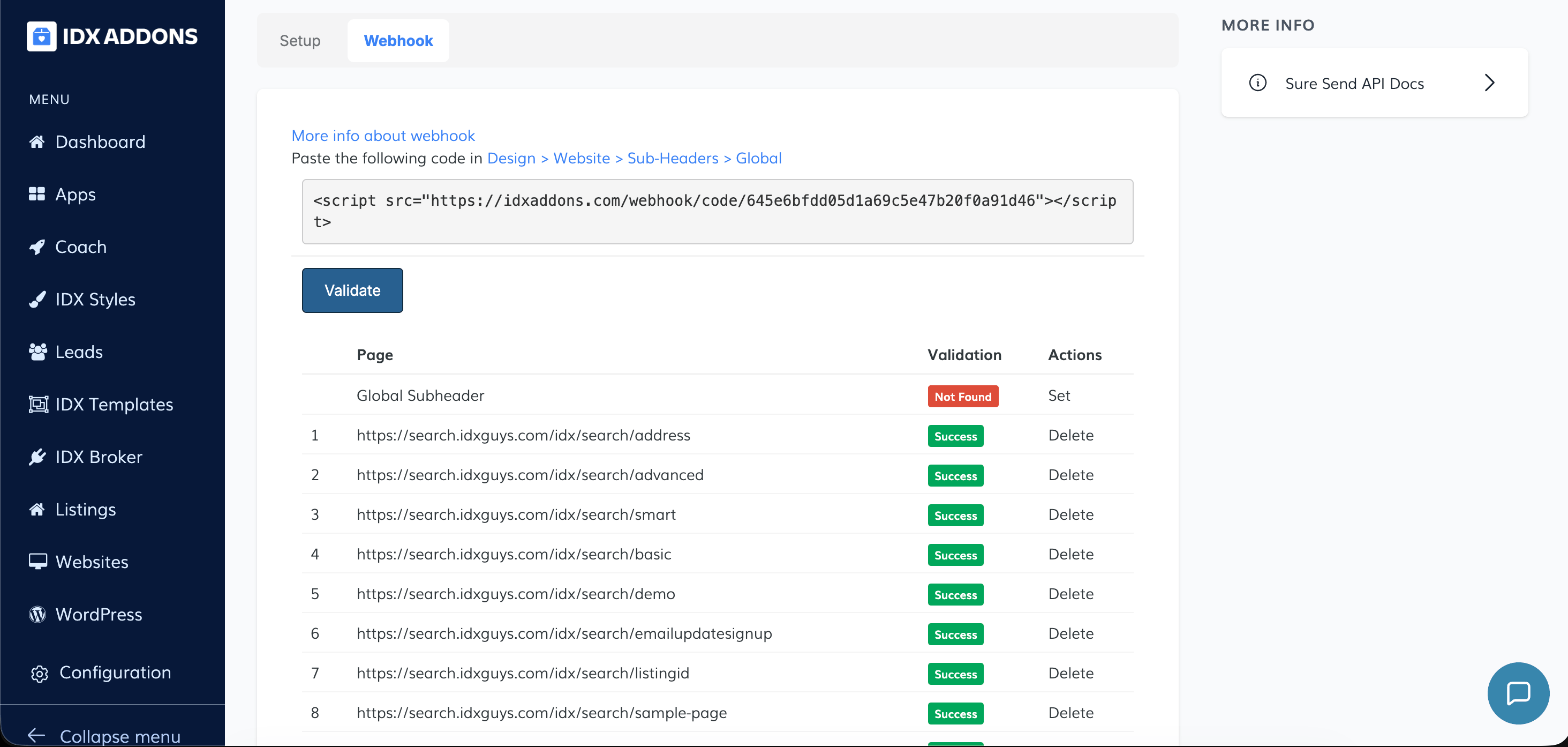
To use the webhook integration:
- Go to the Webhook tab.
- Copy the provided script.
- Paste the code inside: Design > Website > Sub-Headers > Global.
- Click the Validate button inside the app to confirm the webhook has been validated.
Make sure validation is successful before relying on automatic lead transfers.
-
Managing Leads in Sure Send
Inside Sure Send, go to the left-side menu and select All People.
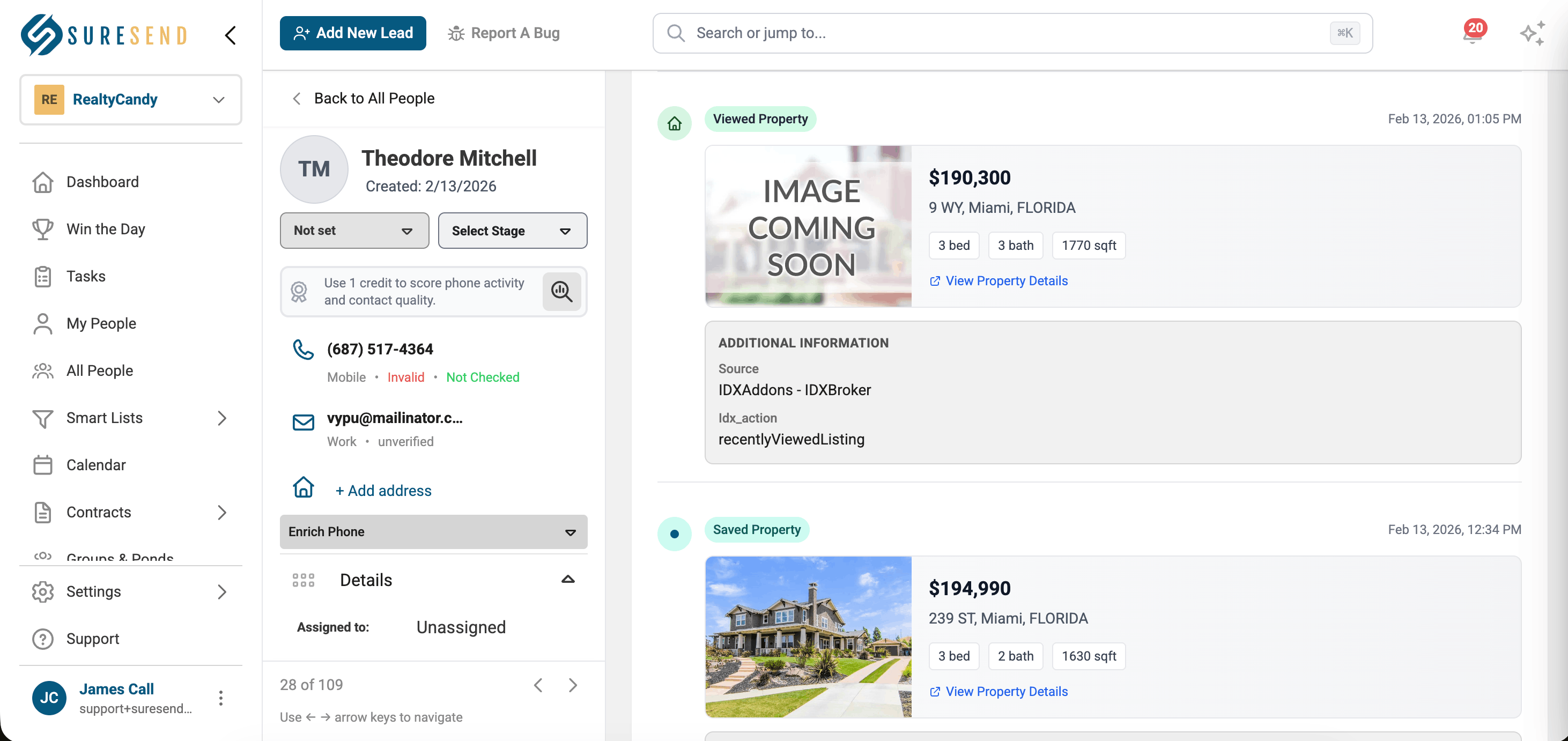
This will open a dashboard where leads are added in real time.
When selecting a specific lead, you will see detailed information about that contact.
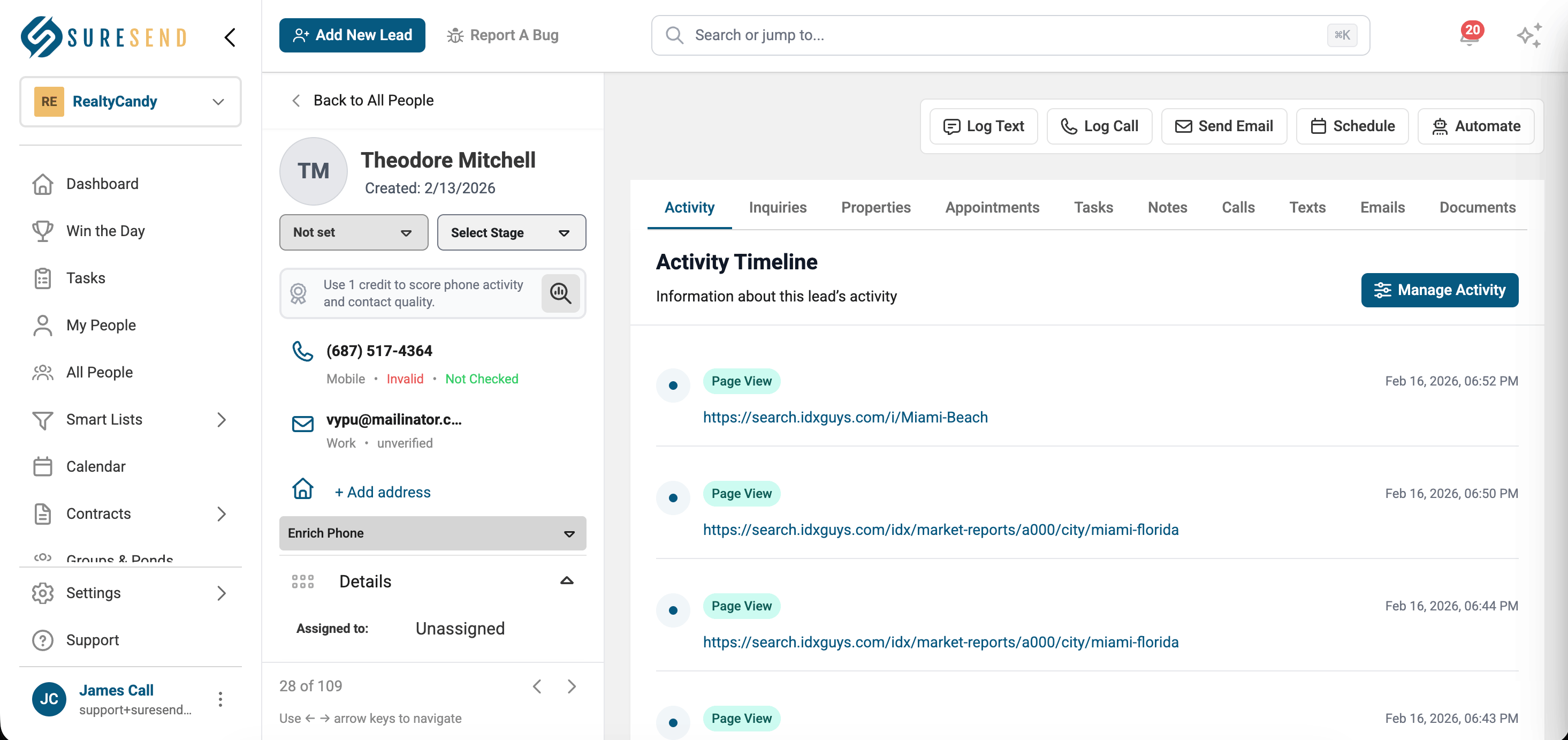
Under the Activity tab, you can view:
- Properties viewed
- Properties saved
- General page views and browsing activity
This allows you to track IDX activity and engagement directly inside Sure Send CRM.