How IDX Broker and HighLevel Work Together
- Last Updated Aug 17, 2026
IDXAddons connects your IDX Broker website with GoHighLevel (GHL) so you can better understand what your leads are doing and follow up with them automatically.
With IDXAddons, you can:
- See what properties your leads are viewing
- See their saved searches and saved properties
- View IDX activity directly from a GHL contact
- Automatically add new GHL leads to IDX Broker
- Send follow-up emails and notifications based on lead activity
- Automate your lead follow-up with GHL workflows
There are three main IDXAddons tools that make this possible:
- HighLevel Dashboard – See your leads' IDX activity in one place.
- IDX Button – See a contact's IDX activity directly from their GHL contact record.
- Workflow Snapshot – Use pre-built GHL workflows to automate lead follow-up and send leads from GHL to IDX Broker.
This article explains what each tool does and how to get started.
HighLevel Dashboard
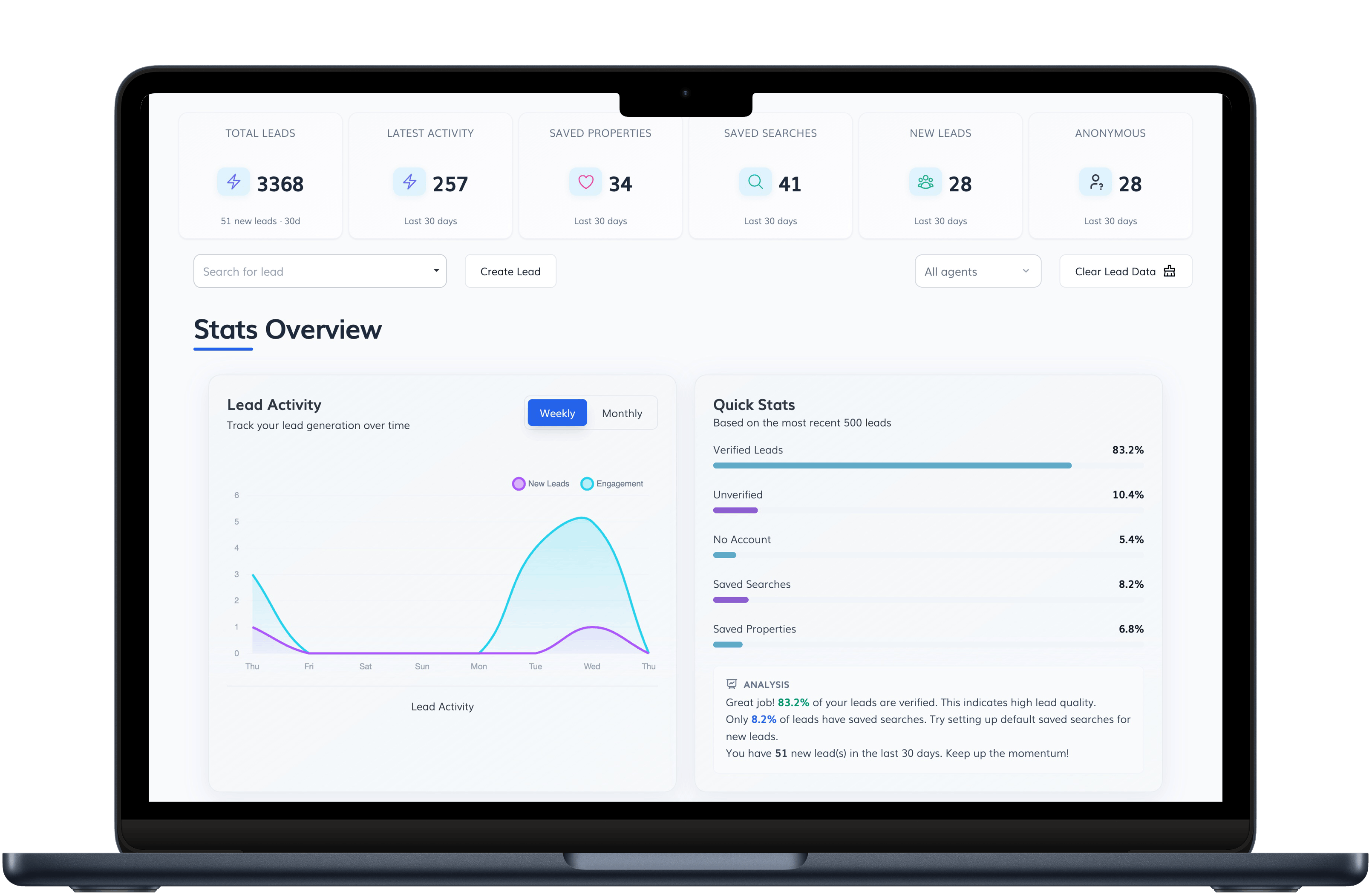
The HighLevel Dashboard lets you see what your leads are doing on your IDX Broker website directly inside IDXAddons.
You can see things like:
- Properties a lead has viewed
- Saved searches
- Saved properties
- Recent activity
This means you can review your leads' IDX activity without having to log in to IDX Broker separately.
How to set it up
- Go to the HighLevel Dashboard app in IDXAddons.
- Connect your GHL account by following the prompts to authorize IDXAddons.
- Select the GHL sub-account you want to connect.
- IDXAddons will create the custom fields needed to store IDX activity in GHL. These fields allow you to use IDX activity in your GHL workflows and automations.
- IDXAddons will then add a webhook to your IDX Broker website. This allows IDX Broker to send your leads' activity to the HighLevel Dashboard.
- Follow the remaining steps in the setup wizard to finish the connection.
What happens after setup?
Once setup is complete, your leads' IDX activity will automatically start appearing in the dashboard.
You can then make the dashboard easy to access from GHL by:
- Adding it as a Custom Menu Link in your GHL sub-account, or
- Adding it as a widget to your HighLevel Dashboard.
For detailed instructions, including screenshots and troubleshooting tips, see the HighLevel Dashboard Tutorial.
IDX Button
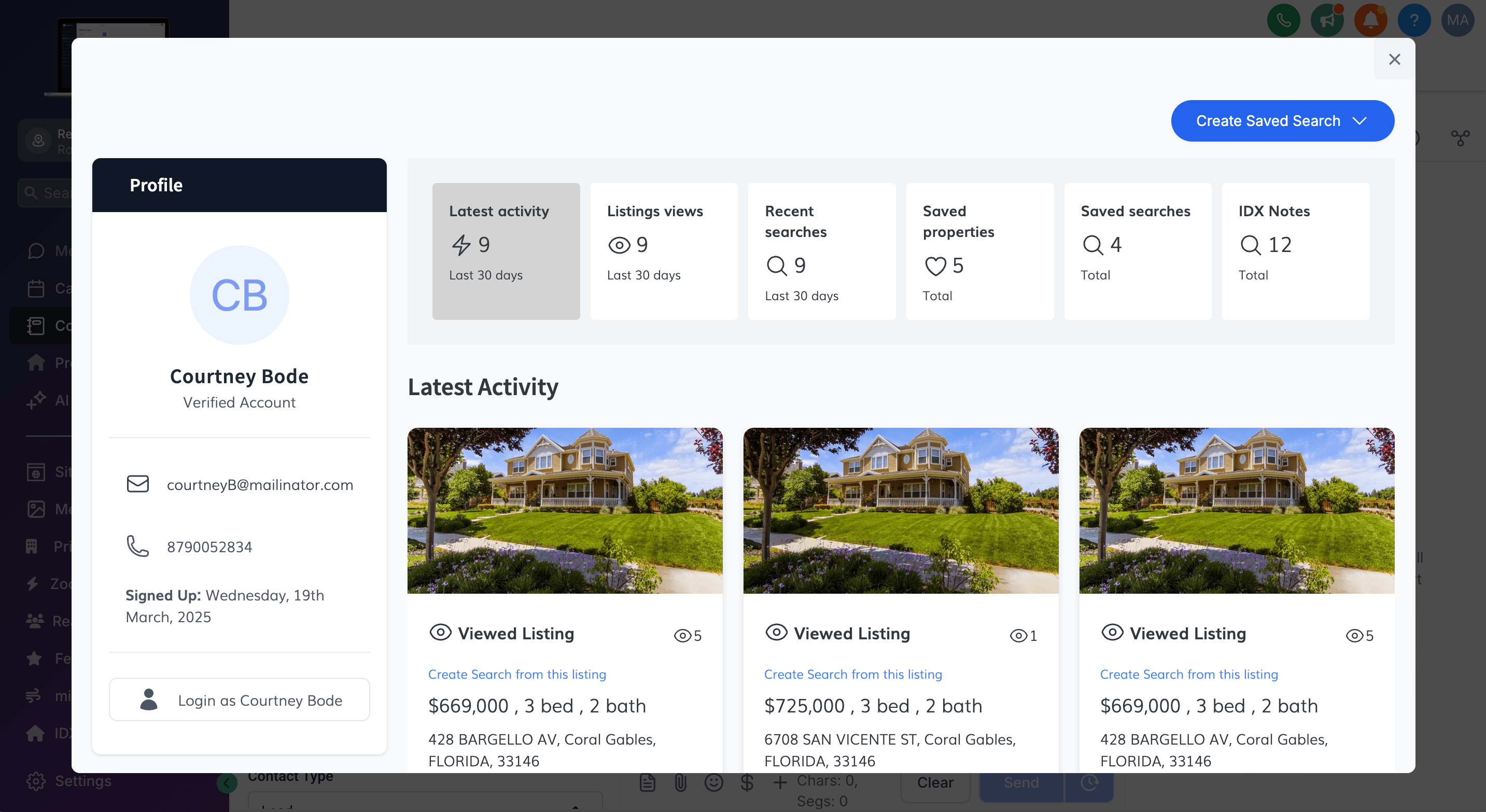
The IDX Button lets you see a contact's IDX Broker information directly from their GHL contact record.
When you click the button, you can see:
- Properties the contact has viewed
- Saved searches
- Saved properties
- Notes
- Other IDX activity
This makes it easier to understand what a lead is interested in without leaving the GHL contact record.
How to set it up
The setup depends on how you use GHL:
Agency accounts
If you manage multiple GHL sub-accounts, go to your Agency Dashboard. From there, you can choose which sub-accounts should have access to the IDX Button.
Realtors and individual GHL users
Go to the IDX Button setup page for instructions on adding the button to your GHL contact records.
Once it's set up, you can open a contact in GHL and quickly see their IDX activity without switching to another platform.
For more information, see the IDX Button guide.
Workflow Snapshot
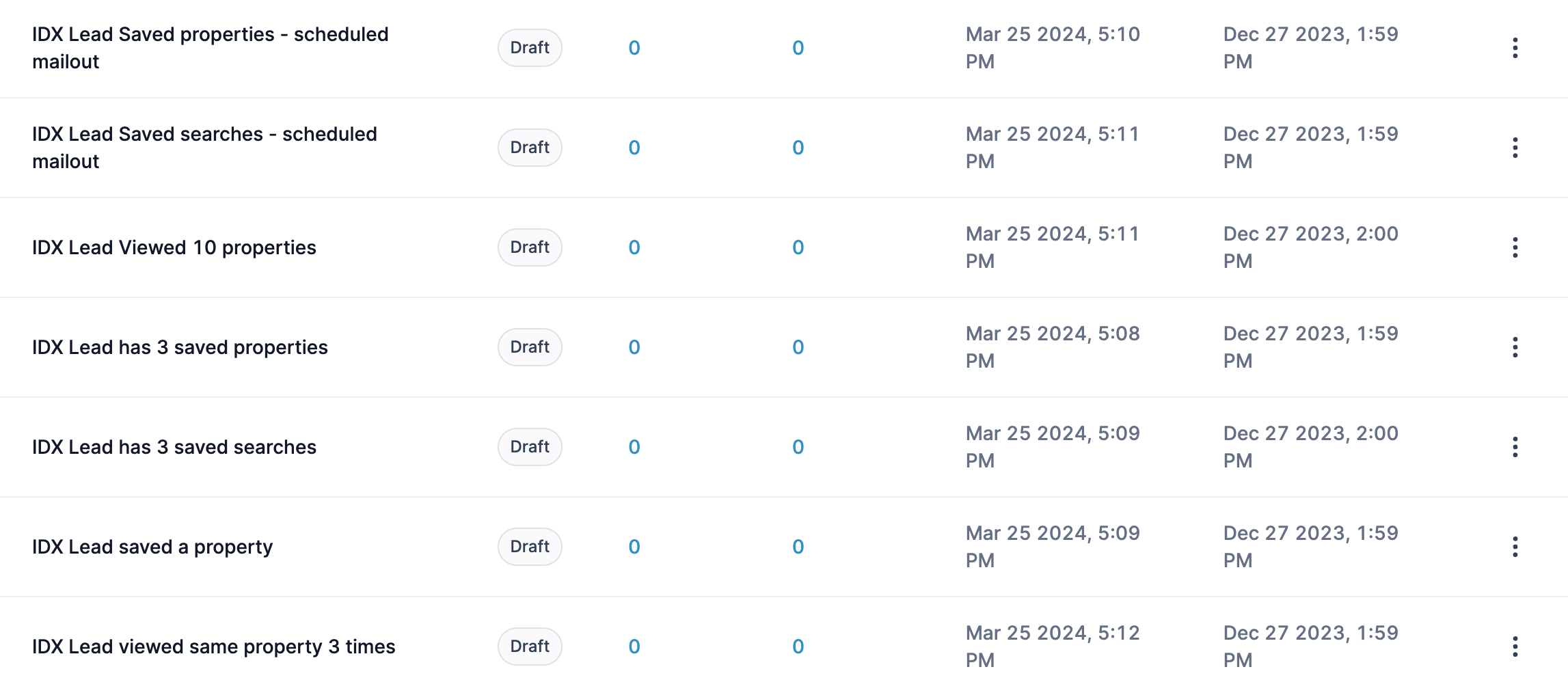
The Workflow Snapshot gives you a set of pre-built GHL workflows that you can install for free.
These workflows are designed to help real estate agents:
- Follow up with leads automatically
- Receive notifications about lead activity
- Score and organize leads
- Keep GHL and IDX Broker leads in sync
- Send listing alerts to new leads
You don't have to build these workflows from scratch. The snapshot gives you a starting point that you can install and customize for your business.
Automatically add GHL leads to IDX Broker
One of the most useful workflows can automatically send new GHL leads to IDX Broker.
For example:
A new lead fills out a form on your GHL website or landing page. The workflow automatically creates that lead in IDX Broker and can also create a saved search based on the lead's preferences. The lead can then start receiving listing alerts.
This is especially useful if you collect leads from multiple sources and want them to automatically appear in both GHL and IDX Broker.
How to get started
Visit the Snapshot Overview to learn more about the available workflows.
To download the snapshot and access the full setup guide, including the required custom fields and workflow configuration, visit: HighLevel Free Snapshot.
Which tool should I use?
Not sure where to start? Here's a quick overview:
| If you want to... | Use... |
|---|---|
| See what your leads are doing on your IDX website | HighLevel Dashboard |
| See a specific contact's IDX activity while viewing them in GHL | IDX Button |
| Automatically follow up with leads and connect GHL leads to IDX Broker | Workflow Snapshot |
You can use these tools together to create a more complete lead management system.
For example, the Workflow Snapshot can help bring a new lead into IDX Broker, the HighLevel Dashboard can show you what that lead is doing, and the IDX Button lets you see that activity directly from the lead's GHL contact record.
Next Steps
- Explore all HighLevel tools and features: GHL Features
- Browse all HighLevel articles: HighLevel Knowledge Base
- Need help? Contact Support