-
Purpose
This guide will show you how to create an AI Agent from scratch, connect it to the IDXAddons MCP server, and run tests using advanced tools such as Search Listings and Home Valuation.
-
Create a New Agent
Log in to your platform here. In the left main menu, go to AI Agents and then select the Agent Studio tab.
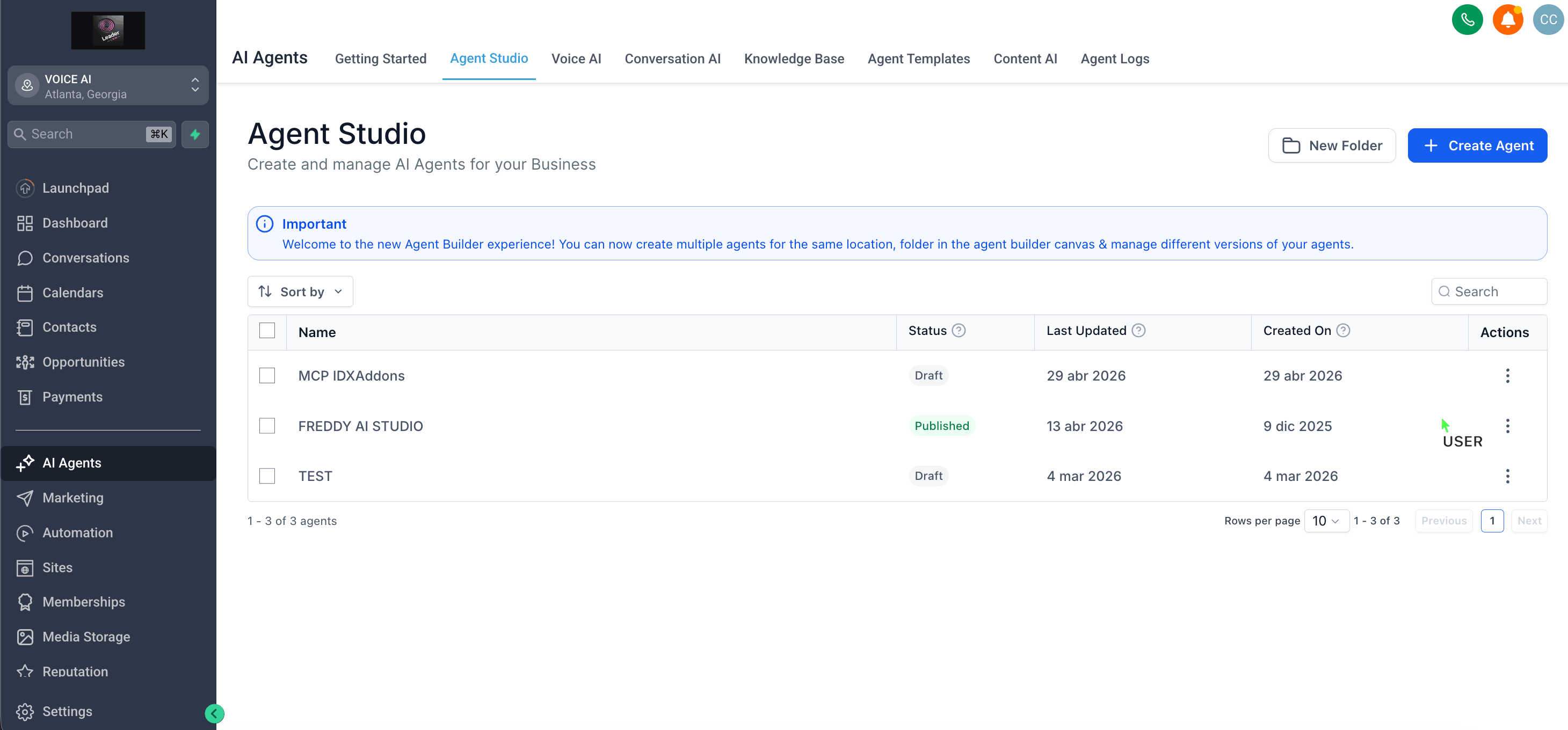
Click the blue + Create Agent button. A popup window will appear where you need to set up your new agent:
- Name: Give your agent a descriptive name (for example: "MCP IDXAddons").
- Description: You can leave the default text or add a short description of what this agent will do.
Once filled out, click the blue Create Agent button at the bottom right to continue to the canvas.
-
Build the Agent Flow
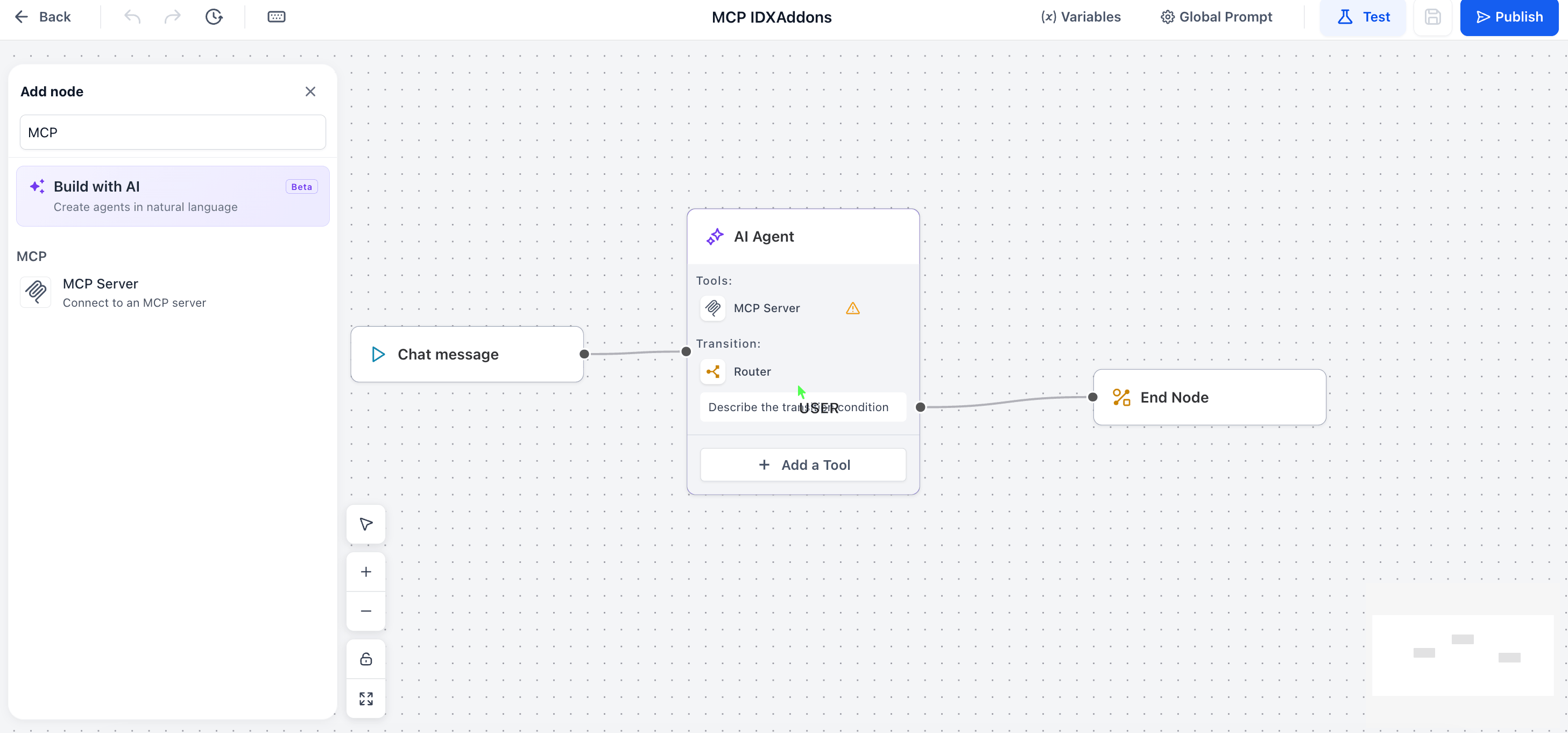
Once inside the Agent Studio canvas, you need to set up the basic communication flow:
- Select Chat message as your trigger.
- Add the MCP Server node from the left sidebar.
- Add the End Node.
- Connect the three nodes in sequence: Chat message -> MCP Server -> End Node.
-
Configure the MCP Server
To connect your agent, you first need your unique MCP credentials. Open a new tab and navigate to the IDXAddons MCP Server Dashboard.
On the right side of the screen, locate the CONNECT YOUR AI CLIENT section. Keep this page open, as you will need to copy the MCP Server URL and the Auth — Bearer Token.
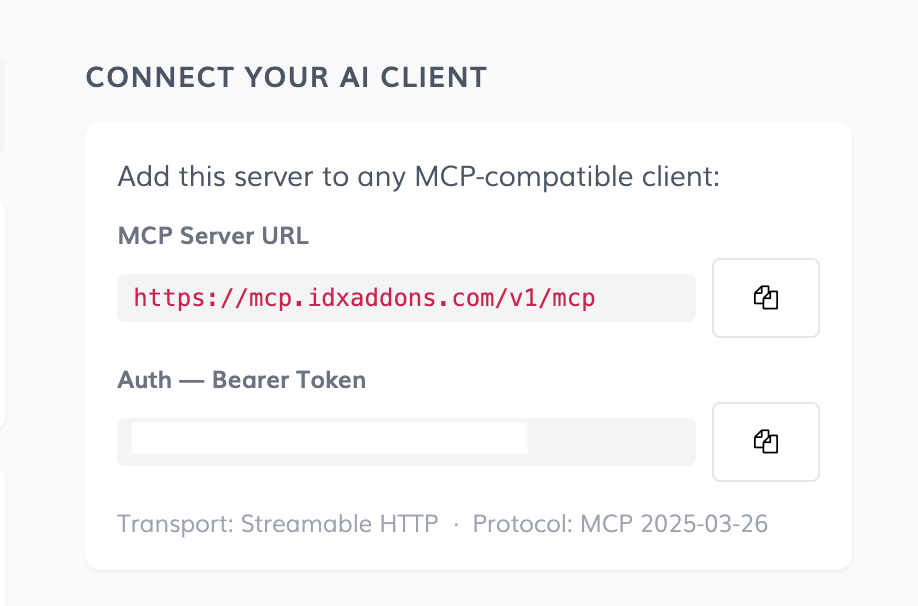
Now, go back to your Agent Studio canvas and click on the MCP Server node to open its configuration panel on the right. Set it up as follows:
- AI Agent Prompt: Click on the main AI Agent node. In the right panel, under the Prompt field, enter: "Real estate agent expert using IDXAddons tools."
- MCP Server Instructions: Next, open the MCP Server configuration panel. Under the Instructions field, enter the exact same text: "Real estate agent expert using IDXAddons tools."
- Server URL: Paste the URL you just copied from your IDXAddons dashboard.
- Server Label: Type a descriptive name, like "IDXAddons".
- Headers: Click + Add Item. In the first box, type
Authorization. In the second box, typeBearerfollowed by a space and the token you copied from IDXAddons (it should look like Bearer 5UNkdY...).
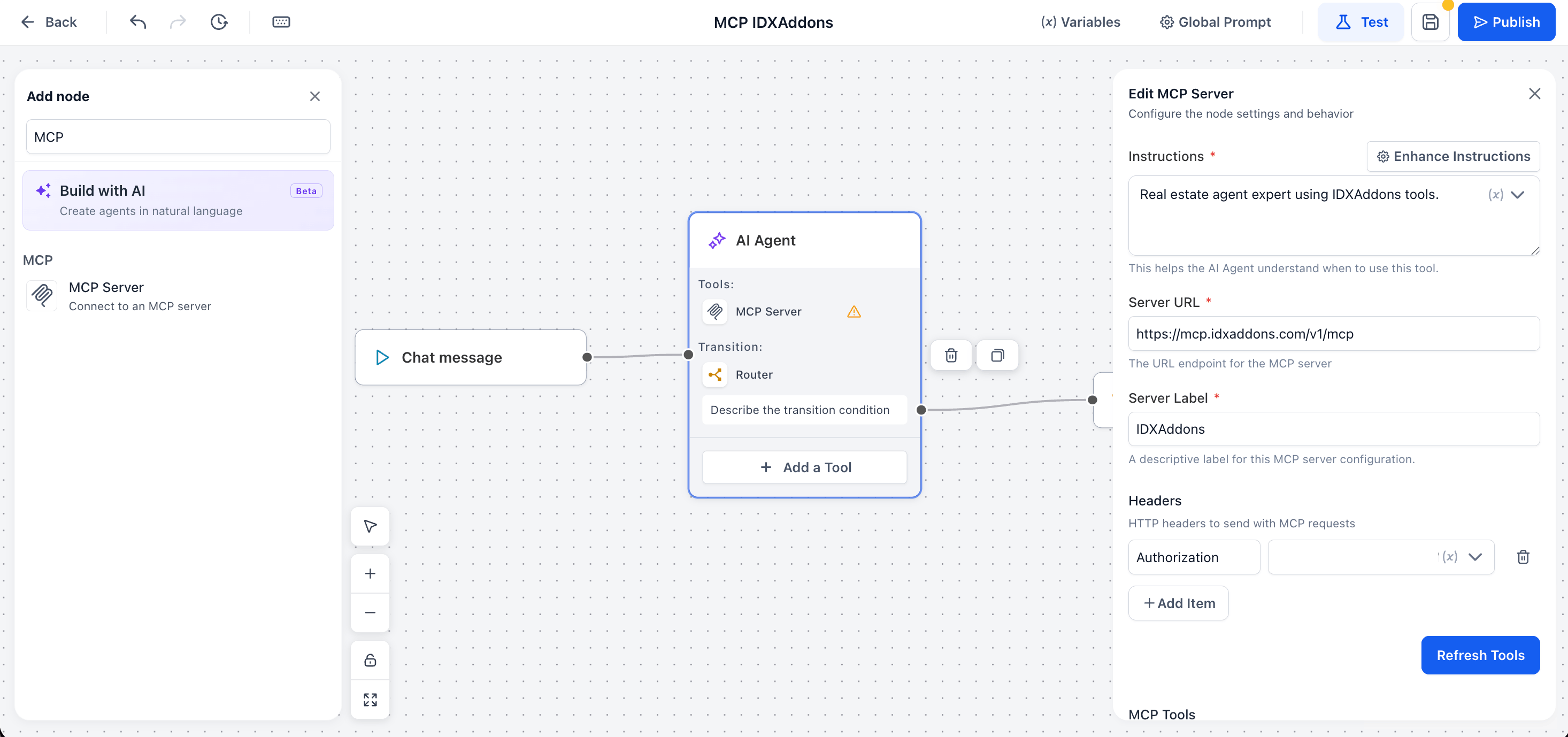
Once the fields are filled out, click the blue Refresh Tools button at the bottom of the panel.
The platform will fetch the available tools from IDXAddons. Scroll down to the MCP Tools section and check the Select All box to activate every tool (such as
search_listings,get_home_valuation, etc.).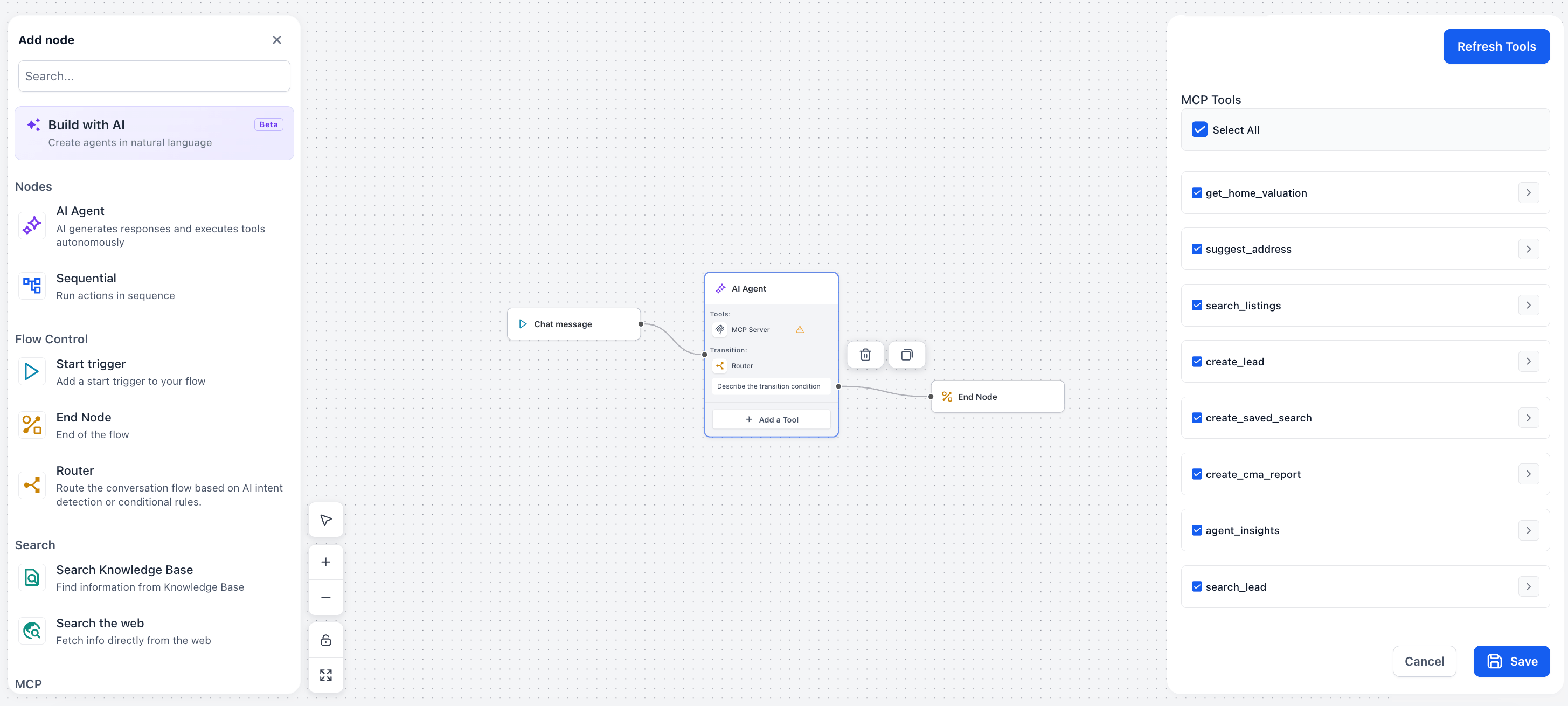
Click the blue Save button at the bottom of the configuration panel. Finally, make sure to click the main Save button located at the top right of your main screen (just to the left of the Publish button) to save the entire canvas flow.
-
Test Your Agent
Now it's time to test your agent and see the connected tools in action. To start, click the Test button located at the top right corner of the Agent Studio screen (next to the Publish button). This will open a chat window on the right side.
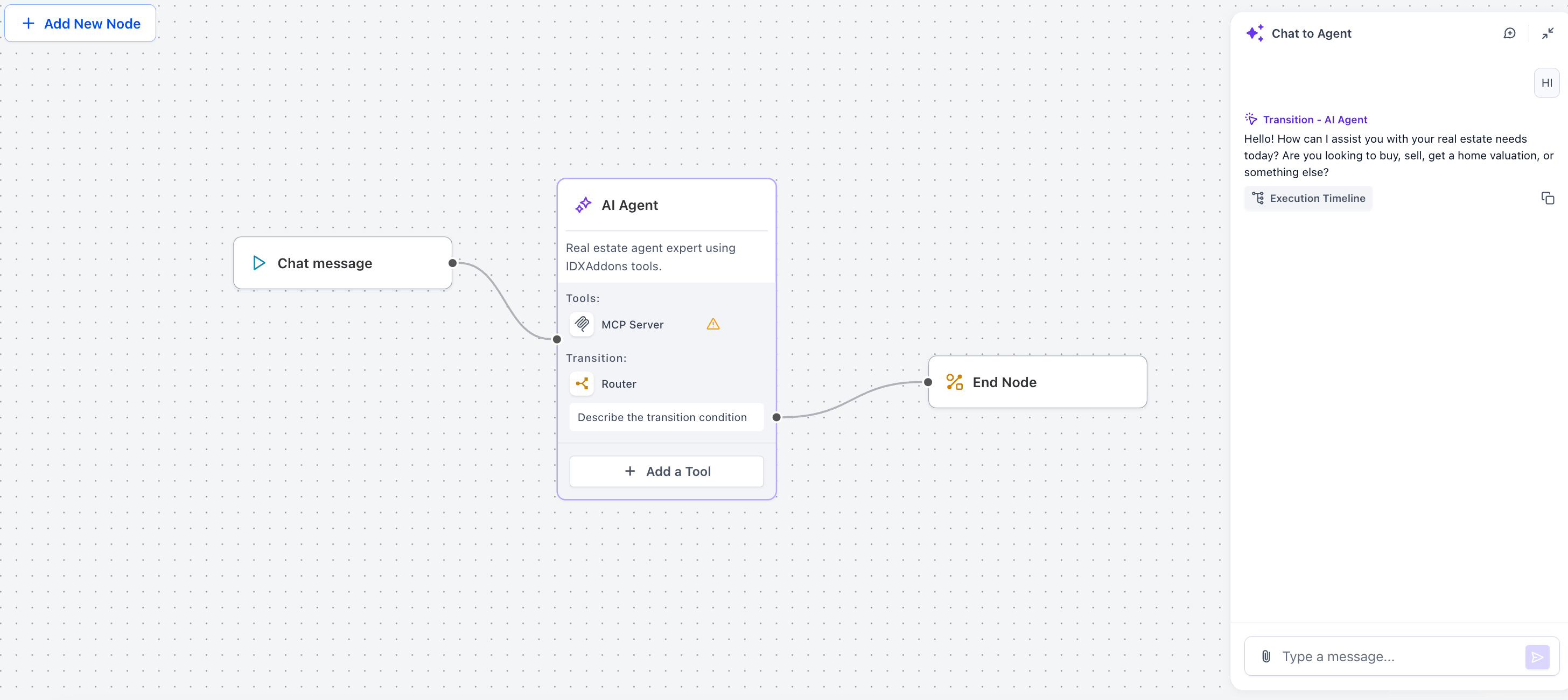
You can test different MCP tools by typing natural language prompts into the chat. The AI will automatically detect your intent and trigger the appropriate IDXAddons tool. Here are some prompt examples you can use to test the different functionalities:
-
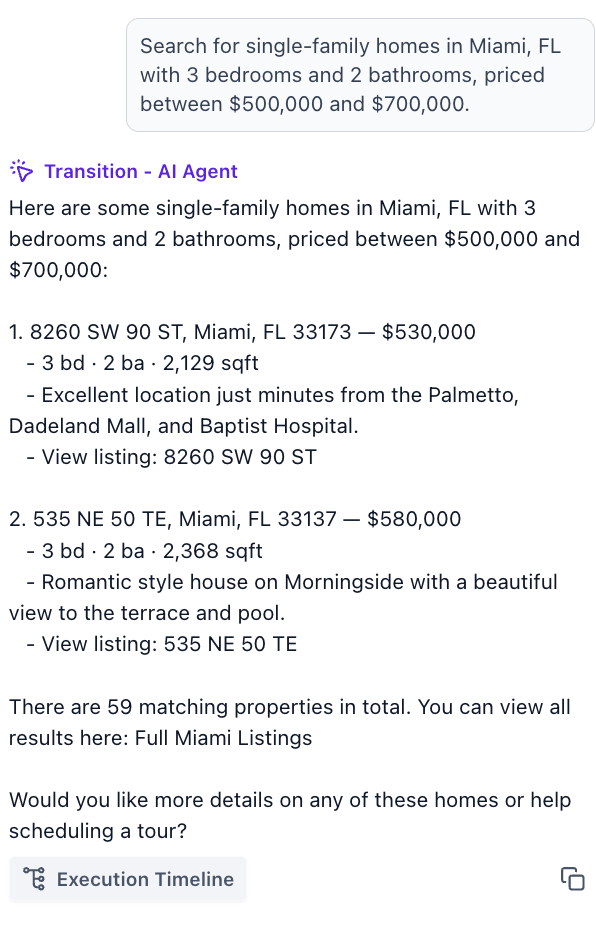
Search Listings (
search_listings)"Search for single-family homes in Miami, FL with 3 bedrooms and 2 bathrooms, priced between $500,000 and $700,000."
⚠️ Note: Property search results cap at 5 listings to conserve bandwidth, accompanied by a link to view the full list of results.
-
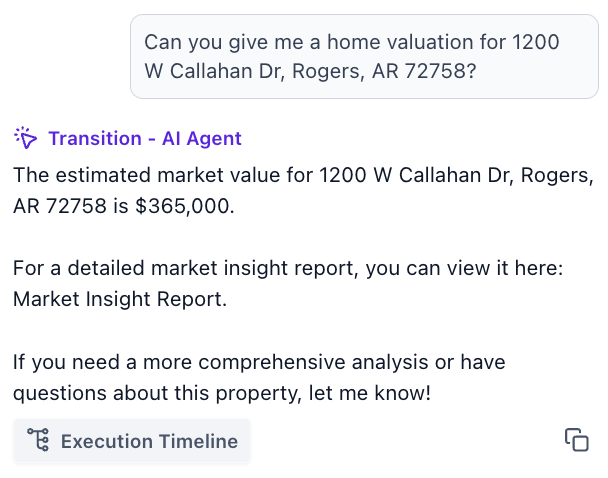
Home Valuation (
get_home_valuation)"Can you give me a home valuation for 1200 W Callahan Dr, Rogers, AR 72758?"
⚠️ Note: You must provide the exact address, including city, state, and zip code. Also, address confirmation is required before running the valuation.
-
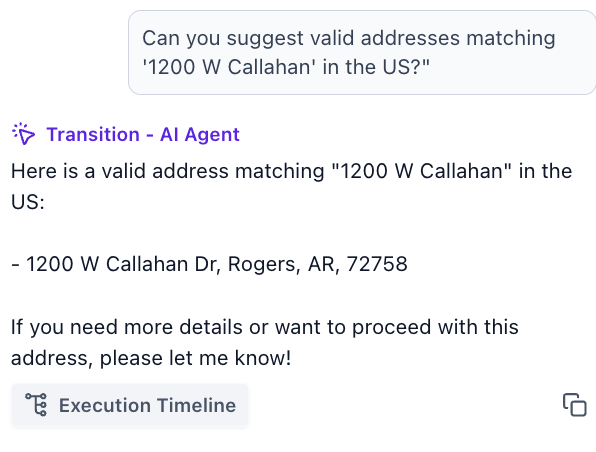
Address Autocomplete (
suggest_address)"Can you suggest valid addresses matching '1200 W Callahan' in the US?"
-
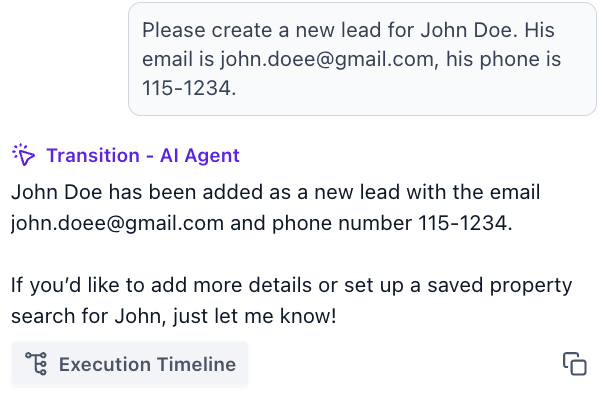
Create Lead (
create_lead)"Please create a new lead for John Doe. His email is john.doe@gmail.com, his phone is 555-1234."
-
Search Lead (
search_lead)"Can you find a lead in my database with the email john.doe@gmail.com?"
⚠️ Note: The
search_leadtool is email-only. It searches exclusively by email address.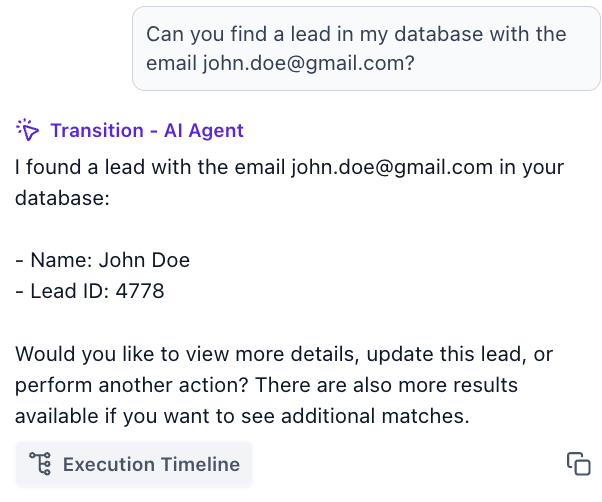
-
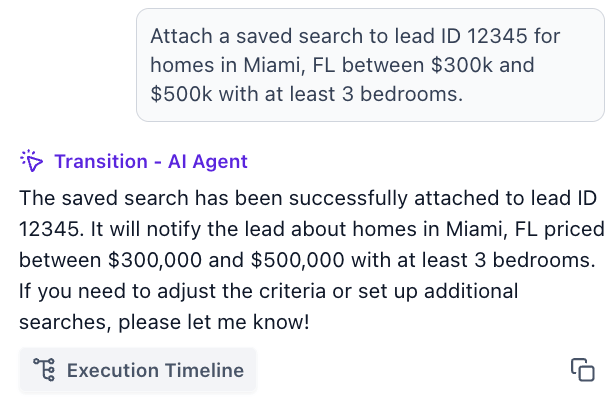
Create Saved Search (
create_saved_search)"Attach a saved search to lead ID 12345 for homes in Miami, FL between $300k and $500k with at least 3 bedrooms."
-
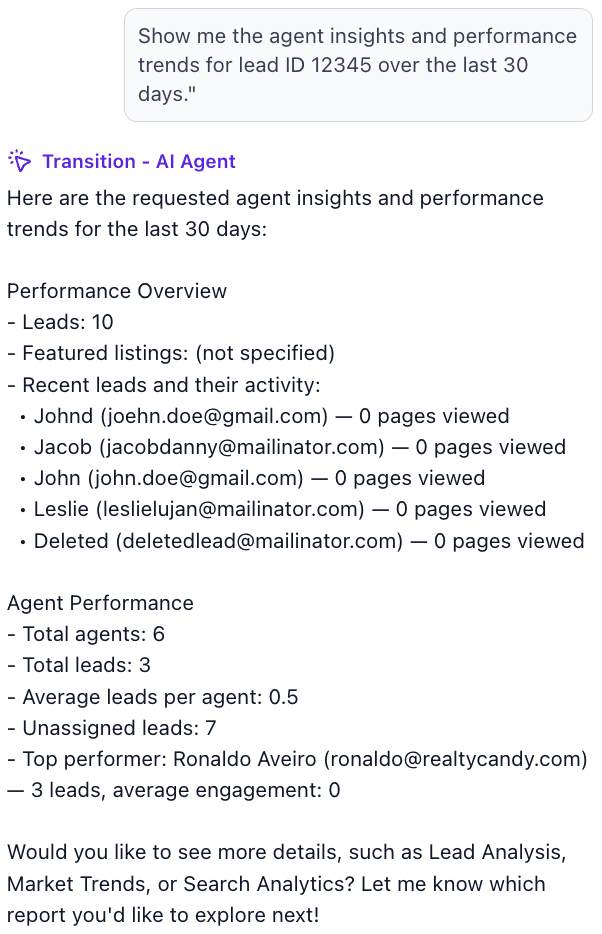
Agent Insights (
agent_insights)"Show me the agent insights and performance trends."
The agent can generate the following report types:
- Lead Insights — List of recent leads.
- Lead Analysis — Prioritized and qualified leads with interaction metrics and follow-up recommendations.
- Performance — General overview combining leads and featured properties.
- Market Trends — Interest trends in the market based on saved searches.
- Property Views — Featured properties sorted by number of views.
- Search Analytics — Analysis of search patterns and popular criteria.
- Agent Performance — Distribution of leads and interaction metrics by agent.
-
Create CMA Report (
create_cma_report)"Generate a CMA report for the address 7605 SW 173 ST, Palmetto Bay, FL 33157. The property has 4 bedrooms, 3 bathrooms, 2500 square feet, and an estimated value of $650,000."
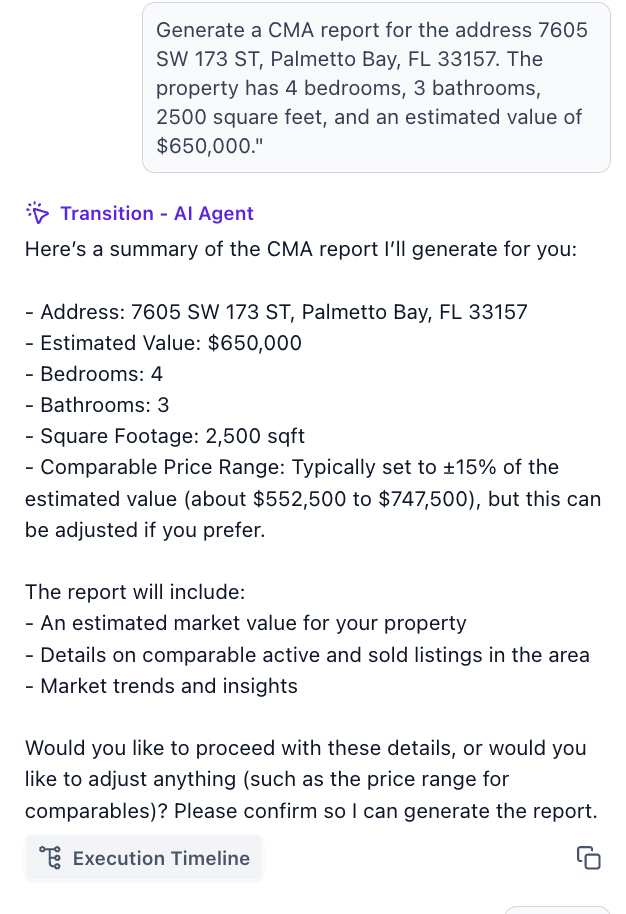
Note: Even if you provide all the necessary information upfront, the AI agent will always generate a summary of the data and ask you to confirm the details before creating the final report. If everything looks good, simply reply with "proceed". If you need to change anything, you can adjust the criteria here.
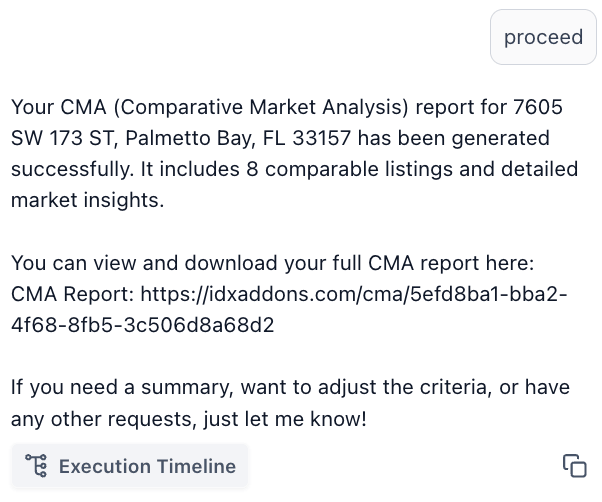
Once the agent processes your request, it will return the requested real estate data, confirm the action, or provide direct links to full results and reports from IDXAddons.
-
-
Workflows, Limits & Gotchas
Here are the key workflows, limits, and gotchas required by the MCP server that you should implement when building your agent's instructions:
Mandated Workflows
-
1. Address Confirmation: Before calling
get_home_valuation, the agent must verify or suggest addresses usingsuggest_address. -
2. Lead Lifecycle Chaining: When working with leads, the agent must first search for the lead (
search_lead), create it if missing (create_lead), and then attach the saved search (create_saved_search). -
3. Explicit CMA Confirmation: The agent must present a summary of the parameters and ask for explicit user confirmation before generating a Comparative Market Analysis (
create_cma_report). - 4. Interactive Agent Insights: When querying agent performance, the agent should present a clean interactive menu listing the available insight types.
Server Gotchas & Limits
-
Snake Case Names: All real tools use
snake_casetool names (e.g.search_listings,get_home_valuation, etc.), not kebab-case. -
Email-Only Search: The
search_leadtool queries leads solely by their email address. - Account-Specific City Coverage: City searches depend on the active account coverage. If a city (e.g. "Miami") isn't covered, the server returns plain-text instructions which the model must follow to prompt the user for an alternative city or zip code.
-
Rate Limits & Caps: The server limits requests to 30 per minute. Property listings (
search_listings) are capped at 5 results with a link for the full dataset.
-
1. Address Confirmation: Before calling
🚀 You're All Set!
You have successfully configured and tested the IDXAddons MCP Server. Now you can use all these powerful real estate tools directly inside your AI Agents! Your agent is officially equipped to act as a highly capable real estate assistant, ready to handle property searches, lead generation, and market analysis on autopilot. Happy building!